Assign and Edit Animation Paths in Blender
Creating movement for your objects in Blender involves defining a path between keyframes. This process, essential for bringing your scenes to life, is based on setting properties at specific moments in time and letting the software interpolate the intermediate values. 🎬
Setting the Animation Keyframes
To begin, select the element you want to animate in the 3D viewport. Navigate in the timeline to the moment where the change should start and press the I key. In the dropdown menu, choose which attribute to record, such as position in space or rotation angle. Then, advance the cursor to another moment, modify the object's location or orientation, and insert another keyframe. Automatically, a transition will be generated between both states.
Basic steps to animate:- Select the model or camera that will move.
- Use the I key to mark properties at a specific time.
- Repeat the process at another moment with a different state to create the movement.
Digital animation is the illusion of change, created by recording modified values over time.
Modify Interpolation with the Graph Editor
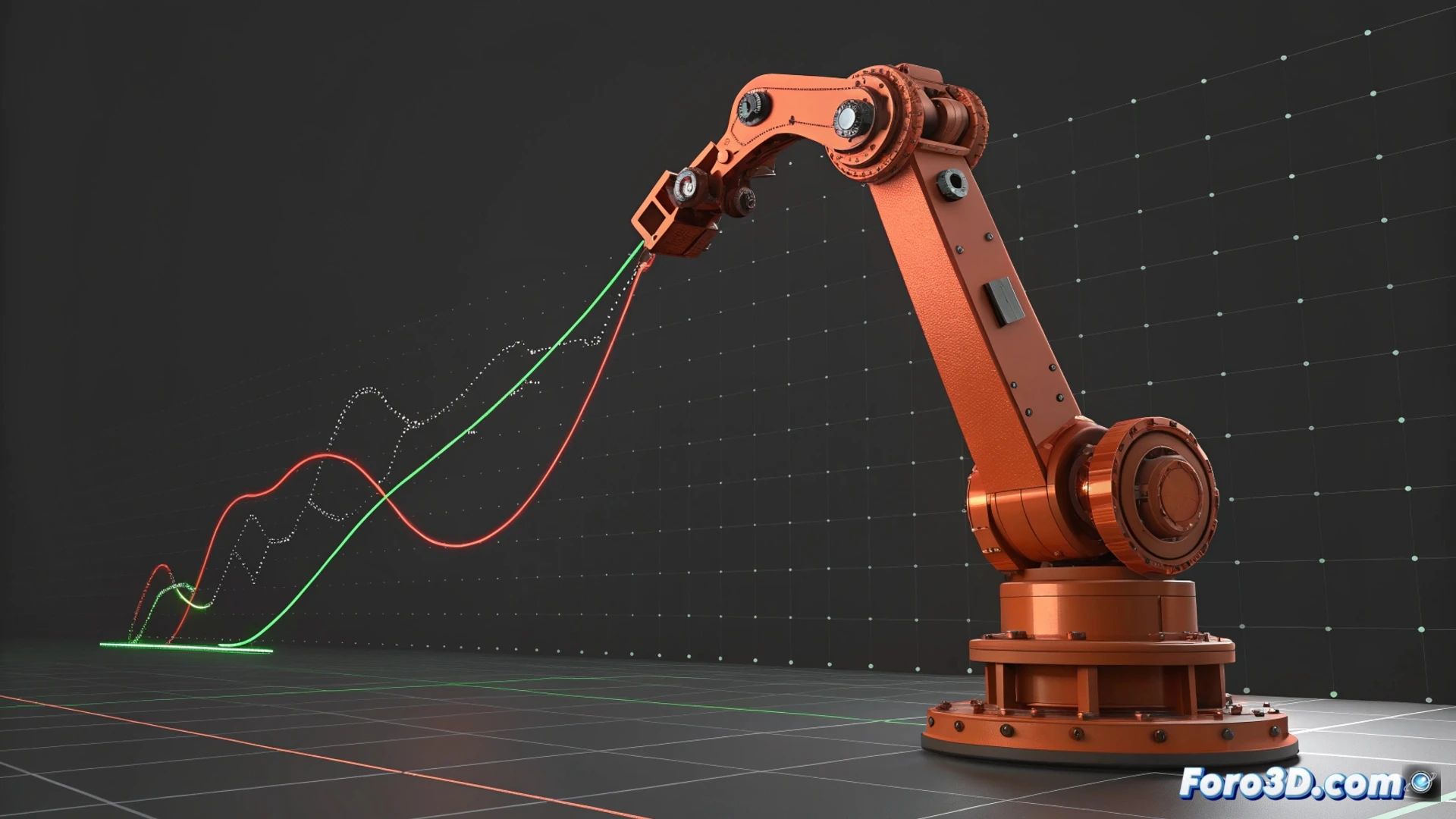
To refine how the movement is executed, access the graph editor. Here, the function curves that dictate the evolution of each animated property are visualized. You can select and move the control points to alter the speed or timing of the change. Adjusting the Bézier handles of these points allows you to smooth the start and end of the action, achieving more organic and realistic accelerations.
Actions in the graph editor:- Select and move keyframes on the vertical (value) and horizontal (time) axes.
- Manipulate curve handles to change tension and continuity.
- Smooth transitions to mimic real-world inertia.
Link Movements with Constraints and Hierarchies
You can synchronize the path of multiple elements using the Parent function or applying constraints. A very useful option is Follow Path, which forces an object to move along a curve you draw beforehand. This is ideal for producing complex trajectories, like a camera flying over a scene or a car driving on a winding road, maintaining perfect coordination. 🚗
Solve Common Issues
If an object seems to mysteriously disappear during playback, check that you haven't accidentally animated its scale to a zero value. Review the keyframes for that property in the graph editor. Sometimes, an error when inserting a value can lead to unexpected visual results, but the solution is usually quick once the cause is identified.