Updating your motherboard's BIOS or UEFI is not a whim, but a necessity when you assemble new hardware. Manufacturers release revisions to ensure that next-generation processors and RAM modules work without issues. Ignoring this step can result in a system that won't boot or limited performance. Before updating, verify the exact model of your motherboard and read the version notes. Caution prevents unpleasant surprises.
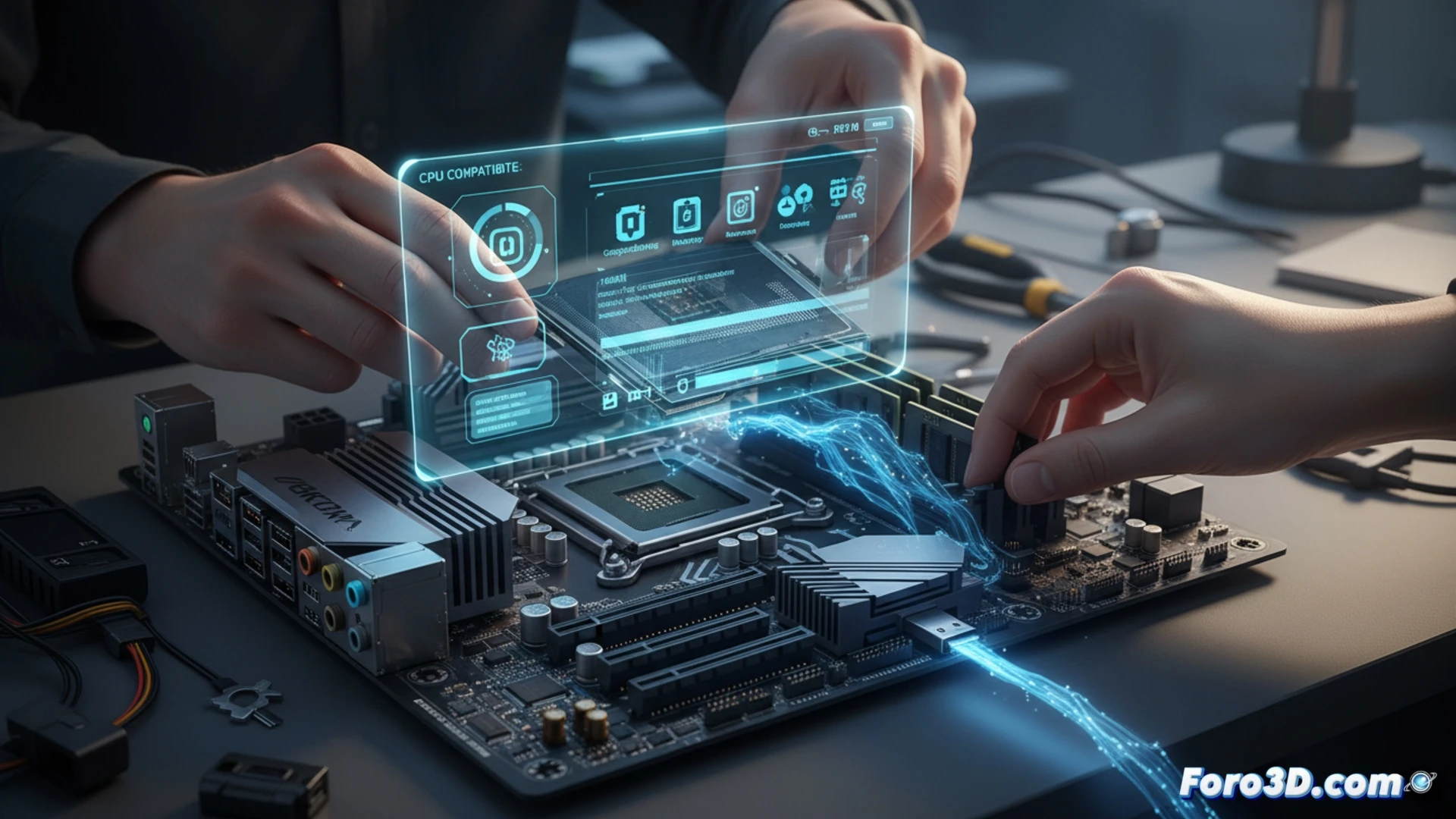
Technical process and risks of the update ⚙️
The procedure varies by manufacturer, but the basics are similar. Download the firmware file from the official website, format a USB drive to FAT32, and copy the file. Access the UEFI during boot, locate the update tool (such as EZ Flash or M-Flash), and select the file. Do not interrupt the process or turn off the computer. A power cut during the update can render the motherboard unusable. Some modern motherboards allow updating without a CPU via USB Flashback.
When the BIOS becomes your worst enemy 😅
Updating the BIOS is like performing open-heart surgery on your PC with a plastic scalpel. You come out victorious if everything goes well, but if you fail, you have a fancy paperweight that isn't even good for holding down bills. Of course, nothing beats the adrenaline rush when you see the screen go black and remember you forgot to back up the previous version. In the end, you either have a renewed system or a perfect excuse to buy a new motherboard.