Achieving a steady 60 frames per second doesn't require top-of-the-line hardware, but rather knowing how to adjust the right settings. Many gamers sacrifice visual quality unnecessarily. With a few tweaks to shadows, reflections, and ambient occlusion, it's possible to maintain smooth performance and a decent image. Here's how. 🎮
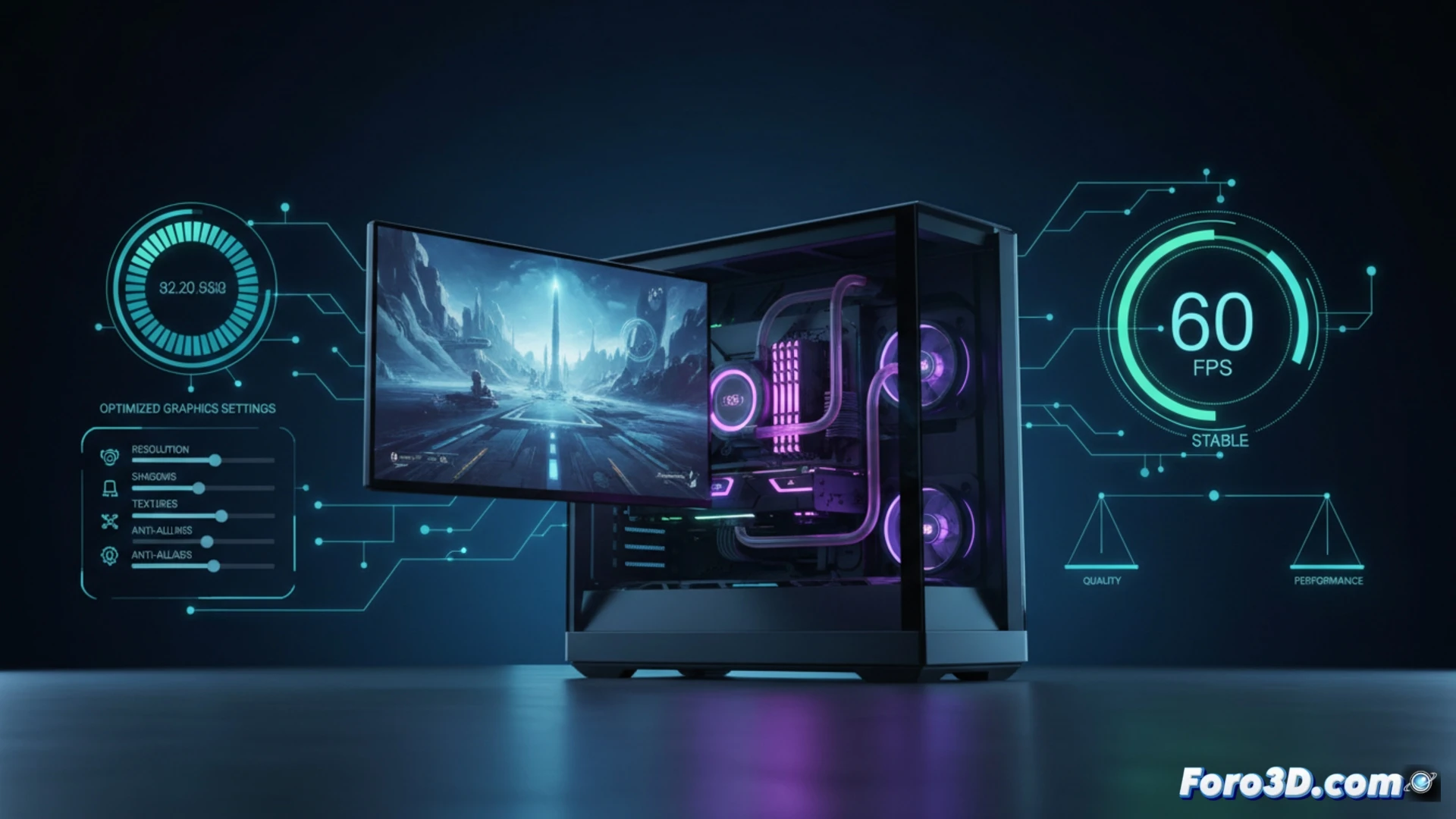
Key technical settings: shadows, anti-aliasing, and draw distance 🔧
Reducing shadow quality to medium or low frees up a significant load on the GPU, as their real-time calculation is costly. SMAA or FXAA anti-aliasing offers a good balance between sharpness and performance. Adjusting the draw distance to a medium value avoids loading unnecessary distant objects. Disabling motion blur and bloom also adds FPS without affecting gameplay.
The myth of ultra mode and the crying graphics card 😅
Setting everything to ultra doesn't make you a pro player, it just makes your graphics card sweat like it's in a Finnish sauna. The visual difference between high and ultra is usually minimal, but the cost in FPS is enormous. If your PC starts sounding like a hairdryer, maybe it's time to lower that shadow setting. Your electricity bill will thank you.