In video game development, efficiency in asset creation is crucial. A custom keymap in Blender 5.0 is not a luxury, but a production tool that speeds up modeling, sculpting, and UV mapping. This technical guide details an eight-step method to create a stable and optimized configuration, specifically designed for game-intensive workflows, where every keyboard shortcut must be intuitive and not interrupt creativity.
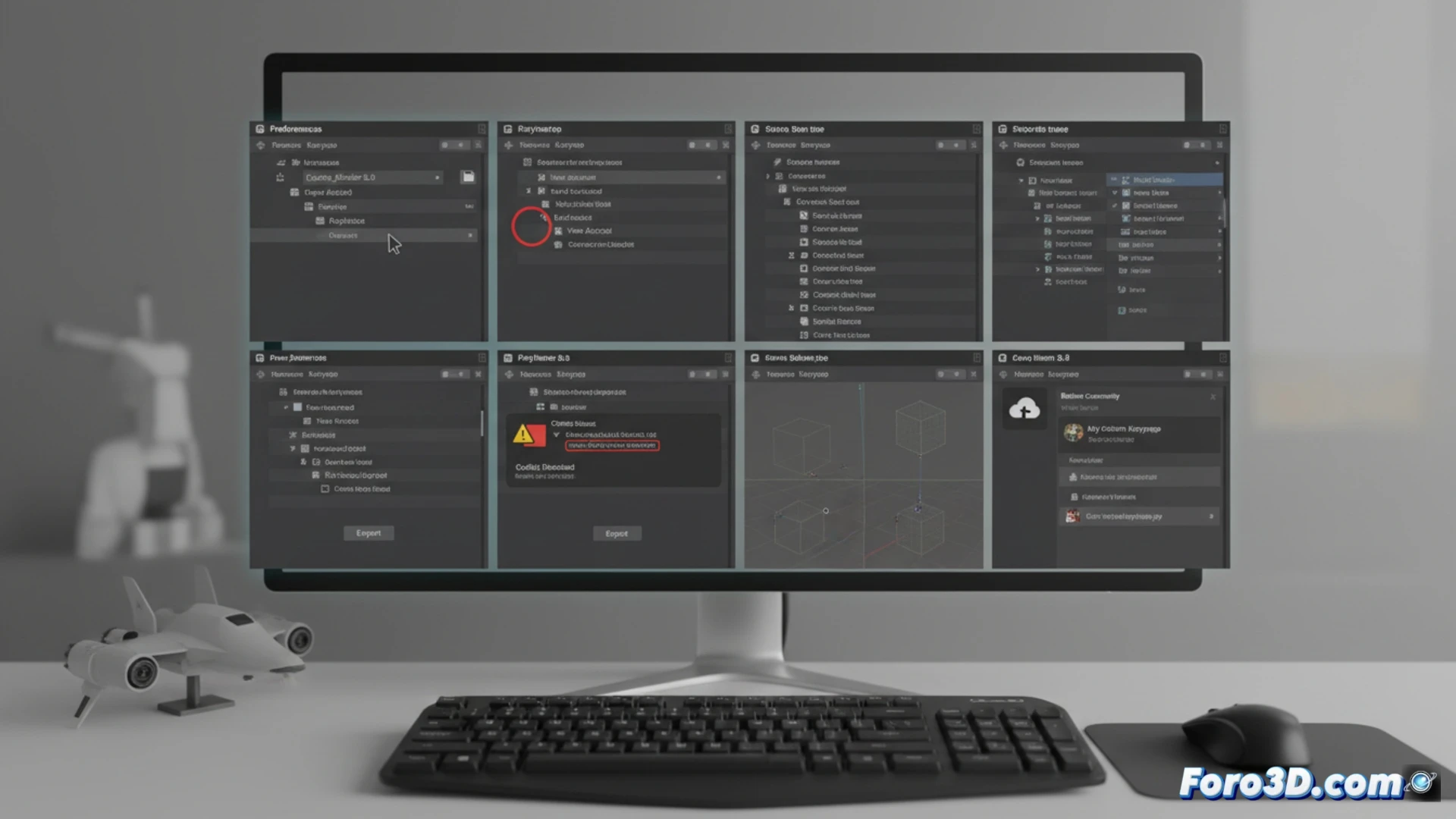
Eight Steps for a Stable and Conflict-Free Keymap 🛠️
The process begins by duplicating the default configuration in Preferences, providing a stable base. Assign an identifiable name and save it. Shortcut changes should be selective; modify only those necessary to maintain coherence. It is vital to assign each new shortcut in the correct editor area, whether Object Mode or Edit Mode, so it works in context. Before finalizing, meticulously verify that there are no conflicts between commands, a common source of errors. Test each new key in both main modes. Finally, export the configuration as a backup and share it with your team to standardize the art pipeline.
Art Pipeline Optimization for Video Games ⚙️
A well-planned keymap is an investment in productivity. For the technical artist or generalist, it reduces friction in long asset creation sessions, allowing total concentration on the geometry and details that matter in the game. This strategic customization, far from being a mere key change, becomes the backbone of an agile workflow, ensuring that Blender responds to the specific needs of your studio or video game development project.
How to configure a keymap in Blender 5.0 that prioritizes low-poly modeling tools and UV unwrapping to speed up asset creation for video games?
(P.S.: shaders are like mayonnaise: if they break, start everything over again)