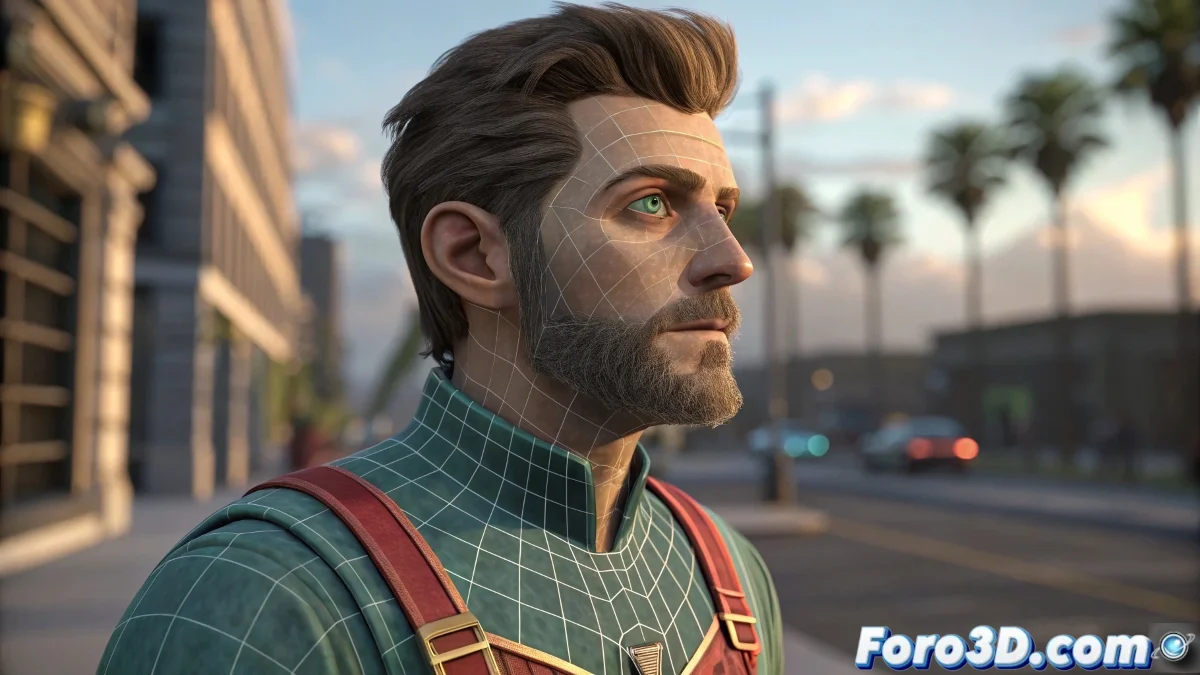
Optimizing the Workflow Between Rigging and Animation in Video Games
To optimize the workflow between rigging and animation in video games, it is essential to maintain an organized structure and follow good practices in the pipeline. Here is a clear and direct guide to solve common problems and improve your workflow between Maya and Unity. And no, you don't need to be an expert in both programs to do it! 🎮
File Structure and Version
First, your approach of dividing the work into different files is correct. However, to avoid reference and export issues, ensure that all files are in the same version of Maya and that the references are up to date. When exporting to Unity, use the FBX format, as it is the most compatible and best preserves rigging and animation information.
Exporting from Maya
For the specific problem of connecting the skeleton to the model in Unity, follow these steps:
- Ensure that when exporting the model in FBX format, you include both the model and the skeleton in the same file.
- In the FBX export options, verify that the Deformed Models option is enabled and that Skins is also enabled.
Importing into Unity
In Unity, when importing the FBX file, ensure that the Rig option is configured correctly. Unity should automatically recognize the skeleton and the model if they are exported correctly. In the Unity inspector, go to the Rig tab and select Humanoid if it is a bipedal character. Unity will automatically map the bones if the rig is properly configured.
Animations
For animations, ensure they are in the same file as the rig and the model when exporting. In Unity, animations can be imported as separate clips and assigned to the character's animation controller.
Eye Control
Regarding the eyes, using joints with an Orientation Constraint is a common practice, but for video games, you can also consider using blendshapes for the eyes, as they can be more efficient and easier to control in the game engine.
The key is in the correct export from Maya and the proper import into Unity. Maintain a clear and up-to-date file structure, and always check the export and import options. And remember, if the character doesn't animate in Unity, you can always say it's a character with a very quiet lifestyle... too quiet! 😴
With these tips, you will be able to optimize the workflow between rigging and animation in video games effectively. And remember, if something doesn't go as expected, you can always blame the export! 😉