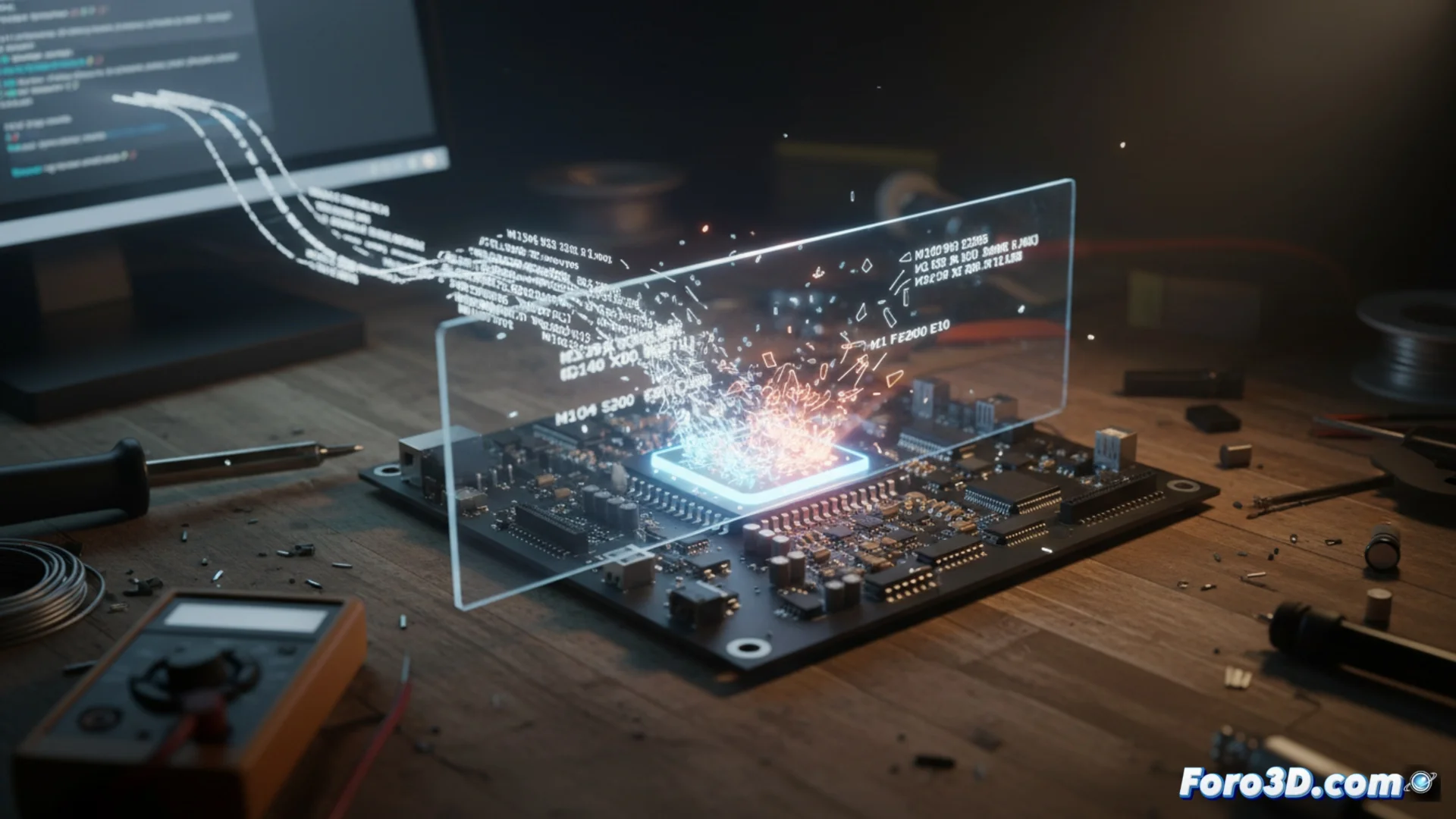
Why Your 3D Printer Ignores Certain G-code Commands
It is common for the machine to stop or ignore instructions when sending a file to print. This frequently occurs because the printer's firmware cannot process specific G-code commands it receives. The firmware acts as the machine's brain, translating orders into movements. If it is not programmed for a specific command, it simply overlooks it. 🧠
The Decisive Role of the Firmware
The firmware is the internal software that controls your 3D printer's hardware. Manufacturers do not implement the full G-code standard, but rather a set adapted to their machines' capabilities. Therefore, a command that works on one model may be non-existent for another. This limitation is not a defect, but a design decision.
Key Factors in This Limitation:- Manufacturer Customization: Each brand prioritizes functions that its hardware can execute reliably.
- Processing Capacity: More basic firmwares have a reduced command repertoire to optimize performance.
- Lack of Standardization: Although a standard exists, its implementation varies greatly between different control boards.
A firmware that does not recognize a command will not always give an error; it often omits it silently, which can lead to unexpected printing failures.
The Critical Influence of Slicing Software
The slicer or laminator is as responsible as the firmware. This program generates specific G-code based on a preconfigured printer profile. If you change machines but do not update the profile in the slicer, it will continue producing instructions for the previous model, creating a direct conflict. 🔧
How the Slicer Defines What is Printed:- It uses predefined configurations for each model, which include the G-code commands it can generate.
- It manages the start and end scripts of the print, where custom commands are usually placed.
- An incorrect profile is one of the most common causes of the printer not responding as expected.
Steps to Diagnose and Fix the Problem
To resolve the incompatibility, follow an orderly method. First, identify the commands your printer can execute by consulting its official manual. Then, review and adjust the configuration in your slicing software. The solution usually involves aligning these three elements: the hardware, its firmware, and the profile in the slicer. ✅
Start by verifying that you have selected the correct model in the slicer's dropdown menu, a classic error in the community. Then, examine and edit the start scripts to remove unsupported commands. If you need more functionality, consider the option of updating the firmware to a more recent version from the manufacturer or to an open-source alternative like Marlin, which can significantly expand the available instruction repertoire. Remember that consistency across your entire workflow is essential for printing without issues.