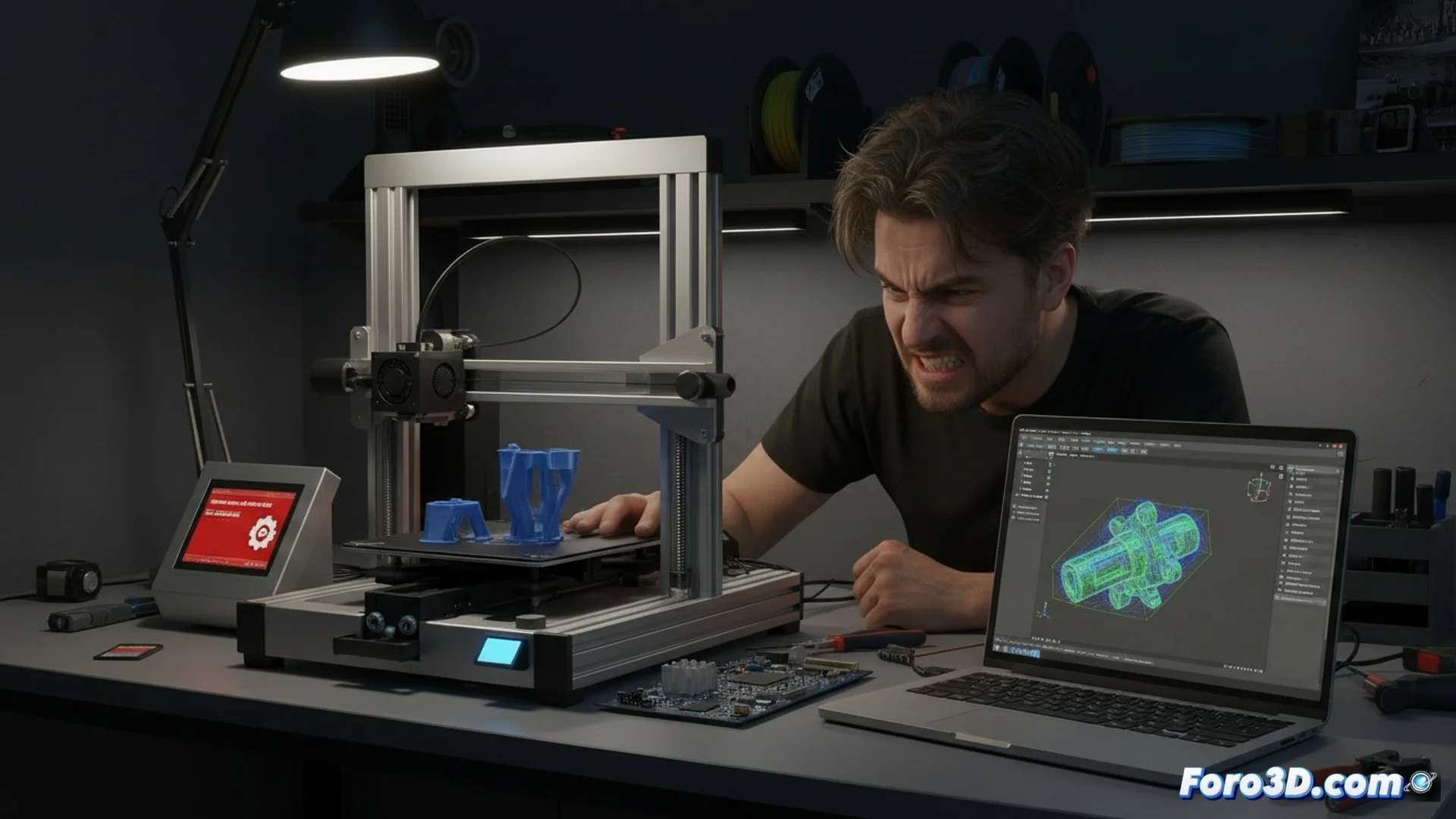
Why Some 3D Printers Cannot Read Cura G-code Files
It is common for certain 3D printer models, especially those running outdated firmware or very specific firmware, to have trouble interpreting the instruction files generated by Cura software. The conflict is not in the file itself, but in how the machine processes the information it receives. 🖨️
Main Reasons for Interpretation Failures
A common reason is that the printer's firmware requires an extremely rigid command format. Cura can generate lines with long comments, extra spaces, or advanced features (like the M205 command for jerk control) that more basic systems do not know how to handle and end up ignoring or reading incorrectly. Using a memory card with an incompatible file format also plays a role, or if the .gcode file name contains many characters or symbols that the printer rejects.
Factors that Generate the Error:- Firmware that expects a very strict command syntax and does not tolerate variations.
- Inclusion of extensive comments or advanced parameters (e.g., M205) that the controller does not recognize.
- Use of an SD card with incorrect format or long file names with special characters.
A printer with limited firmware can be as demanding as a chef with their recipe, rejecting a perfect G-code for a simple formatting detail.
Steps to Fix Reading Problems
To correct these failures, the first step is to simplify the code generated by Cura. Within the machine configuration in the slicer, it is crucial to select the appropriate Firmware Flavor option, such as Marlin or Repetier, as applicable. Power failure recovery features should also be disabled if the printer does not support them. At the storage level, it is recommended to format the SD card in FAT32 with a standard cluster size and use short file names, using only letters and numbers. If the problem persists after this, updating the printer's firmware is usually the most effective and permanent solution. 🔧
Key Corrective Actions:- Correctly configure the "Firmware Flavor" in Cura (Marlin, Repetier, etc.).
- Disable unsupported features, such as power failure recovery.
- Ensure the SD card is in FAT32 and use simple file names.
Conclusion for Hassle-Free Printing
Most failures in reading Cura G-code originate from an incompatibility between the slicer's output format and what the printer's firmware expects to receive. Adjusting the settings in Cura, properly managing storage media, and ultimately updating the firmware, are strategies that resolve the problem and ensure the machine executes the printing instructions without errors. ✅