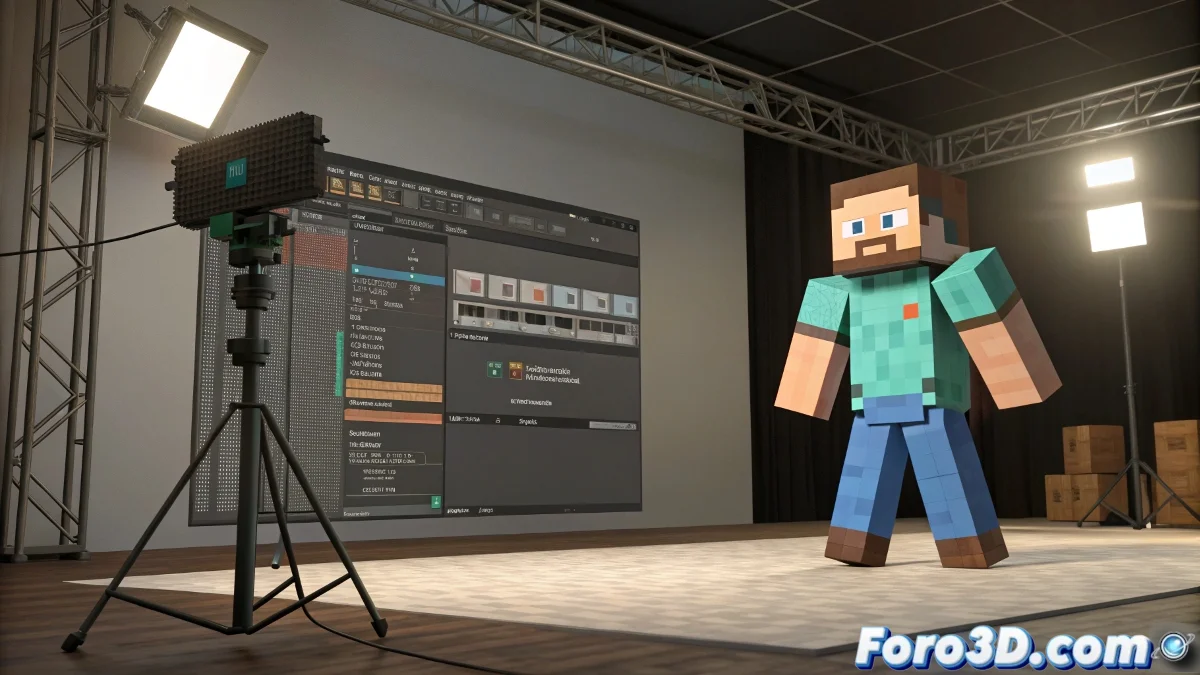
The Minecraft Rigs Drama in Cinema 4D: When Cubes Lose Their Essence 🟦➡️🟪
If you've worked animating Minecraft characters in Cinema 4D, you know the frustration of seeing your rigid blocks turn into grotesque rubbery figures. But don't worry, here's the definitive guide to understanding and solving these problems.
Why Does This Disaster Happen?
Minecraft models have a unique peculiarity: they must remain square and angular at all times. When we import generic rigs or use standard configurations, Cinema 4D treats these models like any other organic mesh, applying smooth deformations that completely ruin the style.
The 3 Main Culprits
1. The Ghost Weight (Weight Painting)
The most common error is having vertices shared between multiple bones. In an ideal Minecraft character:
- Each block must be assigned 100% to a single bone
- There should be no smooth transitions between parts
- Use Rigid Binding mode instead of Skin
2. The Treacherous Import
Many popular rigs have issues when migrating between versions or programs:
- Hierarchies that break on import
- Constraints that don't hold
- Deformation parameters that reset
3. Configurations Too "Smart"
Advanced rigs sometimes include:
- Unnecessary complex deformers
- Automatic interpolations
- Overly sophisticated IK systems
Step-by-Step Solution
- Check the Weight Painting with the Weight Tool
- Simplify the hierarchy in the Object Manager
- Use basic Joint Objects without interpolation
- Test specialized rigs like FMR 5.0
- Enable Pose Morph for facial expressions
"A good Minecraft rig must be like the game's blocks: simple, predictable, and completely square"
Bonus: If everything fails, remember you can use the old trick of animating each part separately without skinning. It's more work, but it guarantees your cubes stay true to their essence.
And above all: patience. Mastering Minecraft rigs in Cinema 4D is like mining diamonds: it requires effort, but the result is worth it ⛏️💎.