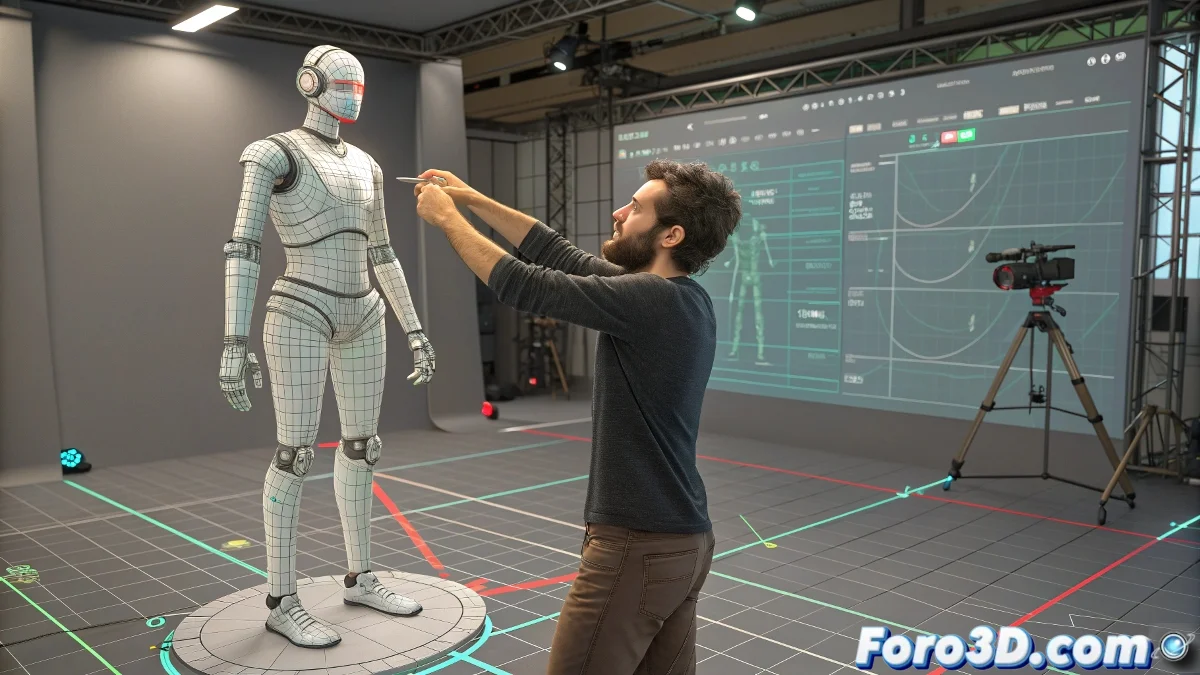
The Enigma of Apply Increment in Biped
Working with Apply Increment in 3ds Max's Biped system is like trying to adjust a mechanical watch with boxing gloves 🥊. The intentions are good, but the results are often unpredictable and frustrating. This seemingly erratic behavior is not a bug, but the result of a fundamentally different architecture from traditional bone animation.
The Unique Architecture of the Biped System
Biped is not just a collection of bones – it's an integrated system with procedural intelligence that prioritizes biomechanical coherence over absolute control.
- Procedural system: Automatic balance and compensation calculations
- Global interdependence: Movements that affect multiple parts simultaneously
- Center of mass prioritization: Focus on maintaining realistic balance
- Non-linear correction: Adjustments that affect the entire movement chain
Apply Increment in Biped is like giving instructions to an overly helpful assistant: it follows its own logic on how to achieve what you ask.
The Fundamental Problem of Apply Increment
The Apply Increment tool operates fundamentally differently from what many animators expect.
- Global re-calculation: Does not add values, recalculates the entire pose
- Loss of previous adjustments: Each application overwrites previous interpretations
- Contextual dependency: The result depends on the current state of the Biped
- Lack of additivity: Does not sum rotations, redefines the complete pose
Effective Solutions for Precise Control
Fortunately, 3ds Max offers powerful alternatives for precise control that Apply Increment cannot provide.
- Animation Layers: Non-destructive layers for cumulative adjustments
- Workbench editing: Direct manipulation of keyframes in the Biped editor
- Posture Layers: Specific layers for global postural adjustments
- Manual keyframing: Direct adjustment of rotations in specific keyframes
Strategic Use of Animation Layers
Layers offer the additive control that Apply Increment promises but does not deliver.
- Base layer: Main animation free from destructive adjustments
- Correction layers: Layers for specific body part adjustments
- Blending control: Precise control of each layer's influence
- Non-destructive workflow: Ability to enable/disable adjustments
Workbench for Precise Keyframe Editing
The Biped Workbench provides specific tools for precise animation editing.
- Keyframe selection: Precise selection of keyframes to adjust
- Rotation tools: Biped-specific rotation tools
- Range editing: Adjustment of complete animation ranges
- Copy/paste poses: Transfer of poses between keyframes
Recommended Workflow for Adjustments
Following a specific methodology prevents frustration and ensures consistent results.
- Avoid Apply Increment for important or cumulative adjustments
- Use Animation Layers for changes that must be preserved
- Employ Workbench for direct keyframe editing
- Test adjustments with full playback before committing
- Save incremental versions before major adjustments
Cases Where Apply Increment is Useful
Despite its limitations, Apply Increment has specific uses where it shines.
- Micro-adjustments: Small changes in individual poses
- Quick tweaks: Fast adjustments during initial blocking
- Non-critical changes: Modifications that do not affect key poses
- Exploration: Quick experimentation with different options
Maintaining Mental Sanity
Understanding tool limitations is key to frustration prevention.
And when Apply Increment decides to reinterpret your animation as an abstract ballet, you can always argue that it's an avant-garde artistic expression feature 💃. After all, in the world of animation, sometimes software "bugs" turn into unexpected creative opportunities.