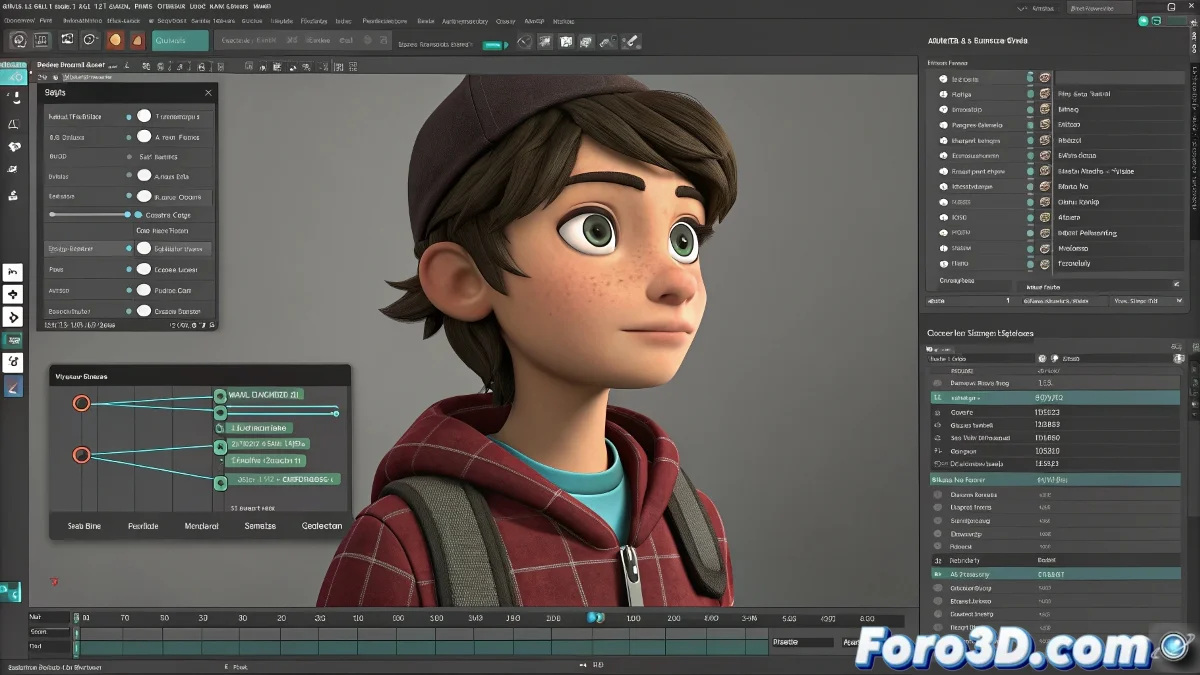
When Your Favorite GIF Refuses to Animate in Maya
Seeing a frozen GIF in Maya is like ordering a coffee and getting just the empty cup... frustrating. ☕ Here's how to turn your animated GIFs into useful references for your workflow.
Professional Method: Image Sequence
Step 1: GIF Conversion
- Use Photoshop or online tools like EZGIF
- Export as a numbered sequence (frame_0001.png, frame_0002.png)
- Keep the folder organized with consistent names
Step 2: Setup in Maya
- Create a reference plane in your scene
- Assign a Lambert material with file texture
- Select the first frame and enable Use Image Sequence
- Adjust the playback speed in the animation preferences
A good animated reference is like a dance partner: it sets the rhythm but lets you create your own moves.
Practical Alternatives
For those who prefer shortcuts:
- External viewer: Play the GIF in VLC or browser
- Specialized software: PureRef or ShotGrid
- Converted video: Transform the GIF to MP4
3 Common Mistakes and How to Avoid Them
- Inconsistent file names (use padding: 0001, 0002)
- Forgetting to enable "Use Image Sequence" in the file node
- Not synchronizing the frame rate with your Maya scene
Pro tip: Studio animators use organized folders with all their references. Name your sequences like "REF_action_frames" to stay organized. 🗂️
Now you can use your favorite GIFs as animated references without Maya freezing them in time. And when that colleague asks "how did you get the GIF to animate?", you can share this knowledge... or play mysterious. 😉
Bonus tip: For greater precision, align the first frame of your 3D animation with the key frame of your reference using Markers in the timeline.