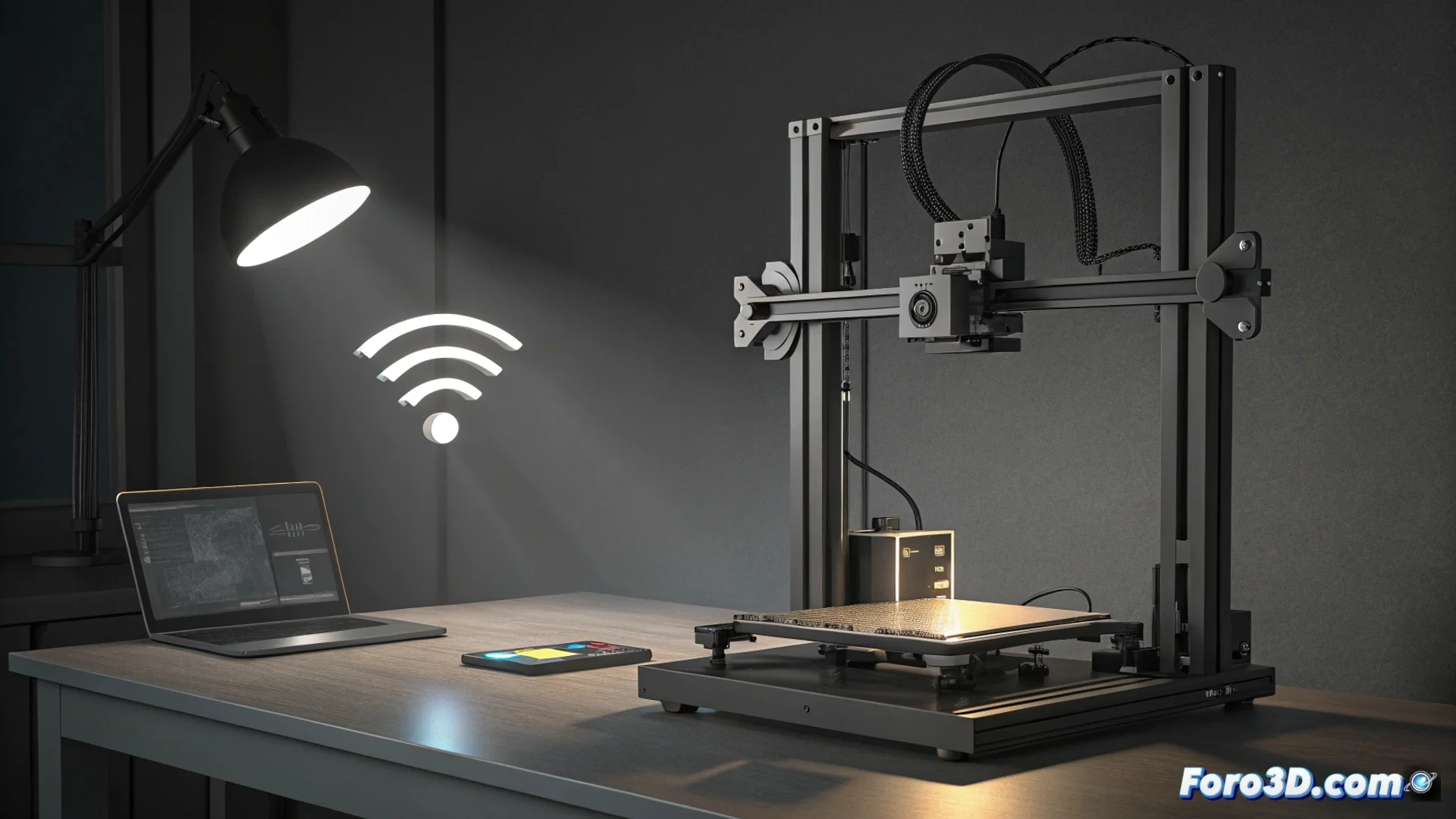
Troubleshoot Wi-Fi Connection Issues on the Creality Ender-3 V3 KE Printer
Many users of the Creality Ender-3 V3 KE experience interruptions when uploading files or failures when printing from the cloud. Often, the source is not the machine itself, but an unstable home Wi-Fi network. Factors such as band saturation, distance to the router, or interference from other devices can significantly degrade its performance. 🛜
Optimize Your Wireless Network for 3D Printing
For the printer to function reliably, it is essential to improve signal conditions. The first step is to check the network strength at the device's location. If coverage is low, moving the router or installing a repeater can make a big difference.
Key steps to stabilize the connection:- Use the 2.4 GHz band: This frequency has greater range and penetrates obstacles better, such as walls, making it more stable for the printer, although slower than the 5 GHz band.
- Assign a fixed IP: Configure your router to assign a static IP address to the Ender-3 V3 KE to avoid conflicts if the address changes automatically.
- Reduce interference: Moving the printer away from other electronic devices that emit signals, such as microwaves or cordless phones, can help clean up the connection.
The cloud is convenient until it's not. Sometimes, the most advanced solution for connectivity issues is to go back to the oldest and most reliable method: the SD card.
Alternative Connection Methods When Wi-Fi Fails
If instability issues persist, there are more direct options that eliminate the wireless network variable. These alternatives guarantee full control over the printing process.
Practical and effective solutions:- Ethernet Cable Connection: Using a compatible USB to Ethernet adapter, you can connect the printer directly to the router. This method usually completely resolves instability issues.
- Direct Transfer via microSD: Avoid relying on the cloud. Copy the G-code files directly to the microSD card and insert it into the printer. It is the most robust method with no latency.
- Restart and Reconfigure: Sometimes, a full restart of the printer and router, followed by a clean reconnection to the network, can fix temporary issues.
Conclusion: Prioritize Stability Over Convenience
To make the most of your Creality Ender-3 V3 KE, it is crucial to ensure a solid network connection. Start by optimizing your Wi-Fi, but don't hesitate to use a wired connection or microSD card if instability persists. Ensuring an uninterrupted workflow is essential for successful printing. 🖨️✅