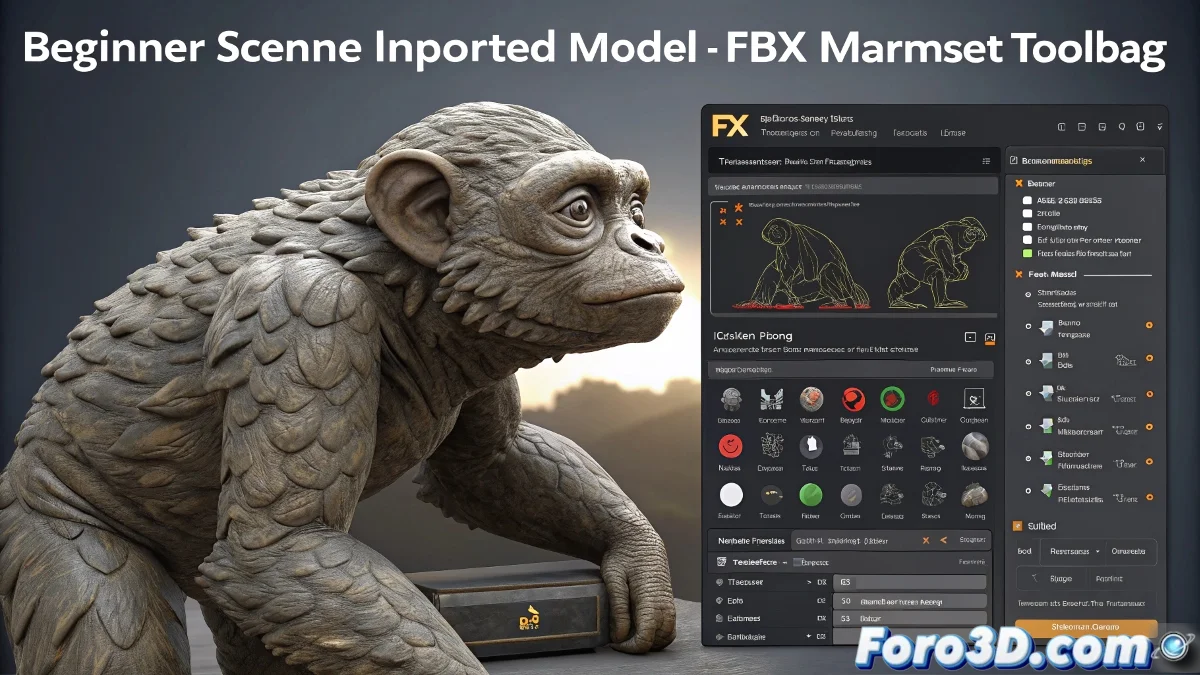
When Your ZBrush Materials Disappear Like Tears in the Rain 🌧️
You export your perfect sculpture from ZBrush and open it in Marmoset... surprise! Your masterpiece looks like a PS1 model. It's not a bug; ZBrush's matcaps are just display masks, not real materials. Marmoset expects physical shaders that you must set up manually.
Professional Workflow for Materials
- Prepare in ZBrush:
- Organize each part into distinct Polygroups
- Use Export with Groups when saving FBX
- Import into Marmoset:
- Check the Materials panel
- Create new shaders for each group
- Assign Textures:
- Connect normal/height maps
- Adjust roughness/metallic parameters
"Matcaps are like makeup: they look great in ZBrush but don't survive the trip to Marmoset" — Anonymous 3D Artist
Advanced Tricks for Total Control
| Problem | Solution |
|---|---|
| All subtools share the same material | Export with "Groups As Separate Meshes" |
| I lose details on import | Check scale and subdivisions in FBX |
| I want to keep colors | Extract Color Map from ZBrush |
The Material ID Method (for the Brave)
For complex projects:
- 📍 Assign Material ID per Polygroup in ZBrush
- 📍 Export with Keep Polypaint enabled
- 📍 In Marmoset use Material ID Split on import
This method requires more setup but allows automatic assignment of different shaders based on ZBrush groups.
When Chaos is Already Installed
If you imported without preparation:
- 🛠️ Use Mesh Groups in Marmoset to separate manually
- 🛠️ Apply Auto Smoothing for clean edges
- 🛠️ Generate Quick Loader to reuse configurations
And remember: if after all that your model still looks like cheap plastic, you can always argue it's a retro lowpoly artistic style. After all, in the 3D world, technical limitations sometimes become visual signatures... until the client asks why their premium character looks like a Happy Meal toy. 🍔