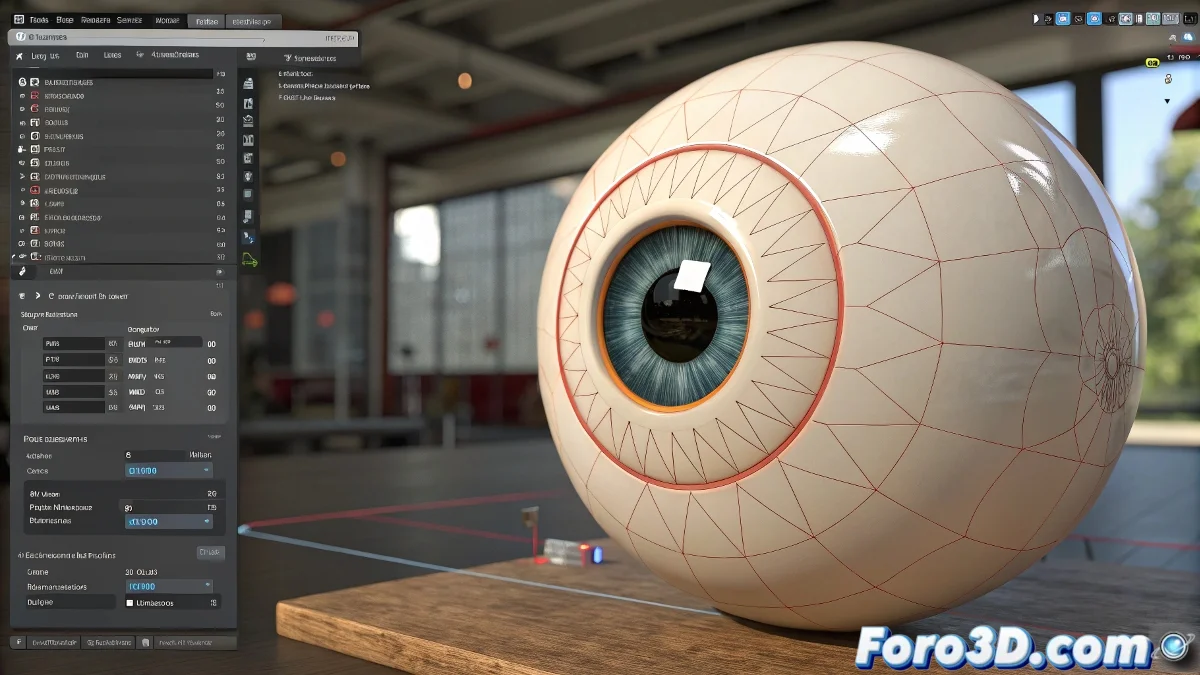
When Your Character's Eyes Rebel 🌀
Rigging eyes in 3ds Max can turn into an epic battle. If you've tried using Look At along with Linked XForm, you know the result sometimes looks like a poorly rehearsed choreography: the dummie stares into space while the pupil dances alone. The reason? Linked XForm does not update the relative position dynamically. What a drama!
Point Constraint to the Rescue
Forget Linked XForm and welcome Point Constraint. This option makes the dummie follow the control point as if hypnotized, without delays or errors. This way, you'll prevent your character from looking into another dimension during animation. 🎯
Wire Parameters vs Script Controller
Connecting the dummie's scale to a slider using Wire Parameters is like trying to assemble furniture with instructions in another language. Sometimes it works, other times... not so much. The solution is to use a Script Controller with MaxScript. This method offers:
- Precise control over the scale.
- Greater stability in animation.
- Unlimited customization.
A well-structured rig is like a good coffee: strong, consistent, and without bitter surprises.
Conclusion: Eyes That Obey (Or Almost)
Switching Linked XForm for Point Constraint and Wire Parameters for Script Controller will save you hours of frustration. And if the rig still gives trouble, remember: in the 3D world, even virtual eyes have rebellious days. 😼
By the way, if you manage to get everything working on the first try, you're probably a wizard disguised as a 3D artist. ✨