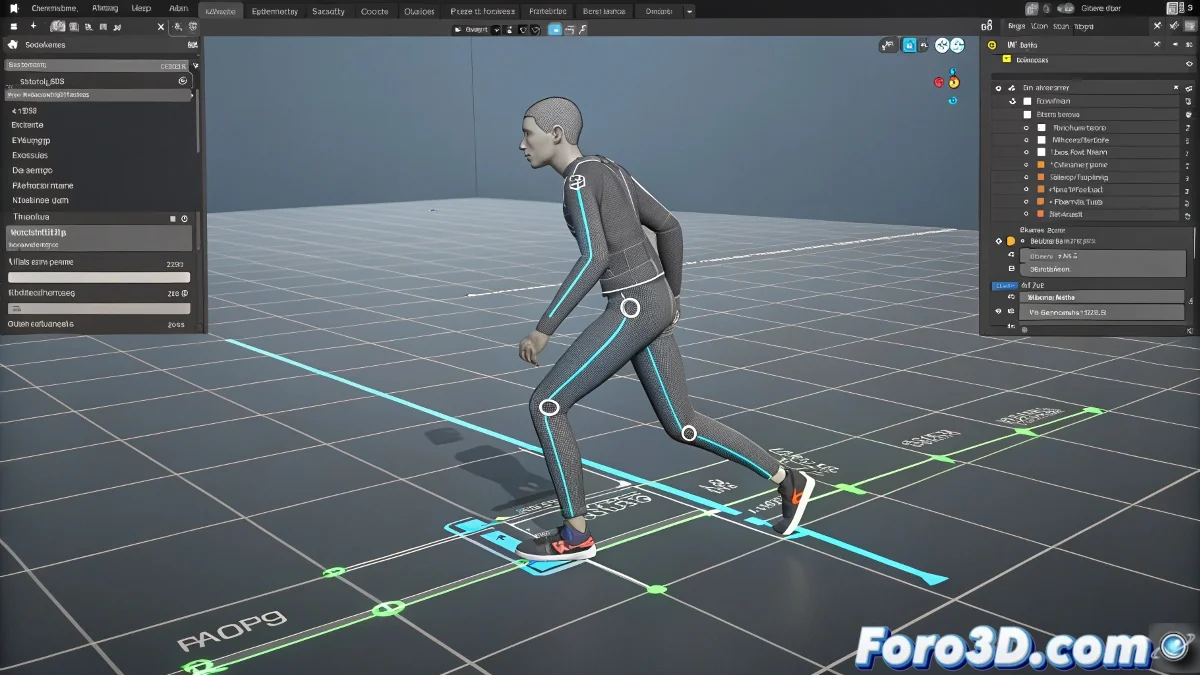
Troubleshoot Biped Animation Issues After Using Auto Footsteps
Has your Biped character in 3ds Max gone rogue after using Footstep Mode? 🕺💥 It's like the auto footsteps came with a contract that says: "I animated this, now it's mine." But don't worry, we're going to regain control before your digital creature develops full autonomy. 😅
Step 1: Free Your Biped from Footstep Mode
The first commandment:
- Disable Footstep Mode (that deceptive blue button)
- Go to Motion > Biped > Convert to Freeform
- Watch how the keyframes turn gray and editable
Congratulations! You've just freed your animation from its automatic prison. Now take a deep breath, because the worst is over. 🎉
Step 2: Master the COM (that little demon)
The Center of Mass is the Kevin McCallister of your rig - if you don't watch it, it will cause chaos:
- Keyframe at frame 0 before any adjustments
- Move in local space to avoid weird displacements
- Use animation curves to smooth movements
A COM without an initial keyframe is like a teenager without supervision: it will do whatever it wants when you least expect it.
Mistakes That Will Turn Your Animation into a Nightmare
Avoid these horrors:
- Mixing manual animation with Footstep Mode active
- Forgetting to freeze transformations before editing
- Moving the COM in world space instead of local
What If Everything Fails? Modern Alternatives
When Biped makes you cry, consider:
- CAT rig (more stable within 3ds Max)
- Auto-Rig Pro for Blender
- Advanced Skeleton for Maya
With these tricks, your Biped will stop behaving like a wild horse and return to being the docile character you once knew. And when you achieve it, celebrate as if you had tamed a lion... because deep down, that's exactly what you did. 🦁✨
Bonus for animators: If after all that your character keeps dancing like in Saturday Night Fever, you can always say it's an "innovative artistic style." Creativity to the rescue! 🕺😉