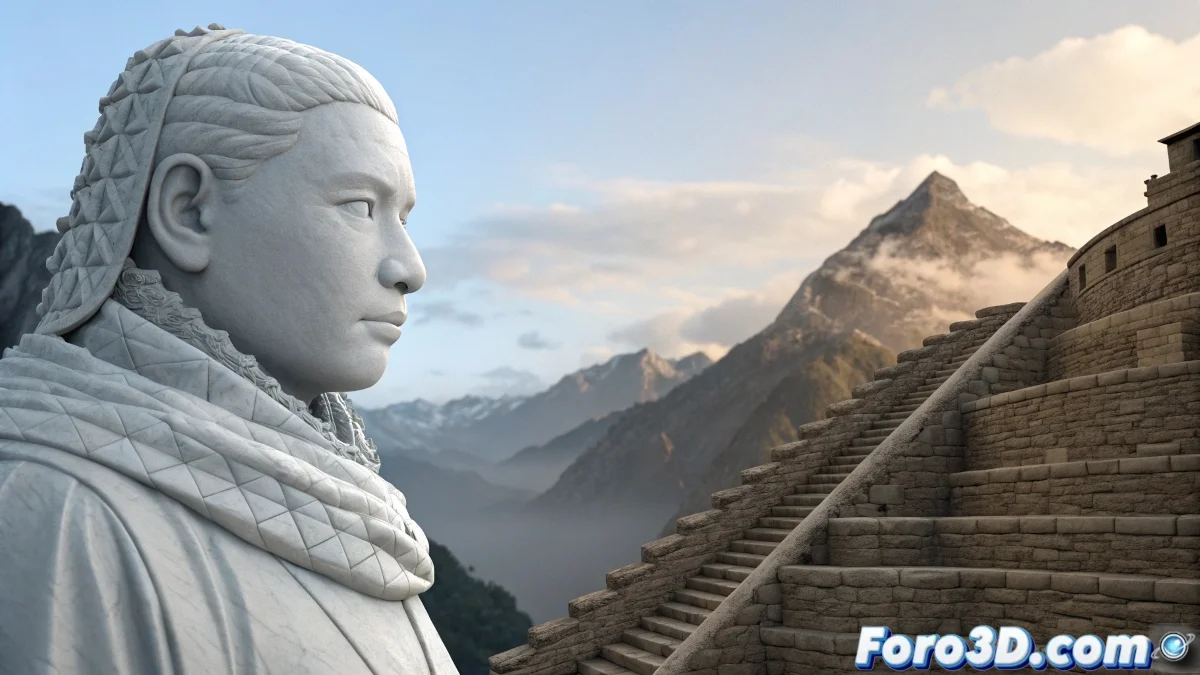
The Mystery of Missing Antialiasing in ZBrush
When working in ZBrush and facing renders with jagged edges despite having tried all apparent options, you're experiencing one of the most common frustrations among users of this software. The problem is not necessarily in your skill, but in the particular way ZBrush handles rendering and antialiasing, which differs significantly from other 3D programs. The feeling of having exhausted all options without results is understandable, as ZBrush has a unique approach to rendering that combines documentation tools with more advanced render systems like BPR (Best Preview Render). The key is understanding that ZBrush does not apply antialiasing in the same way as programs like 3ds Max or Blender, and requires a specific approach.
Understanding ZBrush's Render System
ZBrush handles antialiasing primarily through two different but complementary systems: basic documentation and the more advanced BPR system.
- Documentation Render with limited antialiasing options
- Best Preview Render (BPR) with advanced quality control
- Resolution settings that directly affect smoothing
- Export options that can apply post-processing
Solution with Best Preview Render (BPR)
To achieve effective antialiasing in ZBrush, you need to use the BPR system and configure it correctly. This is the most robust method for high-quality renders.
Configuring antialiasing in ZBrush is like tuning a musical instrument: you need to find the exact combination of parameters for perfect harmony
- Activate BPR in the Render menu or with the corresponding button
- Adjust the document resolution before rendering
- Configure BPR Render Options in the Render Properties menu
- Use the BPR Shadow parameter to improve shadow quality
Step-by-Step Configuration for Perfect Antialiasing
Follow this specific process that guarantees results with smooth edges and professional quality.
Mastering rendering in ZBrush is essential to present your digital sculptures with the quality they deserve 🎨. Every adjustment you perfect not only solves the immediate problem of jagged edges, but also prepares you to create impressive renders that showcase all the detail and artistry of your ZBrush work.