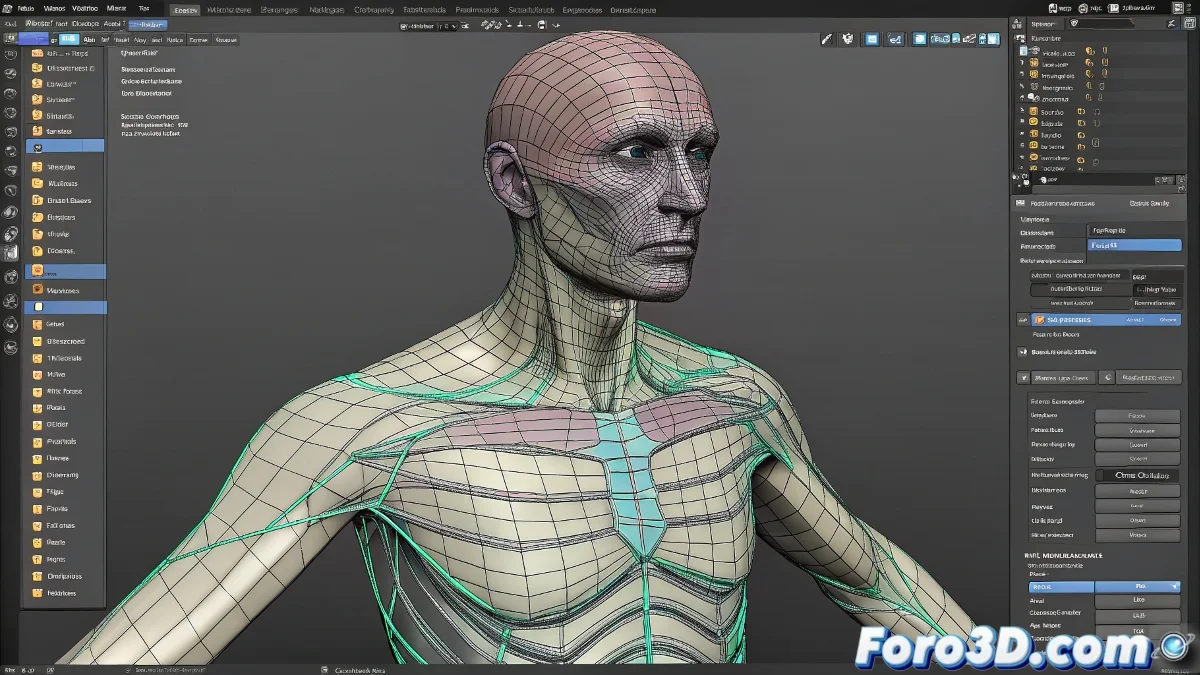
Tips to Get the Weight Brush Working Properly in Softimage XSI
Working in Softimage XSI has that retro touch that many artists enjoy... until the weight brush decides to go on strike 😤. You paint and paint, but the vertices remain as immobile as a museum statue.
First, Check the Basics Before Panicking
- Make sure the bones are correctly associated with the mesh via a valid envelope.
- Select the correct bone before starting to paint. Softimage only allows painting on the active influence.
- Confirm that the paint mode is activated and that you don't have any hidden or erroneous selection blocking the editing 🖌️.
Other Less Obvious Culprits
If after these steps the brush is still sitting idle, it could be a problem with the weight visualization. Activate the weight map view mode and verify if you are actually seeing the changes. Sometimes the viewport gets frozen and the mesh doesn't update the colors instantly.
Another classic solution: restart Softimage. Yes, it's the digital equivalent of turning it off and on again, but it has saved artists on the verge of collapse more than once 😅.
Remember the Software's Age
Don't forget that Softimage has gone years without updates. Using it on modern systems can bring unexpected bugs. If all else fails, consider trying it on another machine or with a slightly newer version (if you have access, of course).
Ironic Tip of the Day: If after all this process the brush still won't paint, maybe your character has telekinetic powers and simply doesn't need to deform. Just don't mention it in the production meeting... or you'll have to explain quantum physics applied to animation 😆.
In Summary, Patience and Step-by-Step Diagnosis
With a bit of technical review and a bit of humor, you'll get the brush back to doing its job. And if not... well, you can always blame the software relics 🎨.