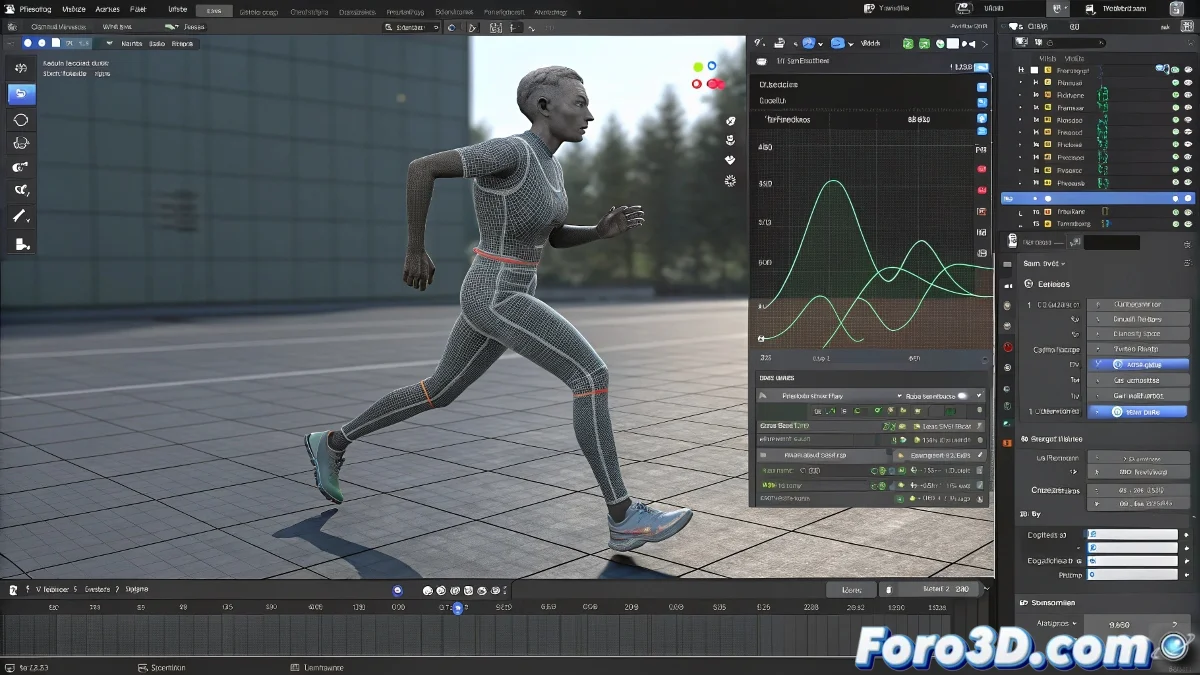
Tips for Achieving Natural Character Animations in Blender
When animating characters in Blender, it's common to find that the movements end up too robotic or artificial, even when the skeleton and rigging are already set up. To make a character run, walk, or express facial emotions naturally, it's essential to work on the fluidity and timing of the poses. And no, you don't need to be an animation expert to do it! 🤖
Using Animation Curves
To smooth transitions between poses and avoid jerky movements, it's crucial to use animation curves (F-Curves). These allow you to adjust the acceleration and deceleration of movements by applying smooth interpolations, like Bezier, which mimic the real physics of the human body.
Working with the Graph Editor
The Graph Editor is a key tool for adjusting the acceleration and deceleration of movements. Leveraging this editor allows you to refine the animation to achieve a more natural and organic effect. It's important to work with well-defined key poses, avoiding static or extreme postures without in-betweens that make the action seem stiff.
Facial Expressions
Regarding facial expressions, using shape keys or drivers allows you to control details like smiles, eyebrows, or eyelids in a gradual and expressive way. Controlling these parameters with careful animation and overlaps generates more organic and realistic results.
Finally, observe real references and study natural movements. Don't be afraid to spend time adjusting every detail in the curve editor. Blender has everything you need to achieve fluid animations; you just need to master the fine editing of curves and the synchronization between movements. And if your character still looks like a robot, maybe it just wants you to teach it some dance moves before the next animation. So let's get to work! 💃
With these tips, you can achieve natural character animations in Blender effectively and creatively. And remember, if the movements aren't as fluid as you hoped, you can always blame the animation curves! 😉