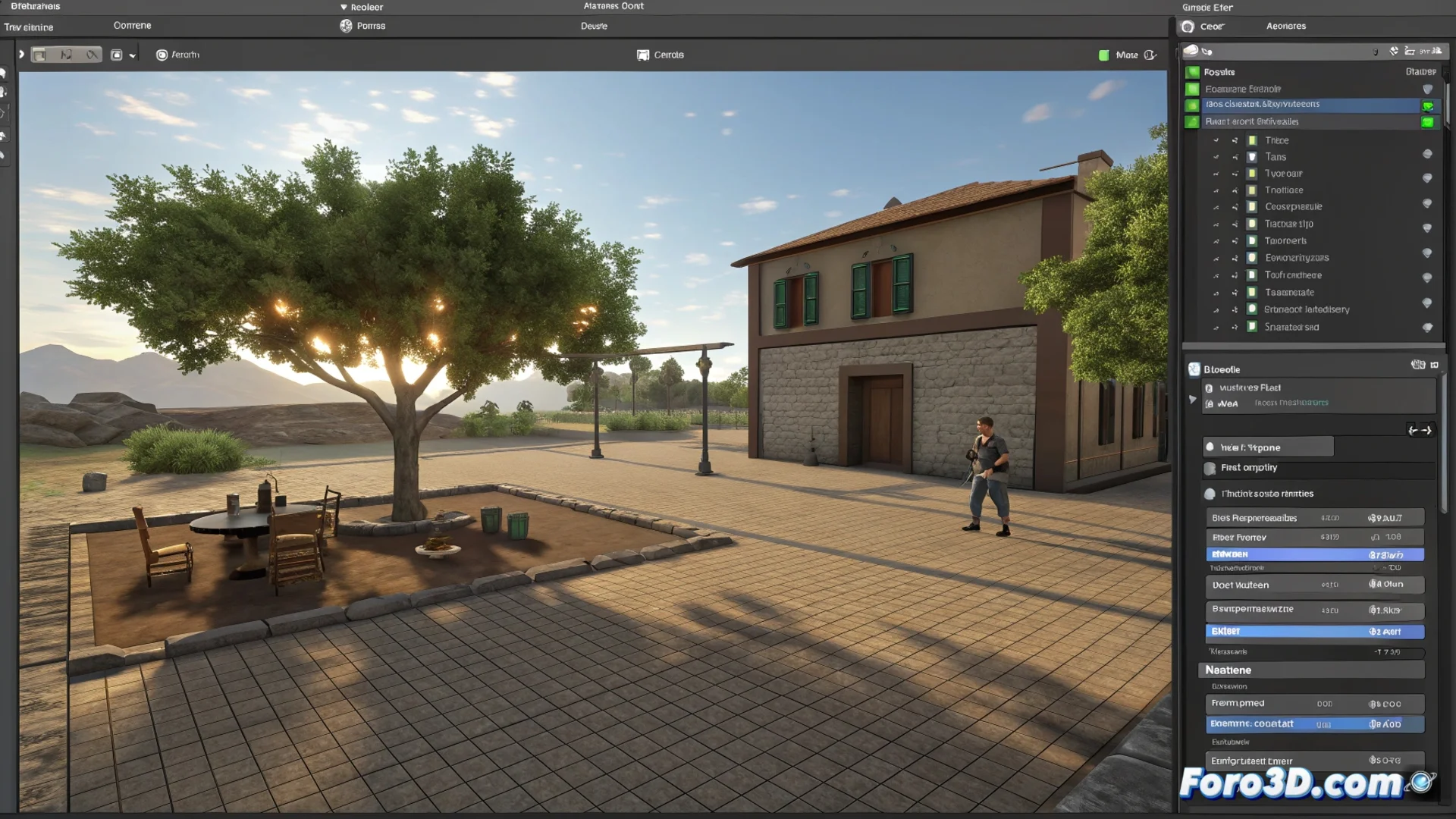
The Unity Inspector: Central Panel for Configuring Elements
In the Unity development environment, the Inspector acts as the main control panel. Its function is to expose and allow editing of all the public properties of the element you have selected at that moment, whether in the Hierarchy or Project window. This panel updates instantly, adapting to GameObjects, components, materials, or any other resource. It is the key interface for adjusting your scene parameters without having to touch a single line of code. 🛠️
Modular Organization by Components
The Inspector view breaks down the information of the selected object into individual components. Each part, such as a Transform, a Collider, or a script created by you, is displayed as a collapsible section. Within them, you find fields for each public variable you have defined. You can change numeric values, assign references by dragging other objects, check boxes, and edit arrays. This modular structure helps manage the complexity of a GameObject, allowing you to focus on a specific system at a time.
Main actions it enables:- Modify numeric values, vectors, and texts directly in their fields.
- Assign references to other assets or GameObjects via drag and drop.
- Enable or disable entire components with a single checkbox.
It's the place where you spend the most time, confirming yes, that cube still has exactly the position (0,0,0) you assigned to it three hours ago.
Customize the Interface with C# Attributes
Developers can control how their scripts are displayed in the Inspector using C# attributes. These special tags improve readability and usability. For example, you can insert descriptive headers or add visual spaces to group related fields. Other attributes restrict input values to a specific range or add help texts that appear on hover. This creates clearer and more robust interfaces, optimizing the workflow for the entire team, including non-programmers.
Common Attributes to Improve the Inspector:- [Header]: Adds a section title to organize groups of variables.
- [Range(min, max)]: Limits a numeric value to a slider between a minimum and maximum.
- [Tooltip("text")]: Displays an informative message when hovering over a field.
Indispensable Tool in the Daily Workflow
The Inspector is not just a property viewer; it is the core from which behaviors are defined and relationships between project elements are established. Its intuitive and customizable design makes it the first stop for configuring, testing, and refining any aspect of your scene. Mastering its use and knowing how to extend it with attributes is essential for working efficiently in Unity, making the process of creating and adjusting straightforward and visual. ✅