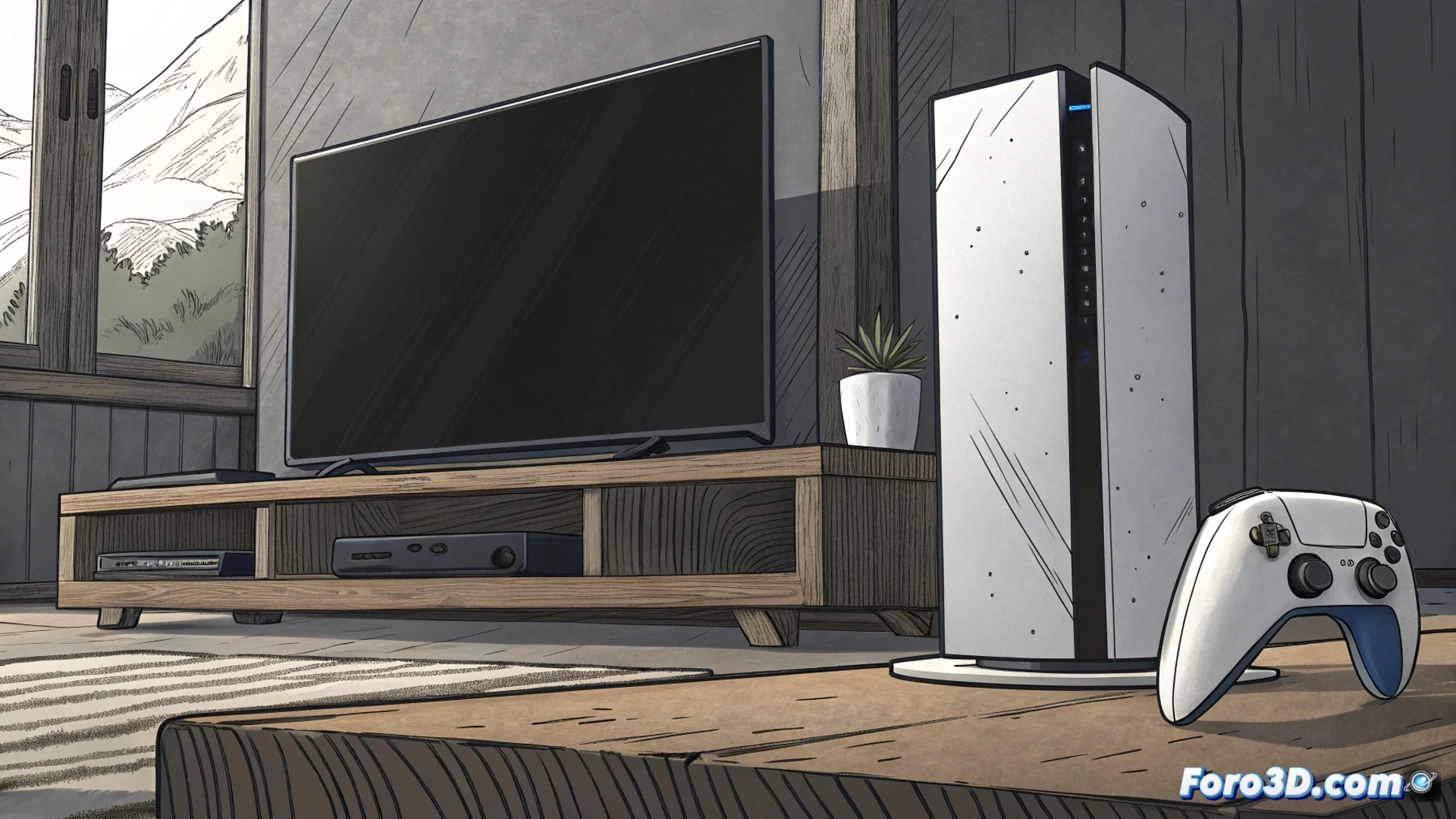
The PS5 Turns On But No Image Appears on the Screen
A recurring issue with the PlayStation 5 is that the console starts up, its status light changes from blue to white, but the television does not receive a video signal. This black screen or intermittent loss of image can be alarming, but the causes are usually simple to resolve. 🎮
Diagnose the Source of the Problem
Before thinking about an internal hardware failure, it is crucial to check the external components. Most of the time, the conflict is in the physical connection or in a software setting that the console and the television do not negotiate correctly.
Initial Steps to Check:- Test a Different HDMI Cable: Use a certified Ultra High Speed cable in perfect condition. Connect the same cable to another device to confirm it works.
- Change the TV's HDMI Port: Try another input port on your TV. Make sure to select the correct HDMI channel with the remote control.
- Rule Out the TV Mode: Some televisions have low power or game modes that can interfere. Disable them temporarily to test.
The black screen rarely means the console is broken. It is almost always a misunderstanding between the PS5 and your screen.
Solve from the Console's Software
If the cable and the television work, the next step is to access the PS5's internal settings. To do this, you need to restart the console in a special mode.
Proceed with a Forced Restart:- Turn off the PS5 completely and unplug the power cable from the electrical outlet for at least 2 minutes.
- Reconnect the power cable. When pressing the power button, hold it down until you hear a second beep (approximately 7 seconds).
- This will start the console in Safe Mode. Here you will be able to see the image and change key settings.
Reset the Video Settings
From Safe Mode, you have options to resolve the video conflict. Select the option to Change HDMI Output Resolution. The console will restart and test different resolutions until one is compatible with your TV. If the problem persists, choose Reset Default Settings to revert all video settings. With these steps, you will avoid sending the console for unnecessary repair. ✅