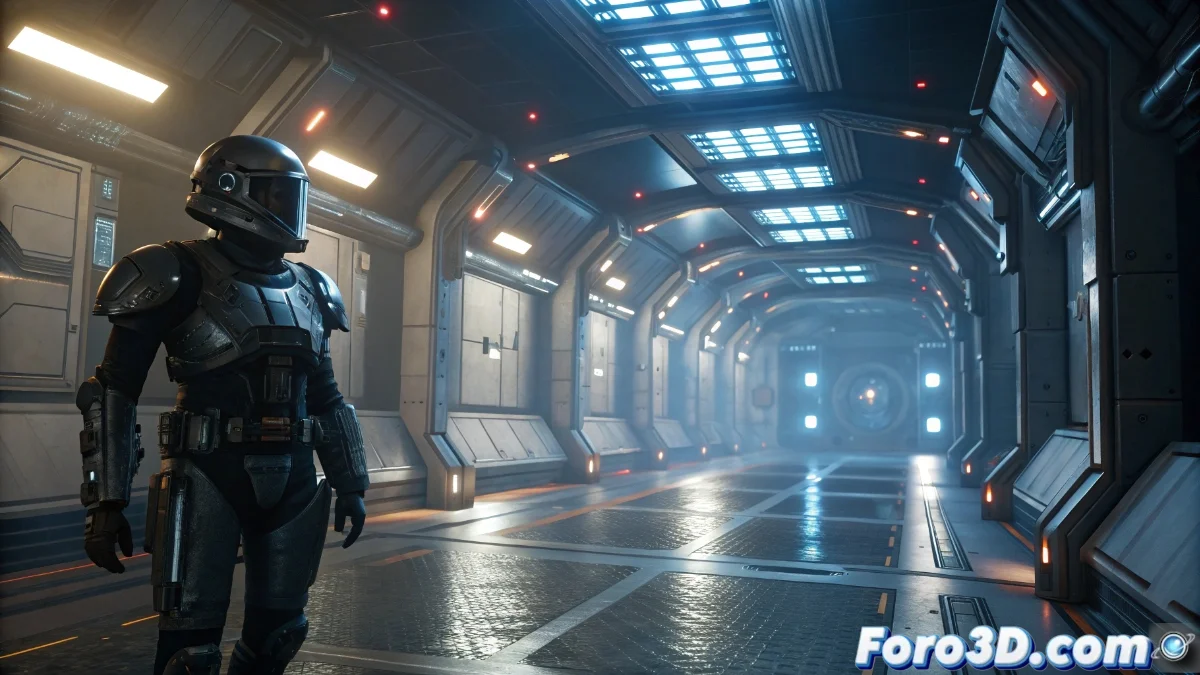
Post Process Volume in Unreal Engine 5: Configuration and Optimization of Visual Effects
Post Process Volumes in Unreal Engine 5 are essential tools for applying visual effects that transform the overall appearance of a scene or specific areas within the virtual environment 🎨. These volumes allow adjusting parameters such as automatic exposure, depth of field, bloom effects, and color corrections, providing detailed control over the final look of the project.
Configuration and Application of Visual Effects
To implement a Post Process Volume, simply drag it from the placement panel to your level and customize its properties in the details panel. Among the available effects are tonemapping, lens flares, motion blur, and ambient occlusion. You can enable the unbound option for global application of effects, or define physical boundaries for specific areas. The priority assigned to each volume determines which one prevails in overlaps, facilitating complex layers of post-processing that dynamically react to the player's position.
Key effects available:- Exposure and white balance adjustment for realistic lighting
- Cinematic depth of field with selective blur
- Bloom and lens flare effects to highlight light sources
The priority of volumes allows creating smooth transitions between effects, essential for maintaining visual coherence in real time.
Optimization and Best Performance Practices
Optimizing Post Process Volumes requires using only necessary effects and adjusting their parameters to balance visual quality and performance. It is recommended to avoid computationally expensive effects like ray tracing in low-priority volumes, or limit their influence radius to reduce impact on framerate. Testing on different devices ensures that effects do not harm the gaming experience, maintaining the desired aesthetic without compromising gameplay.
Optimization tips:- Use post-processing effects only where visually necessary
- Adjust influence radii to limit the scope of expensive effects
- Test on multiple hardware configurations to verify stability
Final Considerations on Balanced Use
Excessive use of these effects can result in an overloaded aesthetic, similar to 80s science fiction movies, where exaggerated bloom creates unrealistic environments even in dark interiors 🌟. The key is to apply Post Process Volumes with artistic and technical judgment, leveraging their flexibility to enhance immersion without sacrificing the project's overall performance.