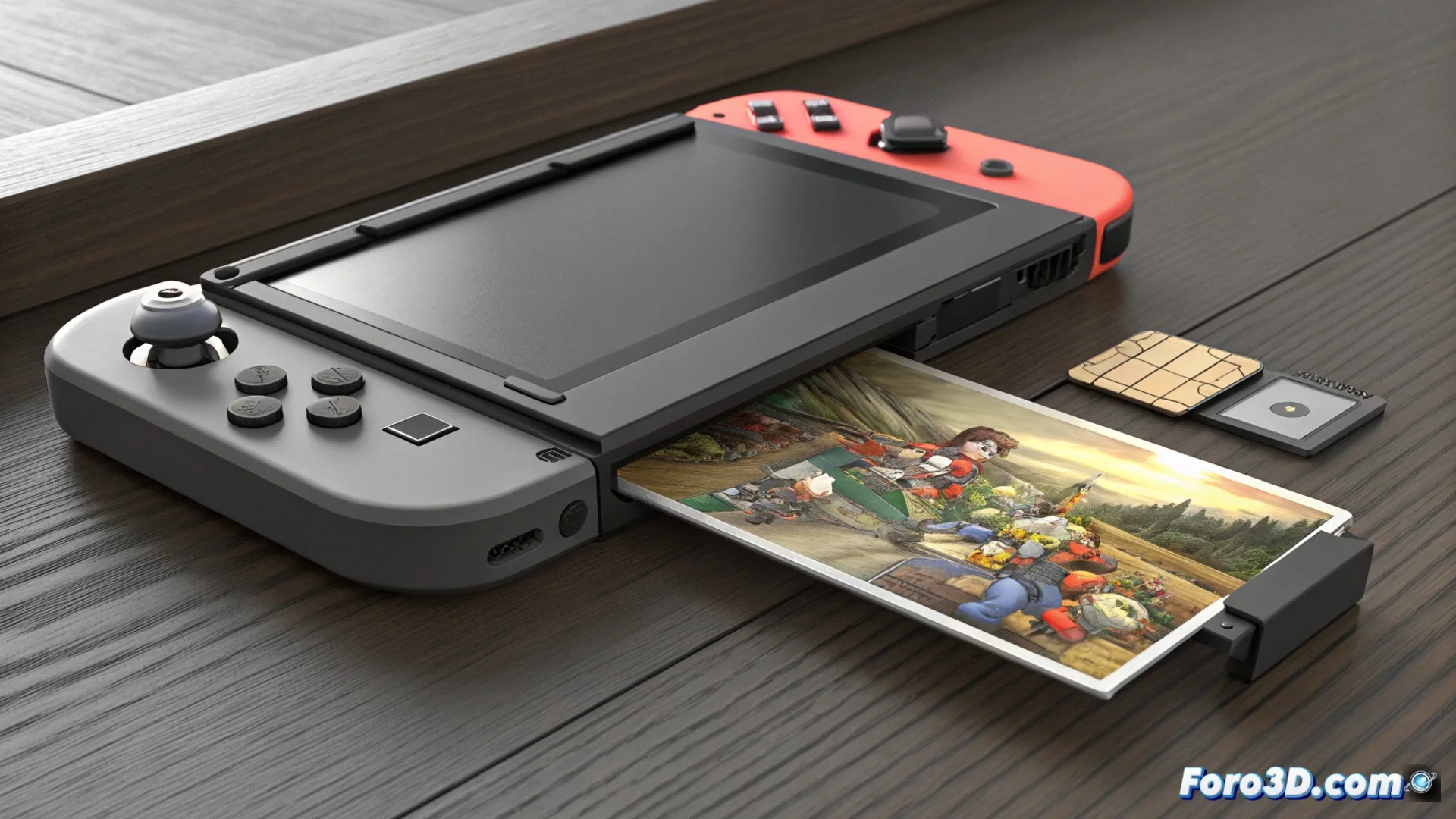
The Nintendo Switch Does Not Detect the microSD Card: Causes and Solutions
It is a common problem that affects all models of the hybrid console: suddenly, your Nintendo Switch stops recognizing the microSD card. This situation prevents opening digital games, accessing screenshots, or using downloaded data, paralyzing part of your gaming experience. The origin may be in a hardware component or a software conflict. 🎮
Identify Where the Problem Comes From
The first step is to isolate the faulty component. Do not assume the console is broken; the card itself might be the culprit. For an accurate diagnosis, follow an elimination logic.
Steps to diagnose:- Test the card in another device: Connect it to a PC, an Android phone, or a tablet. If other devices also cannot read it, the fault is almost certainly in the memory card.
- Test another card in the Switch: Insert a different microSD (one that works) into the console. If the Switch detects it without issues, it confirms that the internal reader is operational and the problem is the original card.
- Restart the console: Sometimes, a simple restart can fix temporary system errors that affect peripheral recognition.
A correct diagnosis saves time and avoids unnecessary repairs. Always start with the simplest.
Practical Solutions to Regain Access
Once the possible cause is identified, it is time to act. Solutions range from software processes you can do yourself to hardware interventions that require professional assistance.
Procedures to try to fix the fault:- Format the microSD card: If the problem is software-related, formatting is usually the most effective solution. Important: this will erase all data. Connect the card to a computer, back it up if possible, and use the system's formatting tool, choosing the FAT32 file system.
- Clean the contacts: With the console turned off and disconnected, remove the card and gently clean the metal contacts with a dry, lint-free cloth. Also visually inspect the Switch slot for dust or dirt.
- Contact technical support: If you have tested several cards that work on other devices and none are detected by your Switch, the internal reader is probably damaged. In this case, you must contact Nintendo's official support for them to repair or replace the component.
Conclusion and Final Recommendation
The Nintendo Switch not reading the microSD is a frustrating setback, but it often has a solution. The key process is to diagnose patiently to know if the fault is in the card or the console. While formatting can resolve software errors, a physically damaged reader requires professional intervention. Remember to make periodic backups of your game data in the cloud (with Nintendo Switch Online) to minimize the impact if you need to format. 🛡️