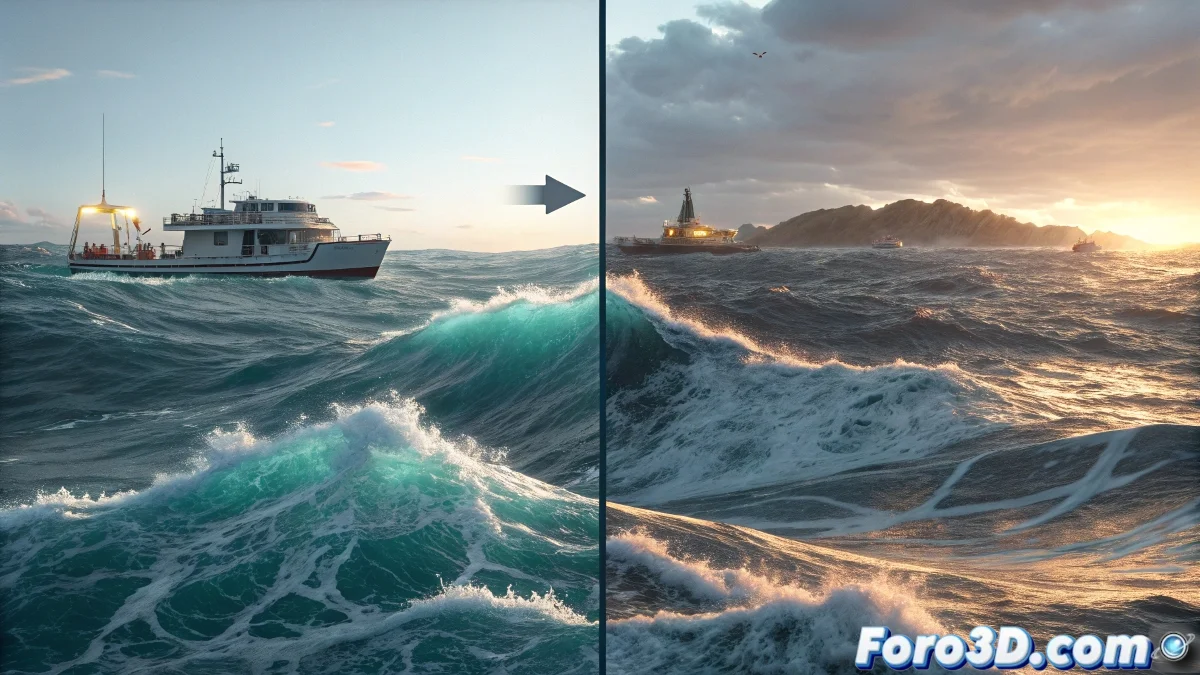
When the Waves Decide to Freeze in Time
The frustrating phenomenon of importing a perfectly animated RealWave mesh into 3ds Max only to find it static like a frozen lake is more common than it seems. The 3ds Max Scene Loader calculates the frames, shows the correct information, but the mesh refuses to move, leaving the user with an ocean that seems to have lost its dynamic soul. This problem usually has several layers of complexity that require a systematic approach to resolve.
RealWave animation relies entirely on cache files that contain vertex data frame by frame. When 3ds Max does not play the animation, it generally indicates that something is interfering with the proper access or interpretation of this temporal data.
Verification of Cache Files and Paths
The first point of verification is the cache files themselves. RealWave typically generates a sequence of .sd or .bin files that contain the animation. It is essential to confirm that all frames are present in the folder and that 3ds Max has read permissions. Relative versus absolute paths are often common culprits in this type of problem.
In the Scene Loader options, verify that the path to the cache files is correct and accessible. If the files are in a network location or a folder with restricted permissions, 3ds Max might load only the first frame by default without apparent errors.
- Verify existence of all cache frames
- Confirm read permissions in the folder
- Check absolute versus relative paths
- Test with local copy of the files
An ocean without animation is like a piano without keys: it has the shape but not the music
Import Settings in Scene Loader
The import options in Scene Loader contain critical parameters for animation playback. In Animation Import, ensure that Take Animation is enabled and the frame range matches the animation exported from RealWave. The Sample Rate parameter must match the original frame rate to avoid temporal discrepancies.
The Mesh Options section can affect how the animation is interpreted. Incorrect Smoothing or Normal Calculation settings could be causing only the base geometry to load without the animated deformation data.
- Enable Take Animation in options
- Verify matching frame range
- Sample Rate equal to original
- Mesh Options with neutral settings
Solution Using Alternative Import Methods
When Scene Loader persists in its stubbornness, there are alternative methods that are usually more reliable. Exporting from RealWave in Alembic format (.abc) and using 3ds Max's native Alembic importer offers better results with complex animations. This format is specifically designed for animated data between applications.
Another option is to export the sequence as an animated OBJ from RealWave and use scripts or specific plugins to import OBJ sequences into 3ds Max. Although more labor-intensive, this method offers full control over the frame-by-frame import process.
- Export as Alembic from RealWave
- Use native Alembic importer in Max
- OBJ sequence with import script
- Specialized plugins for exchange
Debugging and Advanced Troubleshooting
For particularly resistant cases, a systematic debugging strategy is essential. Start by importing only a reduced frame range (5-10 frames) to check if the problem is scale or performance-related. Test different Time Configuration settings in 3ds Max that may be causing conflicts with the imported animation timeline.
Also verify the versions of RealWave and 3ds Max, as incompatibilities between specific versions can cause this behavior. Updating both softwares to the latest versions or using versions known for their compatibility usually resolves persistent issues.
- Test with reduced frame range
- Verify Time Configuration
- Update software versions
- Check hidden error logs
Solving this problem provides that unique satisfaction of bringing life back to a digital ocean frozen in time. Because in the world of 3D graphics, even the most rebellious wave can learn to dance to the rhythm of our timeline 😏