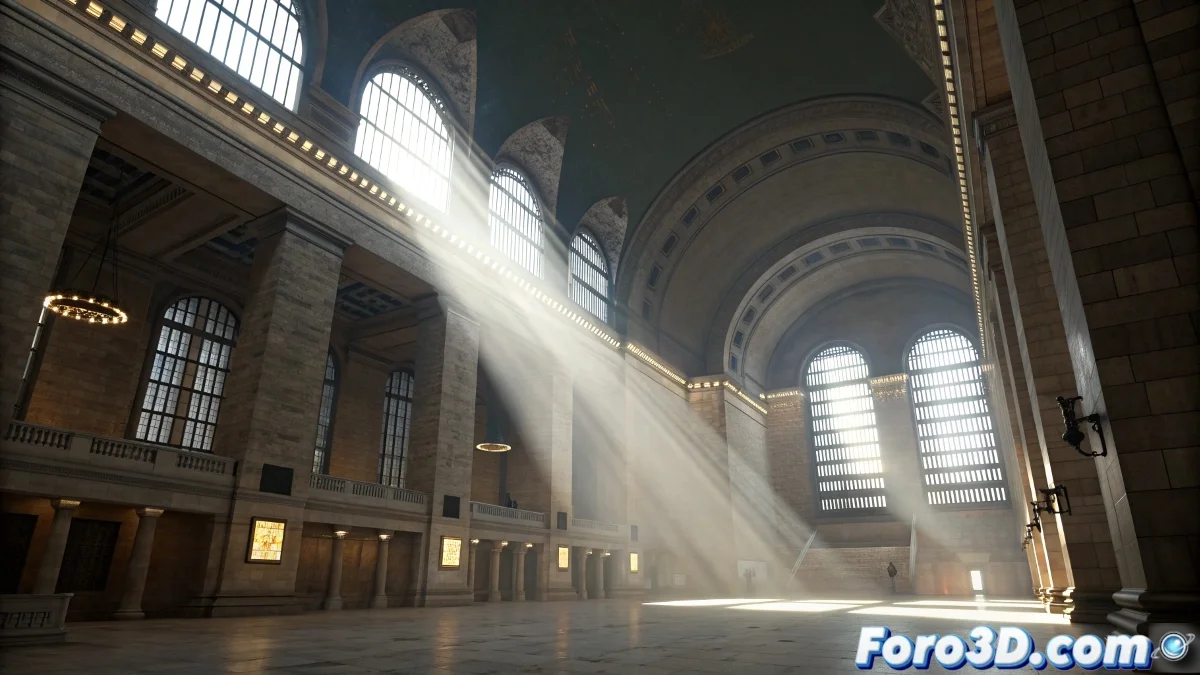
When the atmosphere decides to turn into absolute darkness
The problem of atmospheric effects rendering black with Mental Ray is one of those classics that has made more than one artist abandon volumes completely. The frustration is understandable when you've carefully set up your fog or fire, only to get a rectangle of total darkness in the render. This issue usually has multiple causes that need to be addressed systematically.
Mental Ray handles atmospheric effects differently from 3ds Max's default scanline renderer. It's not just about adding the effect and rendering - it requires a specific setup both in materials, lights, and render parameters.
Essential light setup for atmospheric effects
The most common problem is in the light properties. In Mental Ray, lights must specifically have the illuminate atmospheric effects option enabled. Select each light in your scene, go to its advanced properties, and enable Atmospheres & Effects > Render Atmospherics. Without this, Mental Ray completely ignores the volumes.
Additionally, check that the lights have sufficient intensity and range to illuminate the effects. Volumes need direct light to be visible - a light that's too weak or with a very short range will result in black effects even with the correct setup.
- Enable Render Atmospherics on each light
- Sufficient light intensity for volumes
- Light range covering the entire effect area
- Use lights with realistic decay for better control
An atmospheric effect without light is like an actor on a dark stage: it's there, but no one can see it
Render settings and atmospheric effects setup
In the Mental Ray render options, go to the Renderer tab and verify that Volumes is enabled in the Render Algorithms section. This option is sometimes disabled by default in some configurations, causing Mental Ray to completely ignore all volumetric effects.
Another critical parameter is the Sample Quality for volumes. In the Rendering Features tab, increase Volume Samples to a value between 16 and 64 for better quality. Too low values can result in artifacts or incomplete effects.
- Enable Volumes in Render Algorithms
- Volume Samples between 16 and 64
- Appropriate Raytrace Acceleration for the scene
- Sufficient Memory Limits for calculations
Materials and shaders for atmospheric effects
Mental Ray requires specific shaders for atmospheric effects. Instead of using standard materials, apply a Mental Ray Material with the Parti Volume or Transmat shader for volumetric effects. These shaders are optimized for the Mental Ray engine and produce much more reliable results.
For fire and explosion effects, the Misses Physical Phenomena shader offers advanced controls for combustion and smoke. Set up Incandescence and Transparency colors with noise maps to create organic and realistic effects.
- Use specific Mental Ray materials
- Parti Volume shader for fog and smoke
- Misses Physical Phenomena for fire
- Noise maps for organic variation
Advanced troubleshooting
If the effects still appear black after checking everything above, the problem may be in the exposure settings. Mental Ray with Physical Camera may require adjustments in the mr Photographic Exposure Control. Increase the Exposure Value or switch to Logarithmic Exposure Control for better high-contrast handling.
For specific fog effects, check that the Environment Range in the Environment panel covers the correct distance. If the fog starts too far from the camera or ends too early, it may appear invisible or completely black.
- Adjust mr Photographic Exposure Control
- Check Environment Range for fog
- Test with Logarithmic Exposure Control
- Set Near and Far ranges appropriately
Mastering these settings will allow you to create spectacular atmospheres that truly add depth and realism to your scenes. Because in the 3D rendering world, even the darkest effect can learn to shine with the right light and material setup 😏