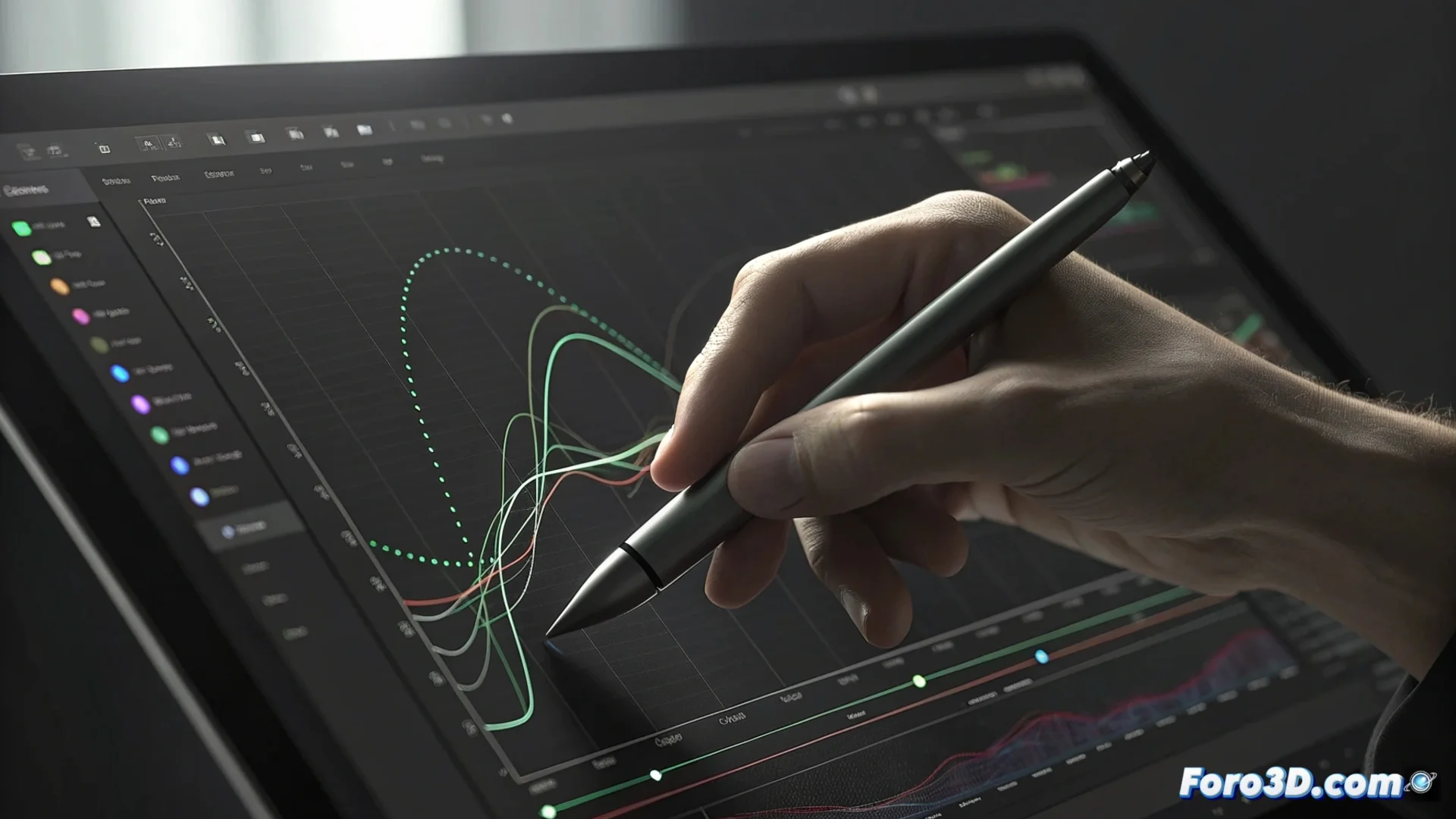
The Graph Editor in After Effects: Refine the Animation
In Adobe After Effects, the difference between a basic animation and a professional one often lies in mastering the Graph Editor. This powerful tool goes beyond the standard timeline, offering direct mathematical and visual control over how properties behave between keyframes. It is the space where the essence of motion is defined. 🎬
Understanding Speed and Value Curves
The editor presents two fundamental graphical views. The speed graph illustrates how the speed of an element changes over time; a straight horizontal line indicates constant displacement, while curves reveal accelerations or decelerations. The value graph, on the other hand, plots the evolution of the animated parameter, such as its position on the X-axis. Manipulating the control points of these curves, the so-called Bezier handles, allows creating everything from linear and mechanical transitions to organic movements with a natural feel.
Types of Graphs and Their Function:- Speed Graph: Focused on rhythm. An ascending curve means the object is accelerating, a descending one that it is decelerating.
- Value Graph: Focused on the trajectory. Shows the numerical change of the property (e.g., pixels of displacement) over time.
- Bezier Handles: The control points that allow adjusting the shape of the curve, defining the smoothness and dynamics of the interpolation.
A poorly adjusted keyframe can make your elegant animation move like a robot with the shakes, reminding you that mathematical precision also needs a touch of artistic judgment.
Practical Techniques to Master the Editor
To use the editor effectively, select the property to adjust and activate the corresponding button in the timeline. A key technique is separating the dimensions of a property, such as position in X and Y, to control each axis independently and achieve more complex movements. Adjusting the speed curve smooths the entries and exits of keyframes, eliminating abrupt jumps. Additionally, converting keyframes between types such as linear, Auto Bezier, or Continuous Bezier offers different starting points for refining the motion.
Recommended Workflow:- Open the Graph Editor by selecting the property and clicking its icon.
- Separate the dimensions of properties like Position for granular control.
- Adjust the Bezier handles to smooth or accentuate speed changes.
- Experiment by converting the keyframe type to see its immediate impact.
The Balance Between Technique and Art
The Graph Editor is fundamentally a precision tool that allows translating artistic intention into calculated motion. Controlling properties like position, scale, rotation, and opacity through its curves enables creating everything from an elastic bounce to a smooth deceleration. Mastering it not only prevents animations from looking robotic but injects the fluidity and character that distinguish professional work. Mastering this space is learning to speak the language of motion in After Effects. ✨