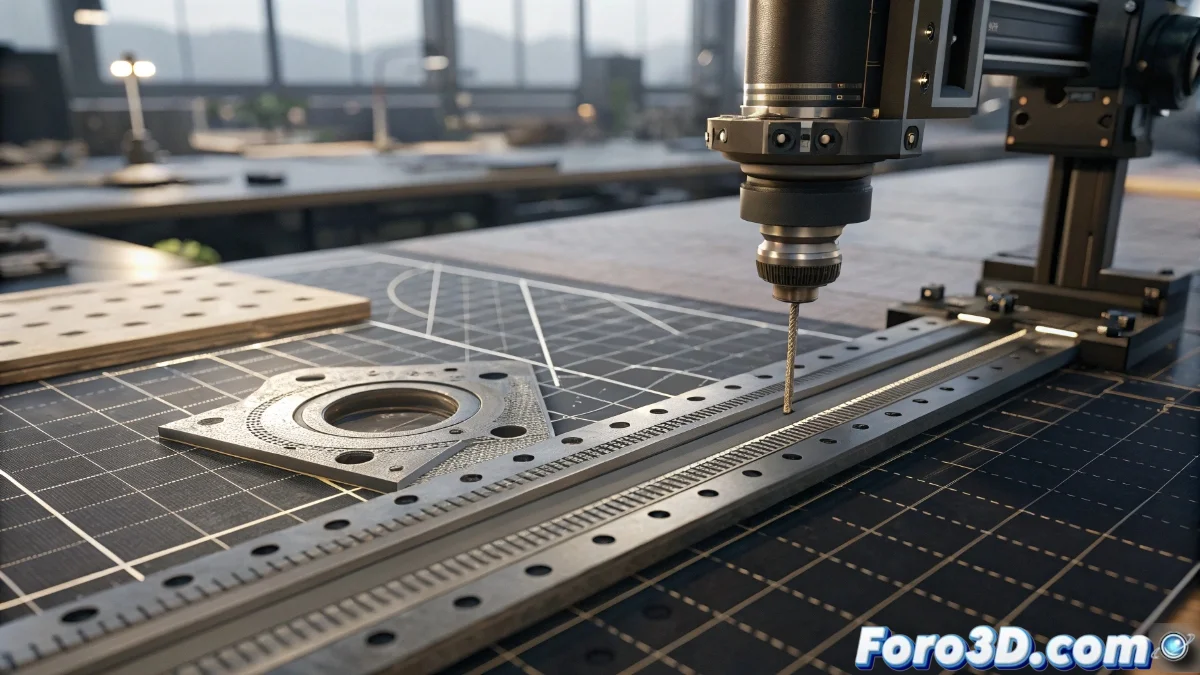
The Extrude Tool in Unreal Engine for Precision Modeling
The Extrude function in Unreal Engine is a fundamental pillar within the static Mesh | Edit editor, designed to facilitate detailed and precise modeling. This utility allows extruding faces, edges, or vertices of any mesh, generating new geometry from existing selections with a high degree of dimensional control. It is especially valuable in architectural modeling projects, mechanical components, and any asset that demands defined shapes and precise measurements. 🛠️
Extrude Setup and Essential Parameters
To use the Extrude tool, first select the desired elements in static mesh editing mode. The option is available in the tools panel or via the context menu. The key parameters include extrusion distance, which you can adjust numerically for exact measurements, and the choice between local or global direction. The system preserves original proportions while expanding the geometry, allowing the creation of intricate volumes through successive extrusions without compromising topological integrity. 📐
Main Configurable Elements:- Extrusion Distance: Numerical control for precise and repeatable dimensions.
- Extrusion Direction: Local or global options for flexible alignment with the mesh.
- Proportion Preservation: Maintains geometric coherence during multiple operations.
Extrude transforms flat selections into three-dimensional geometry with a simple parameter adjustment, ideal for rapid prototyping and technical modeling.
Workflow for Precise Modeling with Extrude
An efficient workflow begins with a well-constructed base mesh, where you select specific faces or edges to extrude. Take advantage of snap guides and axis constraints to maintain perfect alignment during the operation. In organic modeling, combine Extrude with tools like Bevel | Chamfer, while for technical shapes use direct numerical input. Chained multiple extrusions allow developing complex structures, such as stairs, shelves, or industrial components, where each new extrusion builds on the previous one preserving dimensional precision. 🔄
Recommended Steps in the Workflow:- Base Mesh Preparation: Ensure clean topology before extruding.
- Use of Snap and Constraints: Maintains alignment and avoids unwanted deviations.
- Combination with Other Tools: Integrate Extrude with Bevel or Chamfer for organic details.
Final Tips for Effective Use
Although Extrude seems simple, it is the tool that can turn two-dimensional planes into irreversible three-dimensional errors if scale and alignment are not paid attention to. Always verify measurements and use orthographic views to inspect results. Consistent practice will allow you to master complex extrusions and create assets with controlled tolerances, elevating the quality of your Unreal Engine projects. ✅