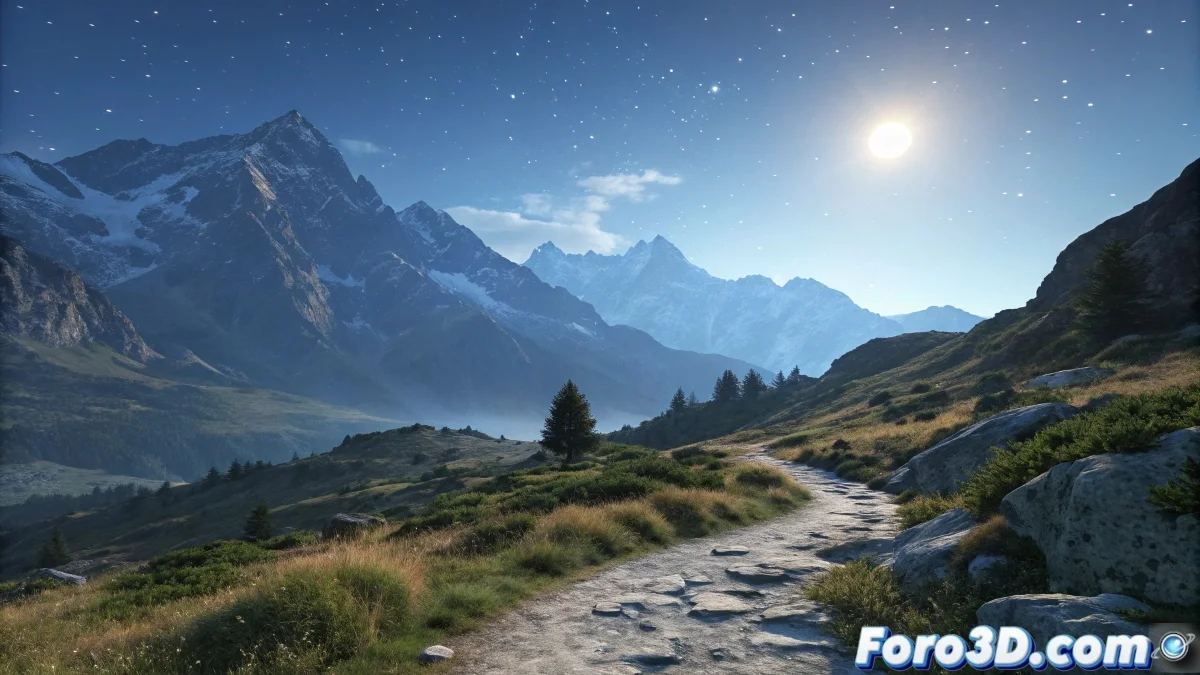
Transforming Day into Night Without Traumatizing Your Characters 🌅🌃
Changing the background from day to night in 3ds Max is like being the cinematographer of nature, but with fewer mosquitoes and more sliders. The trick is to achieve that smooth transition that doesn't make the viewer think someone turned off the sun with a switch.
Professional Methods for the Transition
There are several ways to approach this effect, each with its advantages:
- Composite Maps (Composite/Mix): The most versatile option for blending images
- Opacity Controllers: For precise fades between textures
- Animated Maps: When you need absolute control over every frame
A common mistake is forgetting that the lighting must accompany the change. A beautiful sunset is useless if your lights continue emitting the same intensity as at noon.
Lighting: The Soul of the Transition
For the effect to be truly convincing, consider:
- Gradually reducing the intensity of the main light
- Changing tones from warm to cool
- Adding artificial lights that activate at night
- Including atmospheric effects like fog or dust
Personally, I prefer the composite maps method for its flexibility. It allows adjusting the transition even after creating the animation, which saves many projects when the client changes their mind (as always).
Mistakes That Will Turn Your Scene into a Nightmare
Avoid these common problems:
- Transitions that are too fast (unless it's a vampire movie)
- Forgetting to adjust shadows and reflections
- Using images with different perspectives
At the end of the day (or night), creating a good time transition is like cooking a good stew: it requires time, layers of flavor, and knowing when to let the ingredients work their magic. 🍲
And if all else fails, you can always say it's an artistic effect... even if your characters keep looking confused at their watch. ⏰