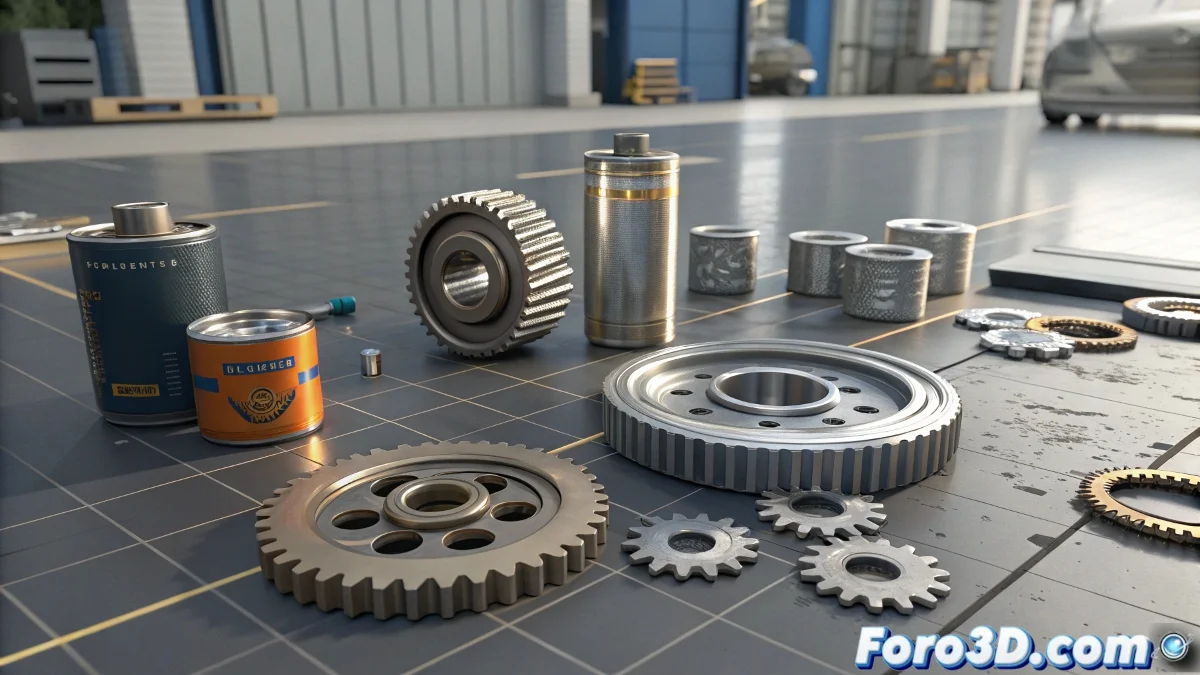
Techniques to Avoid Mixing Moving Mechanical Parts in 3ds Max
When working with multiple mechanical parts in 3ds Max, such as cans or other moving objects, it's common for them to mix or intersect when animated, losing the shape and space they should respect. To avoid this, a very useful technique is to use collision modifiers or physical simulations. And no, you don't need to be a physics expert to do it! 🔧
Use of Collision Modifiers
In 3ds Max, you can take advantage of the Collision modifier or use the MassFX system, which simulates real physics and allows objects not to intersect with each other, respecting their volumes. This helps maintain the integrity of the mechanical parts during animation.
Movement Constraints
Another option is to use constraints or movement restrictions, which limit how and where objects can move, preventing them from overlapping. Also, the use of Proxy Objects can help, creating simplified versions for collisions and improving performance without losing precision in the animation.
In essence, to keep mechanical parts maintaining their space and shape, the best is to combine physical simulation with movement constraints. This way, 3ds Max handles the interactions between objects, and you don't have to worry about them ending up mixed or deformed. That said, if the cans ever start dancing tango with each other, you might need to adjust the friction or mass properties to make the choreography more realistic. So adjust those parameters and enjoy the show! 💃
With these tips, you can effectively avoid mechanical parts mixing when moving in 3ds Max. And remember, if the objects don't behave as expected, you can always blame the physics! 😉