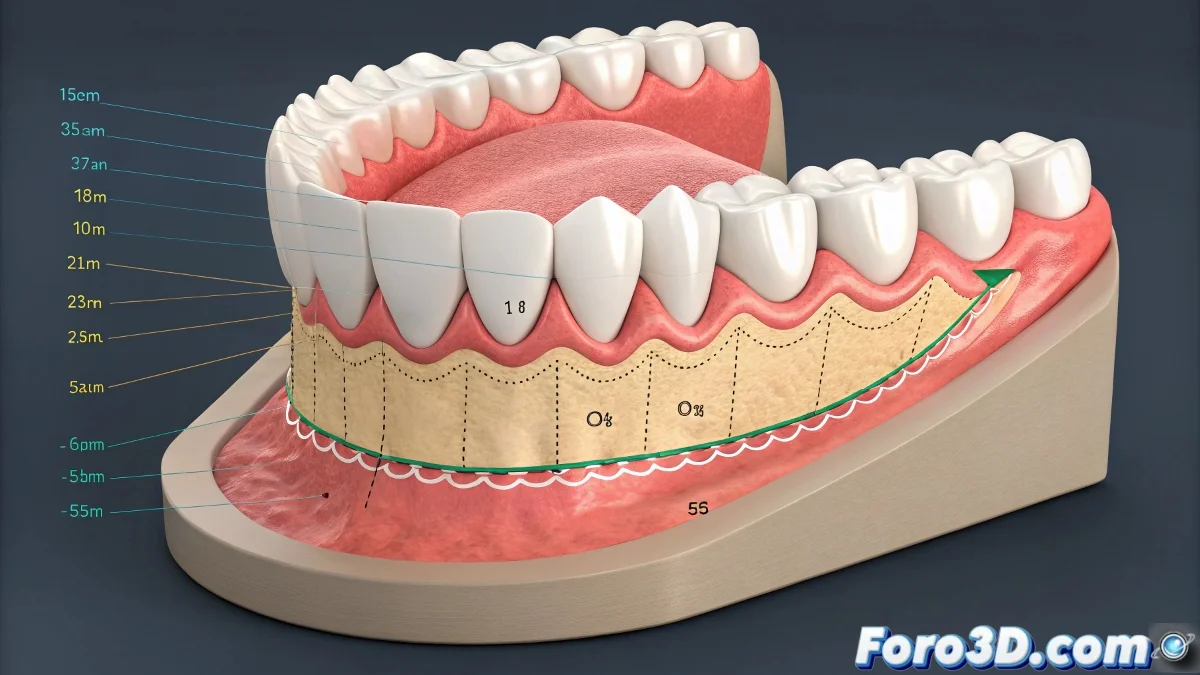
Techniques for Animating Cuts in Dental Modeling with 3ds Max
Animating cuts or incisions in dental models can be a challenge, especially when tools like ProBoolean are not designed for dynamic animations. Fortunately, there are several effective techniques you can use in 3ds Max to achieve this effect without losing visual quality. And no, you don't need to be a digital surgeon to do it! 🦷
Using an Animated Mask Modifier
One of the most effective ways is to apply the Slice Modifier. This modifier allows you to cut the mesh and animate the cut position by moving the plane that generates the Slice. This creates a clean and controlled cut that you can easily animate over time.
- Animate the position of the cutting plane to simulate the incision.
- Enable or disable the visibility of the parts to simulate the incision appearing or opening.
Using a Morphology Modifier
Another option is to model the gums in two states, with and without the cut, and use the Morpher modifier to interpolate between them. This allows you to make the incision appear as a smooth and controlled deformation.
Opacity Maps or Animated Shaders
If you prefer not to modify the geometry, you can create an animated alpha texture or mask in the material to visually simulate the cut. For example, showing a reddened or open part as the animation progresses.
Plugins and Scripts
Although not necessary, some plugins specialized in cut animation or medical simulation could be useful. However, for university projects with standard 3ds Max, the previous methods are sufficient and efficient.
So now you know, forget ProBoolean for animation and use animated Slice for real cuts in the mesh, or Morpher for smooth deformations. And remember, gums don't bite, but your animation can leave a mark! 😉
Creativity and practice are key in animation. Don't be afraid to experiment and try new techniques!