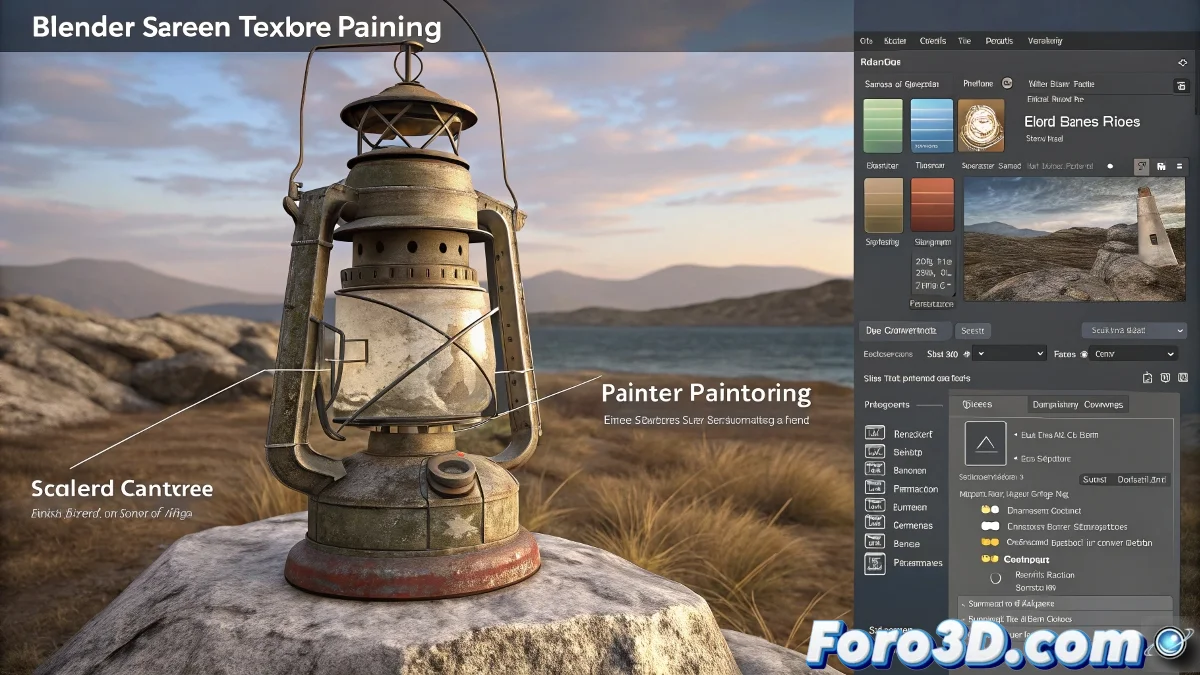
The Mysterious Case of the Disappearing Texture Painting
New to Blender and already facing one of the most classic problems: texture painting that refuses to cooperate. Like many before her, our user discovered that sometimes Blender seems to have a mind of its own, especially when it comes to painting textures directly onto the model. But like any good mystery, this one also had its solution.
"Blender and its whims: where painting a model can turn into a detective adventure"
Symptoms of a Rebellious Model
The described problems are more common than they seem:
- Painting that only works in the UV editor but not in the 3D view
- Areas of the model that refuse to accept paint
- Unexplained changes after an unexpected closure
Possible Causes and Solutions
When texture painting behaves strangely, there are several usual suspects:
- Duplicate Materials: Verify that only one material is assigned
- UV Map Problems: Reset and unwrap the UVs again
- Inverted Normals: Recalculate with Shift+N (the unexpected hero)
- Recovery Files: Look in File > Recover > Auto Save

Lessons Learned
This case leaves us with several valuable lessons:
- Blender saves automatic recovery files (use them!)
- Inverted normals can cause painting problems
- A single material is usually more manageable for texturing
- When all else fails, Shift+N could be your salvation
In the end, as in any good mystery story, the solution was there all along, hidden in a simple keyboard shortcut. And of course, let's remember the most important moral: save frequently, because Blender has the memory of an elephant... except when it closes unexpectedly. 💾