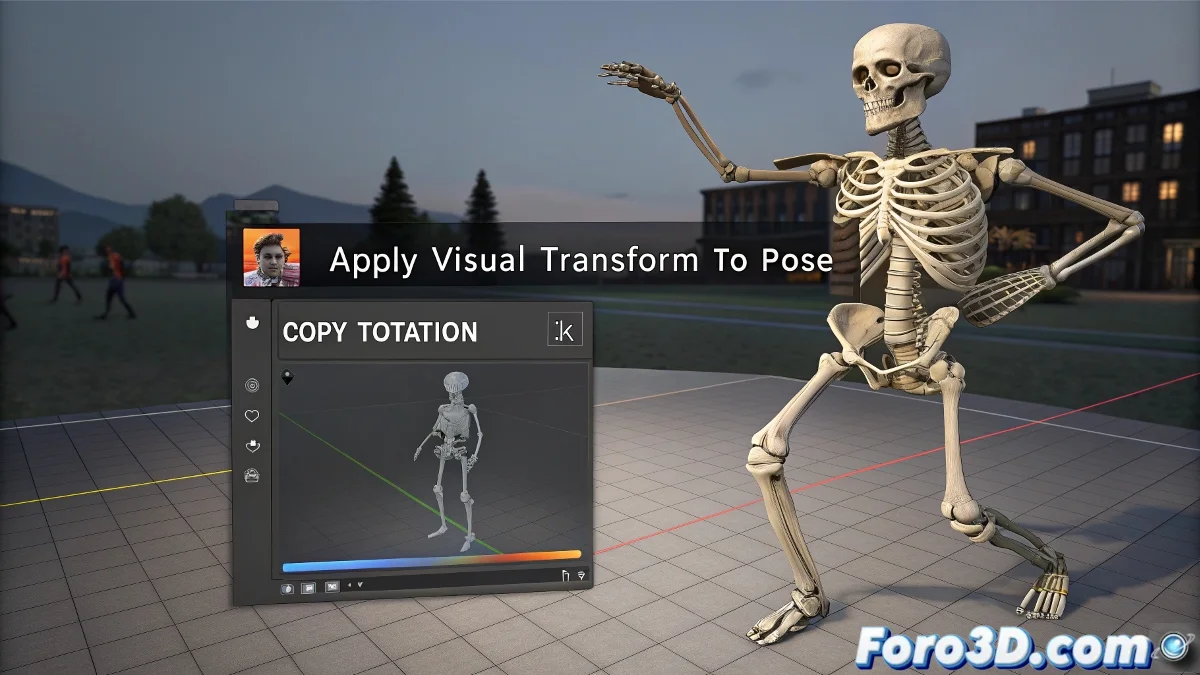
When Blender Takes Your Orders Too Literally
You ask for Apply Visual Transform on a bone and, like a genie misinterpreting a wish, Blender grants you exactly what you asked for... but destroys your rig in the process. 😅 This command is infamous for causing inexplicable jumps in animated characters, especially when there are constraints or complex hierarchies involved.
The Why of the Chaos: Anatomy of a Technical Disaster
The problem occurs because:
- The command recalculates the local position of the bone
- Constraints remain active after application
- There is a conflict between visual and real transformations
"Apply Visual Transform is like restarting your router: sometimes it fixes the problem, other times it leaves you without internet entirely" — Wisdom from frustrated animators
Safe Workflow for Transformations
Follow this process to avoid disasters:
- Temporarily disable all affected constraints
- Bake the animation if you plan to export to game engines
- Use external controllers (empties) for safe manipulation
- Apply in Rest mode before animating when possible
Cases Where You Can Use It Without Fear
The command is safe when:
- ✅ You are working with bones without constraints
- ✅ You are in Rest Pose mode (not during animation)
- ✅ The bone is independent in the hierarchy
For complex rigs, consider using Apply Pose as Rest Pose as a more stable alternative, although it requires readjusting existing keyframes.
When the Damage is Already Done: First Aid
If your character already seems to be having an epileptic fit:
- 🩹 Use Ctrl+Z immediately if Blender hasn't closed
- 🩹 Recover previous versions with the autosave system
- 🩹 Rebuild the affected constraint from scratch
And remember: if all else fails, you can always argue that your character is practicing a new modern dance style. After all, in the 3D world, sometimes bugs become features... until the rigger kills you. 💀