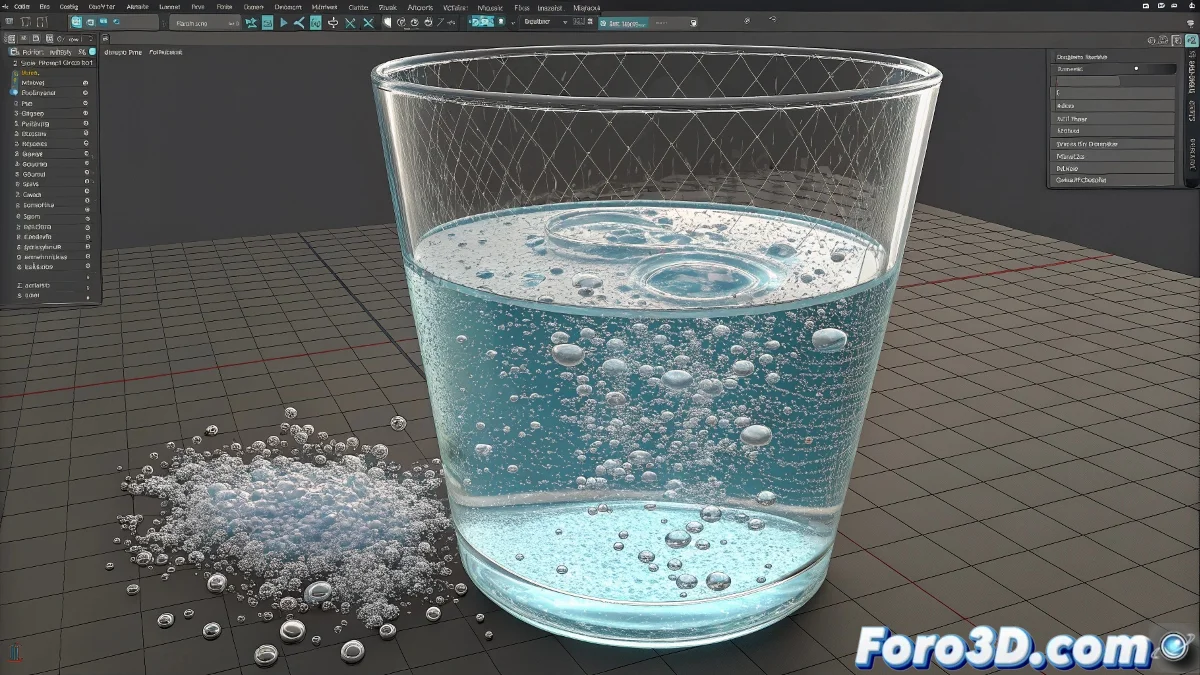
The Mystery of the Intermediate Object in nParticles
The problem you describe with the Intermediate Object in Maya's nParticles is one of those cases where an apparently innocuous option can have devastating consequences for your simulation. The Intermediate Object is not just a visibility toggle, but a fundamental component that stores the processed state of your particle-generated mesh. When you disable it, you're not hiding the mesh; you're destroying the data that Maya had calculated to create it.
The reason you get completely different results when reconverting particles to polygons is that the meshing process in nParticles depends not only on the current parameters, but also on the cached state of the simulation and intermediate calculations that are lost when you disable the Intermediate Object. It's like throwing away the prepared ingredients of a recipe and then trying to recreate it from scratch with the same raw ingredients.
In nParticles, the Intermediate Object is the memory of meshing: without it, Maya forgets how to convert your particles into liquid
What the Intermediate Object Really Is
The Intermediate Object in nParticles acts as a processed geometry buffer. It is not the final mesh you see, but an intermediate version that Maya uses for optimization and storage.
- Storage of processed data: saves the already calculated mesh
- Performance optimization: avoids recalculating every frame
- Quality preservation: maintains mesh consistency
- Cache dependency: linked to the particle nCache
Recovering the Lost Mesh
If you just disabled the Intermediate Object, there is a possibility of recovery depending on whether you have cache and the state of your scene.
The first thing is to check if you have saved nCache from the simulation. The cache contains the particle data that can regenerate the mesh 😊
- Check nCache: in the nCache menu > Attach Existing Cache
- Regenerate from cache: if you have cache, reconvert to polygons
- Verify history: ensure you haven't deleted the mesh node
- Scene backup: recover from saved versions
Solution When Recovery Is Not Possible
If the mesh is irreversibly lost, you need to recreate the meshing process from the beginning with the correct parameters.
Select your nParticles and go to nMesh > Create nMesh. Then meticulously adjust all parameters to match your original result.
- Mesh Method: Triangle Mesh for liquids
- Blend Mesh: 100% for maximum continuity
- Mesh Smoothing: 2-4 for proper smoothing
- Vertex Smoothing: 1-2 for natural edges
Decreasing Polygon Density Problem
The second problem you describe, where the mesh loses density over time, indicates issues with the threshold and particle conservation.
This happens when the system is losing particles or when the meshing threshold is misconfigured for dispersing particles.
- Conservation: verify it is 1.0 (no particle loss)
- Threshold: reduce for greater sensitivity to low density
- Particle Size: animate if particles expand too much
- Max Count: increase if particles are being deleted
Optimal Configuration for Stable Liquids
To prevent the mesh from disappearing, you need parameters that maintain liquid cohesion throughout the simulation.
The secret is to balance particle density with meshing thresholds so that Maya always has enough geometry to work with.
- Liquid Simulation: enable in nParticle Shape
- Incompressibility: 10-20 for realistic liquids
- Viscosity: 0.1-0.5 for normal water
- Surface Tension: 10-30 for droplet cohesion
Method with Multiple Meshes
For long or complex simulations, consider creating multiple meshes in different time segments and joining them later.
Simulate by sections, save each mesh separately, and then join the geometries into a continuous sequence.
- Simulation by parts: frames 1-100, 101-200, etc.
- Mesh per section: create nMesh for each segment
- Post-union: or using geometry reference
- Cache management: separate nCache by sections
Optimization Without Losing Intermediate Object
Instead of disabling the Intermediate Object, use these techniques to optimize performance without destroying your mesh.
The original heavy scene problem can be solved with better optimization practices instead of destructive options.
- Display Type: change to Points or Bounds during work
- Visibility off: hide mesh, do not disable Intermediate
- Proxy geometry: use simple mesh during development
- Layer management: organize in visible/invisible layers
Prevention for Future Projects
Implement this safe workflow to avoid losing meshes in future nParticles simulations.
The key is proactive cache management and understanding which options are destructive versus temporary.
- Save incremental: save numbered versions frequently
- nCache always: create cache before meshing
- Document parameters: take notes of critical settings
- Test meshing early: verify quality from the start
Recovery Solution with Scripts
If the situation is critical, there are MEL scripts that can help recover or rebuild lost connections.
These scripts search for orphan nodes and rebuild connections between nParticles and lost meshes.
- Diagnostic script: list all nParticle connections
- Automatic reconnection: scripts that recreate nMesh
- Parameter extraction: extract settings for recreation
- Community tools: scripts shared on forums
Recovery Workflow
Follow this methodical process to maximize your chances of recovering or recreating your lost simulation.
Patience is crucial. Work systematically and do not make drastic changes without testing in a test scene first.
- Step 1: Check existing nCache and reconnect
- Step 2: Try to recreate nMesh with original parameters
- Step 3: Adjust density and threshold parameters
- Step 4: Implement safe optimizations
Lesson Learned About Intermediate Object
This experience, although frustrating, has taught you a valuable lesson about the nParticles workflow.
The Intermediate Object is one of those elements that seems optional but is fundamental to the integrity of your simulation.
- Not a visibility toggle: it is data storage
- Critical for quality: affects mesh consistency
- Linked to cache: depends on nCache for recreation
- Better to hide: than to permanently disable
After applying these solutions, you will not only regain control over your liquid simulation, but you will have learned to handle nParticles in a more professional and safe way... although you will probably develop the healthy habit of saving backups before touching any option that says "intermediate" or "cache" 💧