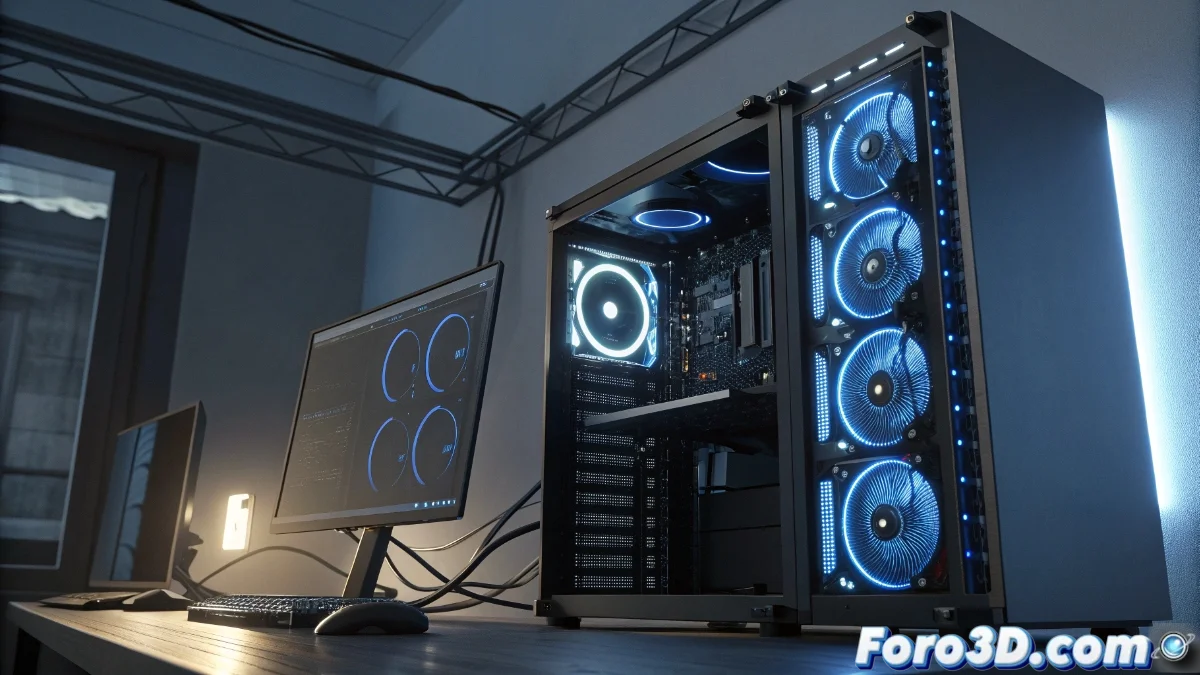
Solution when Blender ignores the GPU in rendering
When preparing Blender to take advantage of GPU rendering, numerous digital artists encounter the frustrating situation where the program completely omits the graphics card and resorts exclusively to the central processor. This circumstance typically arises due to an inadequate configuration in the compute devices within the system preferences. 🔧
Essential device configuration
To resolve this issue, navigate to Edit | Preferences | System and confirm that in Cycles Render Devices you have selected the technology corresponding to your hardware: CUDA for NVIDIA cards, OptiX for RTX, or HIP for AMD. Subsequently, specifically activate your GPU model in the list of recognized devices. If your graphics accelerator does not appear in this list, consider updating the drivers or reinstalling Blender to fix possible detection failures.
Critical verification steps:- Select the appropriate computing platform according to your GPU manufacturer
- Explicitly check your graphics card in the list of available devices
- Update drivers if the hardware does not appear correctly recognized
Patience always wins when Blender seems to play hide and seek with your graphics hardware
Performance check in action
After adjusting the configuration, run a test render and monitor Blender's console window to certify that the GPU is actively participating. If the situation does not improve, check that there are no power limits in the graphics card configuration or interferences with other applications. For systems with multiple GPUs, verify that all relevant units are enabled to distribute the workload evenly.
Additional recommended checks:- Monitor the console during rendering to confirm GPU usage
- Review power settings and possible conflicts with other software
- Enable all relevant GPUs in multi-GPU configurations
Final considerations
Resolving these configuration issues often involves following meticulous but systematic procedures. The correct selection of devices and performance verification are fundamental steps to maximize your hardware's potential. Remember that even when solutions seem obvious, perseverance and attention to detail always guarantee optimal results in your Blender workflow. 💻