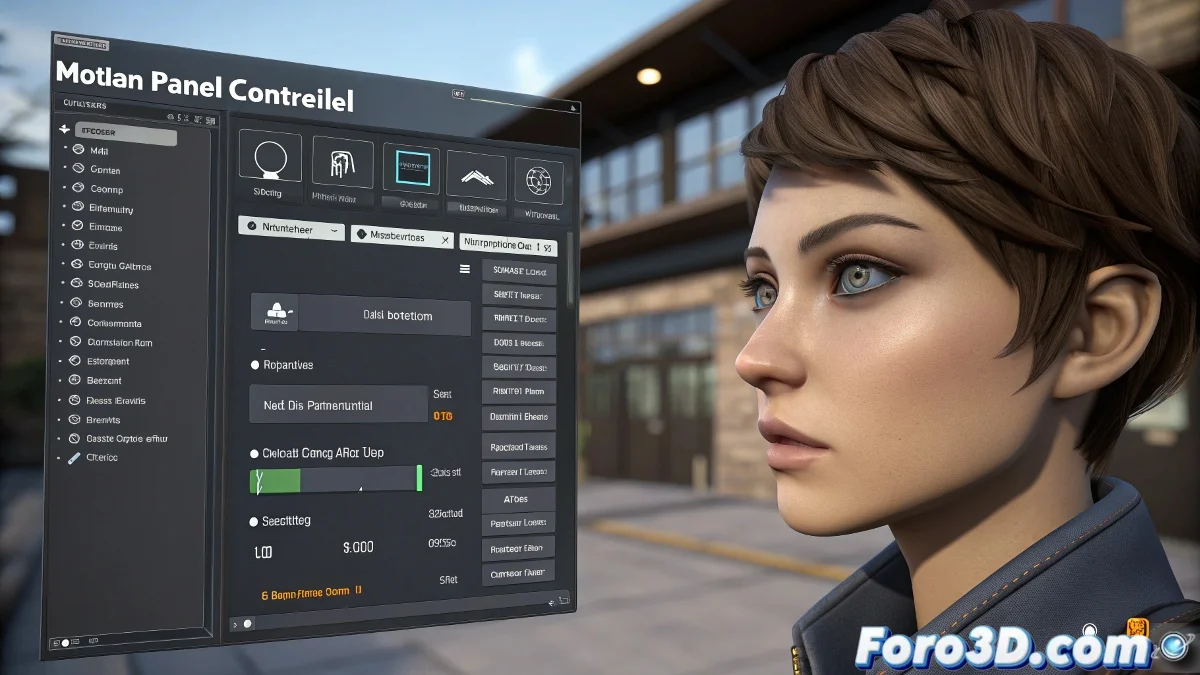
Solution to Issues with Float Limit Controller in 3ds Max
When you use the Float Limit Controller in 3ds Max to restrict an object's movement, such as an eyelid in a rig, you're telling the program that this controller can only move between a minimum and maximum value. However, sometimes this controller doesn't work as expected. Let's fix it! 🛠️
Correct Assignment of the Float Limit Controller
First, make sure that the axis you're applying the limit to actually has a Float Limit Controller assigned. To do it right, follow these steps:
- Select the controller: Go to the Motion panel and select the corresponding controller, for example, the Z axis of position or rotation of the eyelid.
- Assign the controller: Click on Assign Controller and choose Float Limit.
- Adjust the values: Double-click on the Float Limit Controller to adjust the minimum and maximum values.
If you do this but the eyelid doesn't respond, it might still be under the control of another type of controller that's ignoring your new limit. Make sure the Float Limit Controller is in charge!
Checking for Conflicts with Other Controllers
Also check if you have any Wire Parameter or Expression Controller active that's overriding what the Float Limit does. Sometimes tutorials don't mention this, and that might be the step you're missing. Don't let other controllers steal the show! 🎭
- Wire Parameter: Check if there's any Wire Parameter active.
- Expression Controller: Verify if there's any Expression Controller that might be interfering.
Extra Check in the Curve Editor
In the Curve Editor panel, check if your axis has multiple layers of control. Temporarily disable any previous controllers and test only with the Float Limit. If you use a custom attribute to move the eyelid, make sure it's properly linked to the axis you're controlling. Precision is key! 🔍
- Control layers: Check multiple control layers in the Curve Editor.
- Disable previous controllers: Test only with the Float Limit.
- Custom attributes: Make sure they are properly linked.
3ds Max Version
Make sure you're using a recent version of 3ds Max, like 2025, as some things in the controller system have greatly improved in stability and visualization. Stay updated! 🆙
The Float Limit Controller is like that friend who says I'll help you, but only if everyone else steps aside. If you don't let it be fully in charge, it just stands there watching and doesn't lift a finger. Make sure it's the boss of the party! 🎉