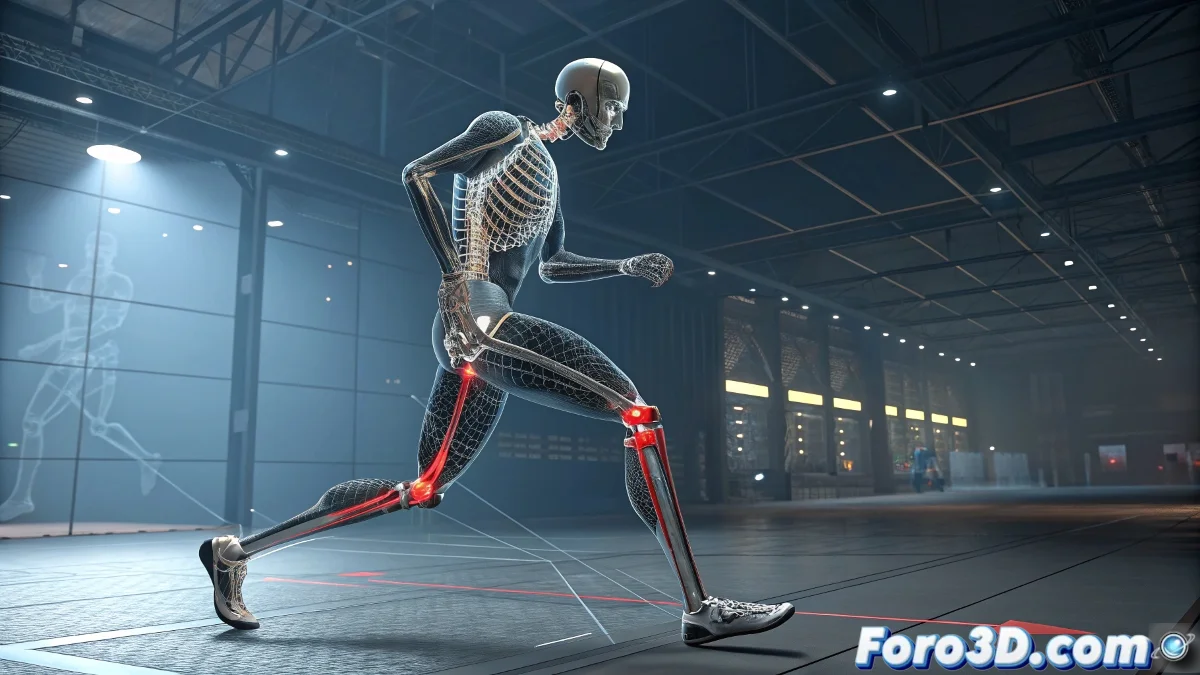
When Your Character Decides Knees Should Bend Backwards 🙃
You set up the IK for the legs with all the excitement, but when you move the controller, instead of an elegant bend, you get a deformation that would make any orthopedist cry. Don't worry, it's the rite of passage for every rigger.
Quick Diagnosis: Why Does This Happen?
- Missing/Misplaced Pole Target: The IK doesn't know where to "push" the knee
- Rotated Local Axes: The bones are oriented like pretzels
- Incorrect Hierarchy: The IK chain doesn't follow the natural leg flow
- Defective Weighting: Vertices move where they shouldn't
Professional Step-by-Step Solution
1. Correct Pole Target Setup
- Create a Null and place it in front of the knee
- Select your IK tag
- Drag the Null to the Pole Vector field
- Adjust the position:
- For legs: Around 50-100cm in front of the knee
- For arms: Similar distance in the direction of the elbow
2. Bone Reorientation (The Definitive Solution)
- Select all the leg bones
- Go to Character → Commands → Align Axis
- Choose Align to World or Align to Child
- Enable Character → Display → Axis to verify
"A rigger without bone orientation problems is like a chef who has never burned themselves: probably doesn't exist" - Veteran Animator
3. IK Chain Verification
- The hierarchy must be: Hip → Knee → Ankle
- Use Character → Create IK Chain to ensure proper connection
- Test basic movements before adding complex controls
Common Errors and Quick Fixes
- 🔄 "The knee keeps rotating wrong": Adjust the Pole Target position on the Y axis
- 📐 "The bones don't align": Use the Joint Tool to recreate them
- 🤸 "Strange deformations when moving": Check influence weights with the Weight Tool
- 🌀 "The IK behaves erratically": Try resetting the bone transformations
Recommended Workflow
- Model your character in T-pose (arms extended)
- Create bones with Joint Tool maintaining consistent axes
- Set up IK Chains with Pole Targets from the start
- Test basic movements before skinning
- Apply weighting carefully, zone by zone
In the end, solving these IK problems will make you a better rigger. And when you see your leg bending perfectly, you'll know the effort was worth it... until you find a new problem in the arms. That's the wonderful world of rigging! 🦵