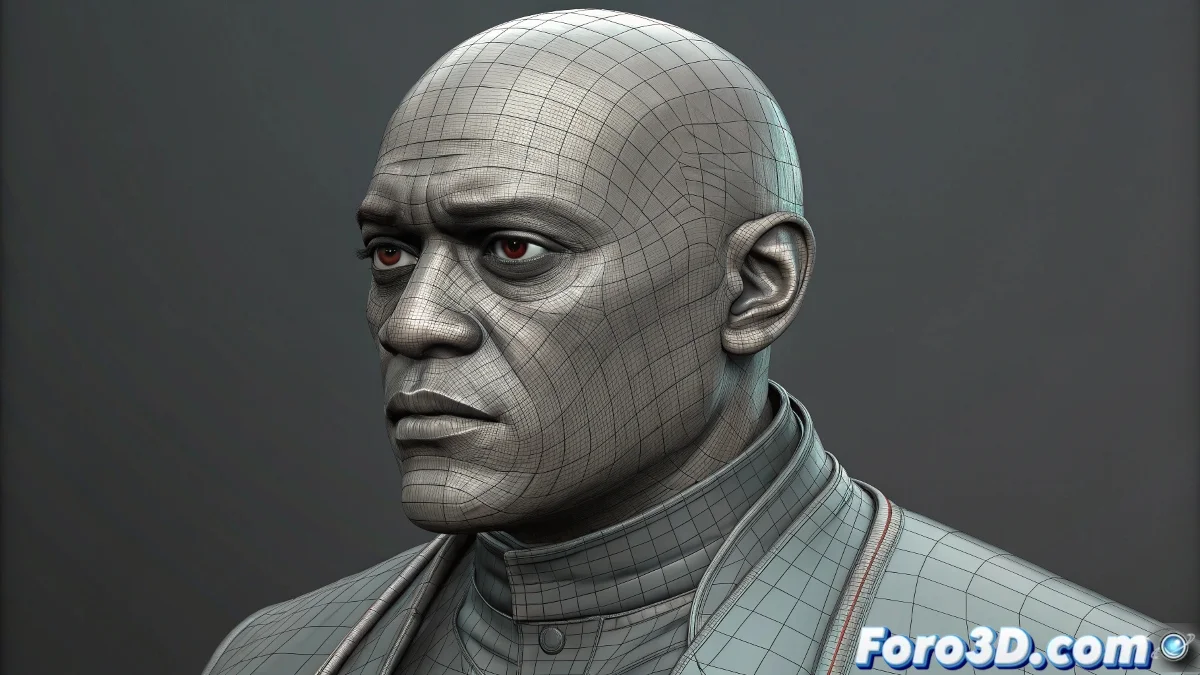
Solution to Freeze and Materials Issues with Josh Burton's Morpheus in Maya
Animating pre-made characters like Morpheus by Josh Burton can be a challenging experience for those starting out in Maya, especially when we encounter limitations like the freeze that blocks certain controls or affects material visualization. This issue often affects not only the animation but also how textures are displayed in the viewport and in the render. And no, you don't need to be a Maya expert to solve it! 🎭
What is Freeze and How Does it Affect the Character?
The freeze or frozen state in Maya is a way to lock transformations or attributes to prevent accidental changes during animation or rigging. In complex characters, this can mean that some controls, materials, or shaders are locked to protect the integrity of the rig.
In the case of Morpheus, if the character appears gray in the viewport and the render comes out with black skin and the eyes don't appear, it may be that the freeze is preventing the shaders or materials from updating or applying correctly.
Steps to Remove the Freeze and Recover the Materials
- Open the Outliner and locate the nodes related to the skin and eyes. They may have frozen or locked attributes.
- Select the skin objects and in the Channel Box check if there are locked attributes. If there are, unlock them by right-clicking and selecting Unlock Selected.
- Check if the material is assigned correctly: open the Hypershade and confirm that the shaders assigned to Morpheus are active and connected.
- In the Edit > Delete by Type menu, choose History to delete old data that may interfere with material updates.
- If the character has an active freeze transform, go to Modify > Freeze Transformations and undo with Edit > Undo Freeze Transform or manually adjust the values to return them to zero.
- Finally, ensure that in the render settings, the lights and cameras are active and that the render engine you use (Arnold, V-Ray, Redshift) supports the applied materials.
Extra tip for new Maya users. When working with complex rigs, before making deep changes, duplicate the scene to avoid losing work. This way you can experiment without fear. And remember that at foro3d.com you will always find people willing to help, even when the freeze seems like an invincible villain.
And remember: if you can't remove the freeze, you can always convince Morpheus that black is his new skin style for the next movie... that is, without special effects. So get to work and solve those problems! 🎬
With these tips, you will be able to effectively solve freeze and materials issues with Josh Burton's Morpheus in Maya. And remember, if the freeze doesn't come out as expected, you can always check your attributes! 🔄