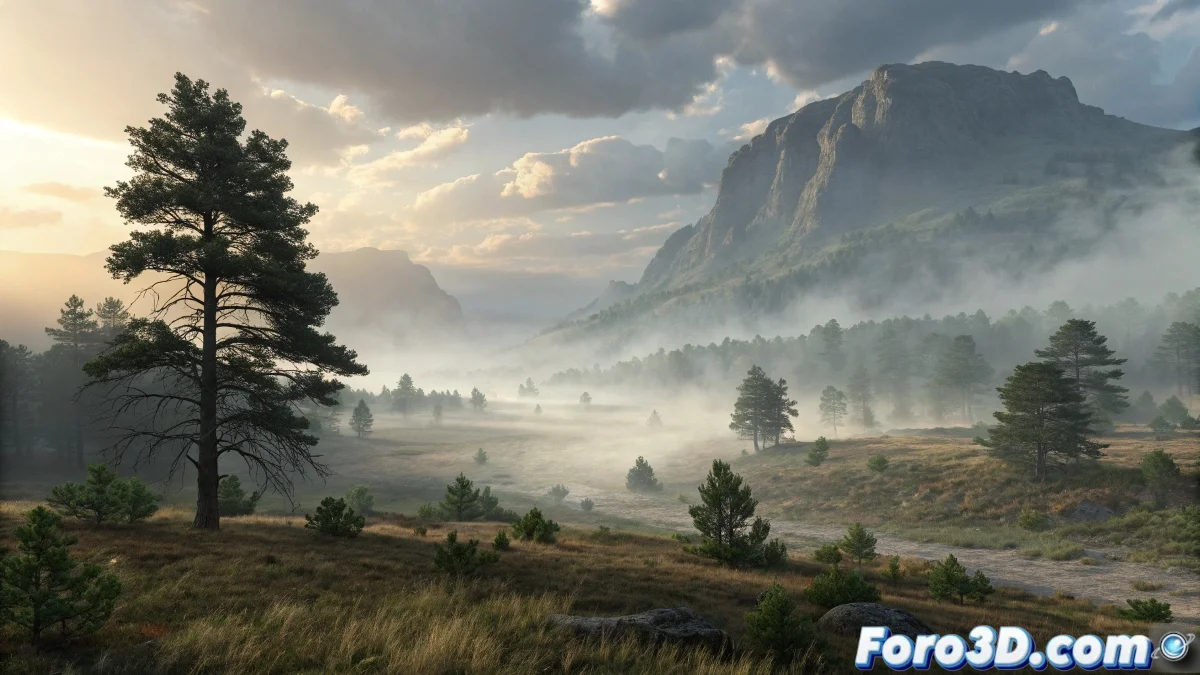
When the Fog Decides to Be Shy in the Foreground
The problem of uneven fog in pCloud is one of those frustrating challenges where the simulation seems to conspire against common sense. The paradox is evident: you have the emitter in the center, but the fog close to the camera looks fainter than the background, creating that anti-natural effect you describe perfectly. This behavior is usually due to a combination of render factors and particle parameters that interact in a counter-intuitive way.
You have correctly identified the symptom and your intuition about Volume Fog and Environment Fog is spot on - they are simpler but less flexible. The good news is that pCloud can produce excellent results, but it requires understanding its particular internal logic.
Adjustment of Critical pCloud Parameters
The main culprit is usually the Viewport % parameter in combination with the Render %. Go to the pCloud properties and check that both are at 100%. Many users reduce the Viewport % for better performance during work, but forget to restore it to 100% for the final render.
The second critical parameter is Particle Size in relation to the Distance to Camera. Very small particles can become "transparent" due to the material when close to the camera. Increase the Size or adjust the material to compensate for this effect.
- Viewport % and Render % at 100%
- Particle Size adjusted according to distance to camera
- Sufficient Particle Quantity for uniform density
- Speed and Variation balanced for homogeneous distribution
Perfect fog is like a good whisper: it feels present throughout the room, not just in the corners
Material Setup for Uniform Density
The material assigned to the pCloud is as important as the particle parameters. Use a Particle Age or Particle MBlur material connected to opacity, but with an Age curve that maintains constant opacity throughout the particle's life. Many default settings have fade in and fade out that cause the problem you describe.
For the color, use a Particle Age map with the same color at all points on the curve, or even better, use a simple material without age maps if you're seeking total uniformity. Transparency should be controlled through the main Opacity channel, not through particle maps.
- Material without fade in/out in Particle Age
- Constant Opacity throughout the entire lifespan
- Uniform color without age variation
- Self-Illumination for glowing fog effect
Alternative Technique with Multiple pClouds
If a single pCloud doesn't give the desired result, consider using multiple pCloud systems overlaid. Create one pCloud for the general background fog and another specific for the foreground, with parameters optimized for each distance. This gives you independent control over each zone.
For the foreground pCloud, use larger particles and less variation in speed. For the background, smaller particles with greater variation. This technique better simulates the real behavior of fog, which usually has density variations at different depths.
- pCloud specific for foreground
- Additional pCloud for background and midground
- Different particle sizes per system
- Slightly different materials for natural variation
Solution with Enhanced Environment Fog
If you decide to go back to Environment Fog, there are techniques to improve it. Use Volume Fog with Noise enabled, but with very subtle parameters. Adjust Uniformity to 0.8-0.9 for greater homogeneity, and Levels to 4-5 for sufficient detail without exaggerating the cloud effect.
For density control by distance, animate the Near % and Far % parameters with smooth curves that maintain constant density. The key is to use values very close between Near and Far (e.g., Near 85%, Far 90%) to minimize the difference between foreground and background.
- Volume Fog with subtle Noise
- High Uniformity for homogeneity
- Near and Far % with close values
- Exponential for more natural decay
Lighting and Render Optimization
Lighting dramatically affects the perception of density. Use soft ambient lights and avoid intense direct lights that can "wash out" the fog close to the camera. Volumetric lights can help define density, but require careful adjustment.
In the render options, check the Atmospherics parameters. Increase Steps for better quality, especially if using Volume Fog. For pCloud, ensure the particle system is in the correct category to be affected by ambient lighting.
- Soft and diffuse ambient lighting
- Avoid intense direct lights in foreground
- Increased render Steps for quality
- Carefully adjusted atmospherics Multiplier
Solving this mystery will allow you to create credible atmospheric fogs that truly envelop the scene instead of hiding in the background. Because in 3ds Max, even the shyest fog can learn to distribute uniformly when it knows the right parameters 😏
Quick Setup for Uniform Fog
Base values for uniform pCloud:
Viewport %: 100
Render %: 100
Particle Size: 8-12 units
Material: Opacity 60-80%, no Particle Age
Variation: 10-20% for uniform distribution