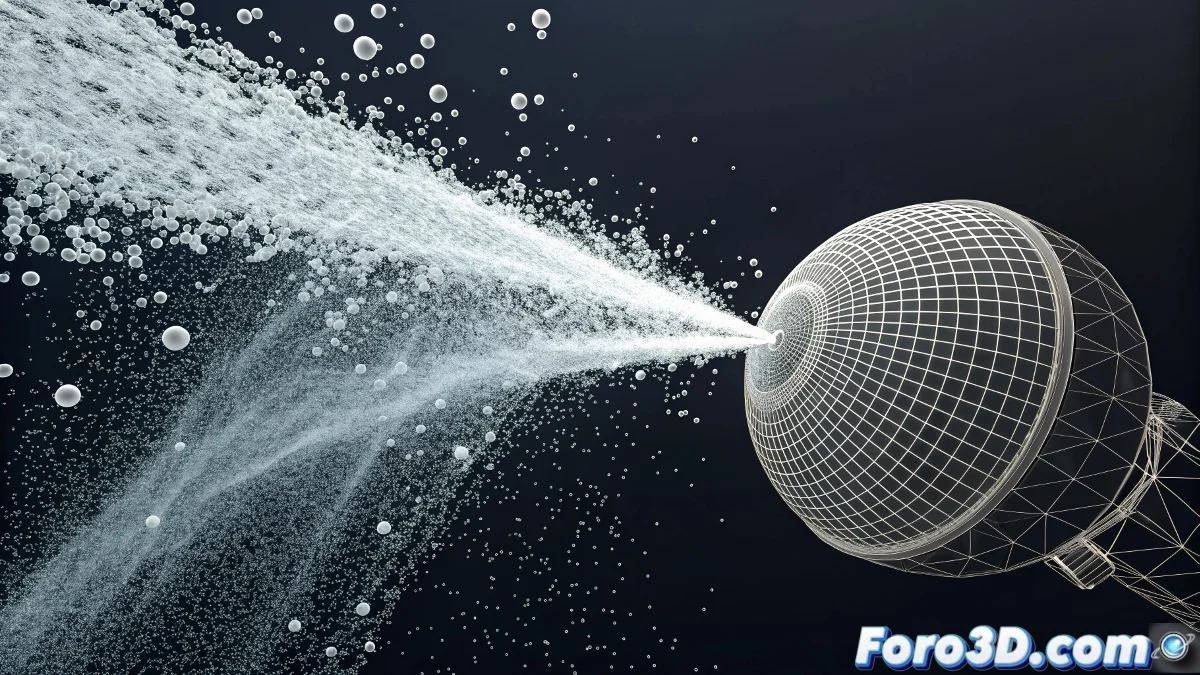
When Collisions Decide Not to Happen
The issue of deflectors not appearing in the collision list in Particle Flow is one of those puzzles that can make even the most patient artist consider giving up. The frustration is understandable when you've carefully created your ship and missile system, applied the Mesher and UDeflector, but the Collision operator refuses to acknowledge your work. This behavior usually indicates a hierarchy or system update problem rather than a specific configuration error.
You've identified a classic scenario of complex dynamics in Particle Flow, where multiple systems need to interact through geometry converters like the Mesher. The fact that it sometimes appears and sometimes doesn't suggests a refresh or timing issue in updating the list of available objects.
Solution to the Deflector Selection Problem
The first step is to reorganize the creation order. Create the UDeflector before opening Particle Flow. Select the Mesher object, go to Space Warps > Deflectors > UDeflector and click on the Mesher. Then, in Particle Flow, add the Collision operator and use the Add button (not By List) to select the UDeflector directly from the viewport.
If the UDeflector still doesn't appear, check that the Mesher is updated. Right-click on the Mesher object and select Update Mesh. Sometimes the Mesher doesn't automatically update its geometry, making the UDeflector lack a valid surface for collision.
- Create UDeflector before opening Particle Flow
- Use Add for direct selection from viewport
- Manually update the Mesher's Mesh
- Verify that the Mesher has visible geometry
A perfect collision is like a good handshake: both parties need to be present and ready for contact
Correct UDeflector Configuration
In the UDeflector properties, verify that Object-Based Deflector is correctly pointing to the Mesher object. Click on Pick Object and select the Mesher again. Sometimes the connection is silently lost, especially if you've renamed objects or reorganized the scene.
The Bounce, Variation, and Chaos parameters are crucial for bounce behavior. For missiles, use Bounce 0.8-1.2 for an energetic bounce, Variation 10-20% for naturalness, and Chaos 5-15% for slightly unpredictable directions. Very low Bounce values (0.0-0.3) can make missiles simply stop instead of bouncing.
- Pick Object verified and pointing to the Mesher
- Bounce: 0.8-1.2 for energetic missiles
- Variation: 10-20% for naturalness
- Chaos: 5-15% for unpredictable directions
Alternative Configuration Without Mesher
If the Mesher approach continues to cause problems, consider using direct geometry instances instead of Mesher. In the missile system, use the Shape Instance operator so each particle is an instance of the missile, and then apply the UDeflector directly to the ships (not through Mesher).
Another alternative is to use standard particles with simple deflectors. Instead of complex missiles, use simple particles (dots or ticks) for collision testing, and only convert to complex geometry once the collisions work correctly.
- Shape Instance for complex missiles
- UDeflector applied directly to ships
- Simple particles for collision testing
- Conversion to complex geometry only at the end
Solution for Persistent Collisions
To diagnose the problem, enable Display Geometry in the Collision operator. This visually shows the active deflectors in the viewport. If you don't see geometry, it means the Collision isn't recognizing the deflector correctly.
Another diagnostic technique is to use a simple deflector (SDeflector) instead of UDeflector. Simple deflectors are more basic but also more reliable. If the SDeflector works but the UDeflector doesn't, the problem is specifically with the UDeflector configuration.
- Display Geometry enabled in Collision operator
- Test with SDeflector as an alternative
- Verify object scales
- Test with simple reference geometry
Full System Optimization
The update timing can affect collisions. Ensure the ship system is animated and updated before the frame where collisions occur. You can force an update by moving the time slider or using Update During Spinner Drag in the preferences.
For complex systems, consider using update scripts that automatically refresh connections between Mesher, UDeflector, and Particle Flow. A simple script you run before rendering can save hours of frustration.
- Update animation before collisions
- Update During Spinner Drag enabled
- Automatic update scripts
- Frame-by-frame preview
Solving this mystery will allow you to create complex space combat systems where missiles and ships interact in a believable and controlled manner. Because in Particle Flow, even the most rebellious collision can be tamed with the right hierarchy and configuration 😏
Verified Workflow
Correct order for reliable collisions:
1. Create ship geometry
2. Apply Mesher to ships
3. Create UDeflector pointing to the Mesher
4. Create Particle Flow missile system
5. Add Collision operator
6. Select UDeflector with Add (not By List)
7. Update Mesher before rendering