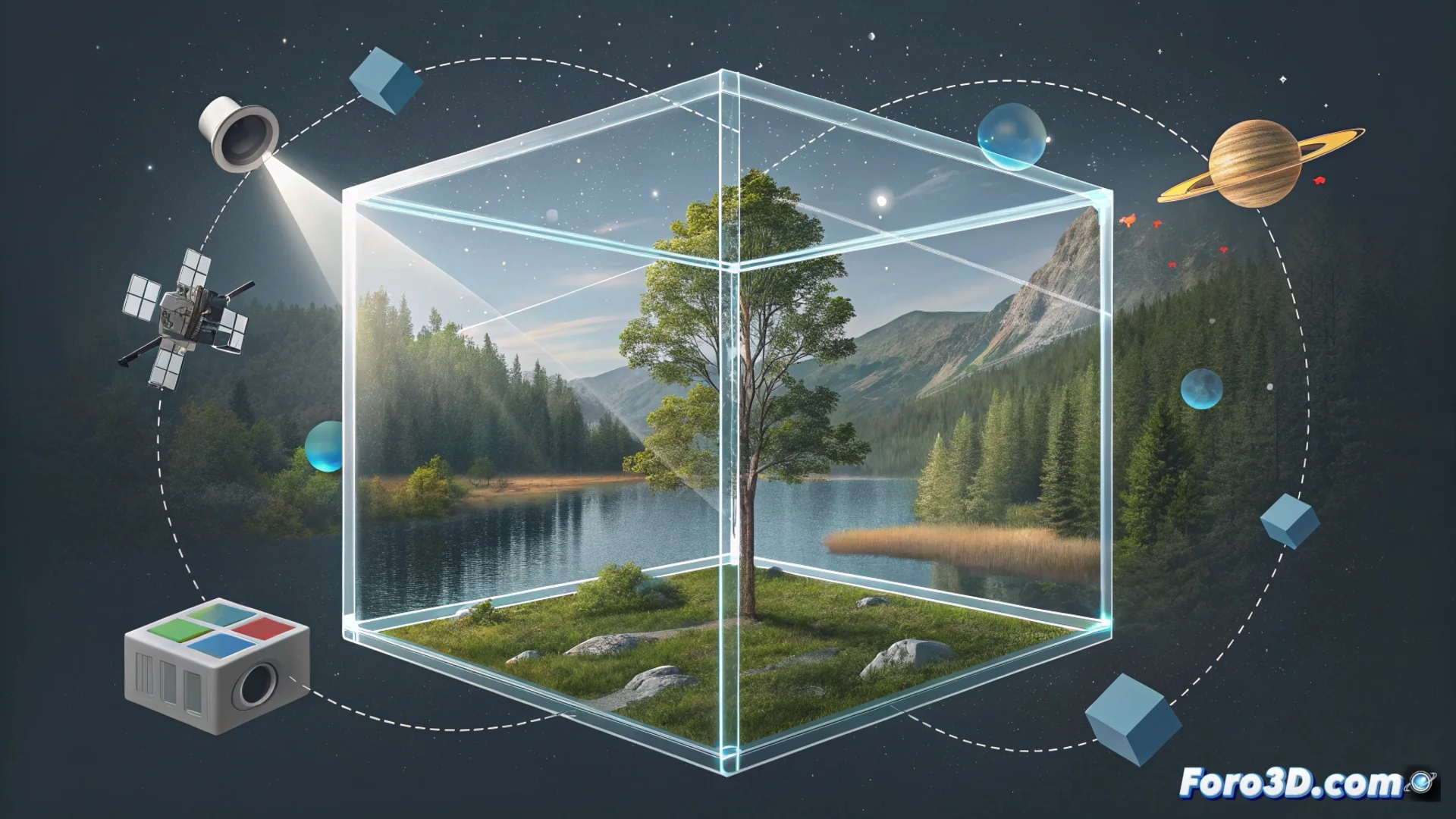
Smart Objects and Filters for Non-Destructive Editing
In the world of graphic design and post-production, working non-destructively is not a luxury, it's a necessity. 🛡️ This methodology is supported by two fundamental pillars: Smart Objects and Smart Filters. Together, they form a system that protects the original information in your file, freeing you to experiment and adjust without the constant fear of making an irreversible mistake.
The Protective Container: Smart Objects
A Smart Object acts as a capsule that encapsulates all the source data of a layer, whether rasterized or vectorial. When converting a normal layer into this type of object, the software stops manipulating pixels directly. Instead, it stores a reference to the original file. This means you can scale, rotate, skew, or distort the layer repeatedly. The quality does not degrade because the program does not interpolate the pixels until it is explicitly rasterized.
Key advantages of using Smart Objects:- Transform without limits: Try different sizes and perspectives on the fly, maintaining maximum image sharpness.
- Replace content with one click: You can replace the image inside the object with another file. All applied transformations and filters update automatically, speeding up design iterations.
- Preserve vector data: Imported vector graphics retain their editable properties within the smart container.
The true power of non-destructive editing is felt when, after twenty adjustments, you can return to the starting point with a single click, without having lost quality or information in the process.
Reversible Effects: Smart Filters
Smart Filters are the logical consequence of using Smart Objects. You can only apply them to these container layers. The big difference with a normal filter is that they do not alter the base pixels. Instead, they are added as an independent and fully editable effects layer in the layers panel.
How a Smart Filter gives you flexibility:- Permanent control panel: Each filter appears listed below the object, with its own filter mask, opacity, and settings that you can modify at any time.
- Reorder and blend: Change the stacking order of the filters or try different blending modes, even days after applying them.
- Enable or disable: You can temporarily turn off an effect to see the result without it, or delete it completely without impacting the original image.
A Fearless Workflow
The combination of these tools fosters an experimental and reversible working method. You no longer need to make definitive decisions at the start of a project. You can apply a blur filter, adjust its intensity, then add a color adjustment and another distortion, freely testing combinations. This independent effects layer frees the user to experiment without the risk of ruining the base work. The creative process becomes more agile and less stressful, allowing focus on the final result and not on the technique to protect it. 🎨