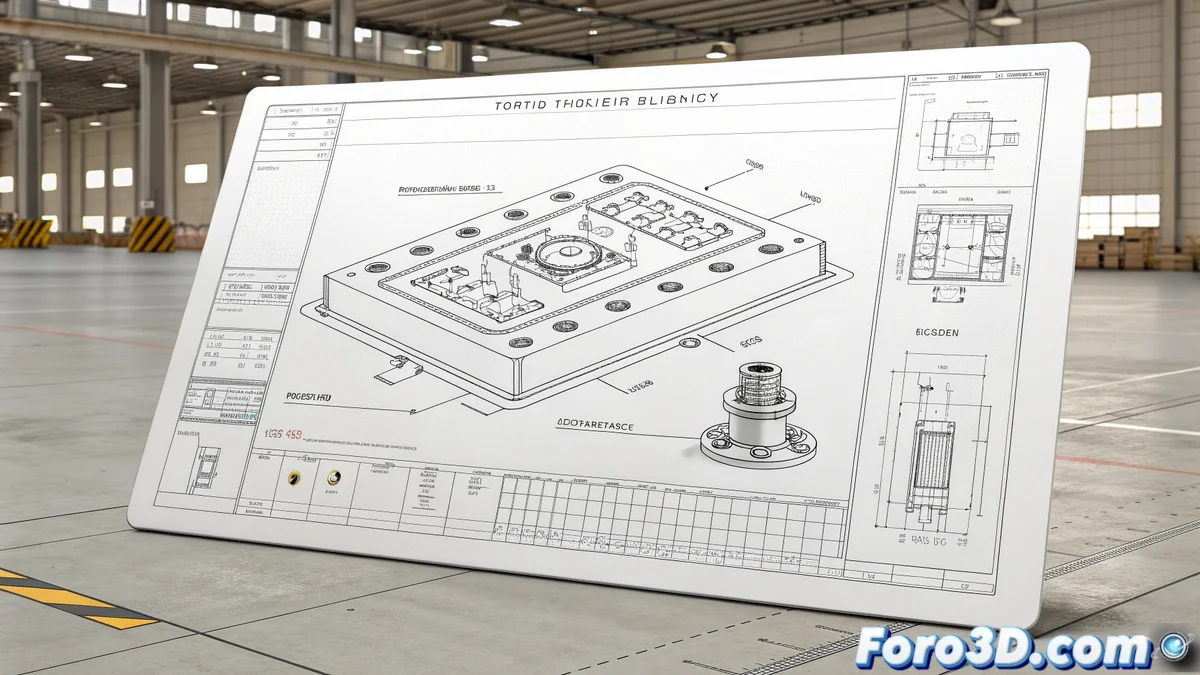
From 3D Modeling to the Perfect Technical Drawing
For many industrial designers, the moment of truth arrives when they must translate their Rhinoceros 3D model into a clear and professional drawing. 📐 The Layout space is Rhino's dedicated tool for this crucial task, allowing you to organize views, dimensions, and annotations on a virtual paper sheet. However, starting each project from scratch can be tedious. The key to efficiency lies in creating a custom template that automates repetitive work.
The Foundation: Setting Up the Paper Format
The first step is to go to File > New Layout to create a new print space. Here you select the standard paper size (A4, A3, etc.) or enter custom measurements. 🧾 Immediately after, it is advisable to define the margins. By drawing rectangles that represent the usable limits of the drawing area and locking them on a specific layer, you avoid accidentally placing elements outside the printable area. This simple action provides a polished appearance from the start.
A good Layout goes unnoticed, but a bad Layout is immediately obvious.
Reusable Elements: The Title Block
One of the biggest time-savers is creating a Block for the title block. This block should contain fields such as the project name, date, author, and space for the scale. 📝 By defining it as a block, any update will automatically be reflected in all instances of the drawing. Placing this block in a corner of the Layout and locking its layer ensures consistency across all the studio's documents.
- Layer Management: Create separate layers for contour lines, centerlines, dimensions, and text.
- Line Weight Control: Assign line weights (Print Width) directly in the properties of each layer.
- Detailed Views: Insert specific views of the 3D model with custom scales.
Creating and Saving the Master Template
Once you have the Layout configured with margins, title block, and organized layers, it's time to save this file as a template (.3dm Template). 💾 This is done from File > Save As, selecting the Rhino Template (.3dm) format. The next time you start a new project, you only need to choose this custom template and you'll have everything ready to start working, maintaining a professional standard across all documentation.
Working without a Layout template is like arriving at a construction site without the blueprints: you may have clear ideas, but the process will be much slower and prone to errors. 🚧 A small initial investment in setup saves hours of manual adjustments in the future.