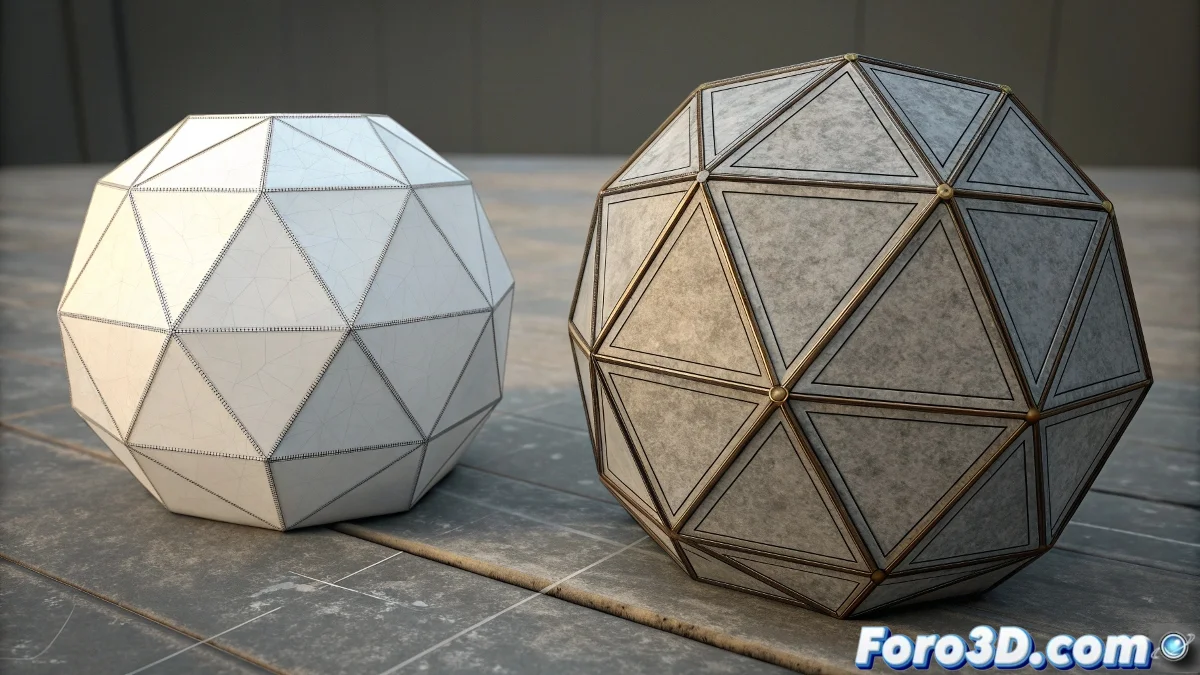
Mastering Viewport Display
Working in 3ds Max with a complex scene can become a real visual chaos. 😵💫 The Edge Faces function, which displays polygon edges over the shaded model, is invaluable for understanding topology. However, activating it for all objects with the F4 key often clutters the screen. The true skill lies in controlling this visibility selectively, allowing the artist to focus only on the object being edited, while the rest of the scene remains clean.
The Universal Method and Its Limitations
Pressing F4 is the first resource every user learns. This command acts as a global switch, turning polygon edges on or off for all visible objects in the viewport. 🎛️ Although it's quick and effective for simple scenes, it becomes impractical when specific details are needed. This is where the need for finer control arises, as the program does not offer a native button to apply Edge Faces to a single object directly.
Viewport optimization is crucial for maintaining fluidity and concentration during long modeling sessions.
Practical Solutions for Individual Control
To achieve the desired per-object control, users must be a bit more ingenious. The most effective strategy involves using the Edged Faces modifier. 💡 Applying this modifier specifically to the desired object from its modifier stack achieves the effect locally. Meanwhile, the other objects in the scene remain with the standard display, which clearly improves readability.
- Dedicated Modifier: Searching for and applying Edged Faces from the modifier list offers maximum control.
- Object Properties: Although options like Display as Box simplify the geometry, they are not a direct replacement for edge display.
- Performance: Avoiding having Edge Faces active on high-polygon objects is key to not slowing down the viewport.
Configuration for Success
It is important to ensure the viewport is configured in a shading mode that supports this function, such as Smooth + Highlights. Once the modifier is applied to the correct object, the artist can work with precision without distractions. 🎯 This workflow not only organizes the scene visually but also contributes to a more efficient and enjoyable modeling experience.
Getting one object to show its edges while the others behave requires patience, a value as necessary as trying to get a cat to obey a command. 😼 In the end, the reward is an organized scene and a faster workflow.