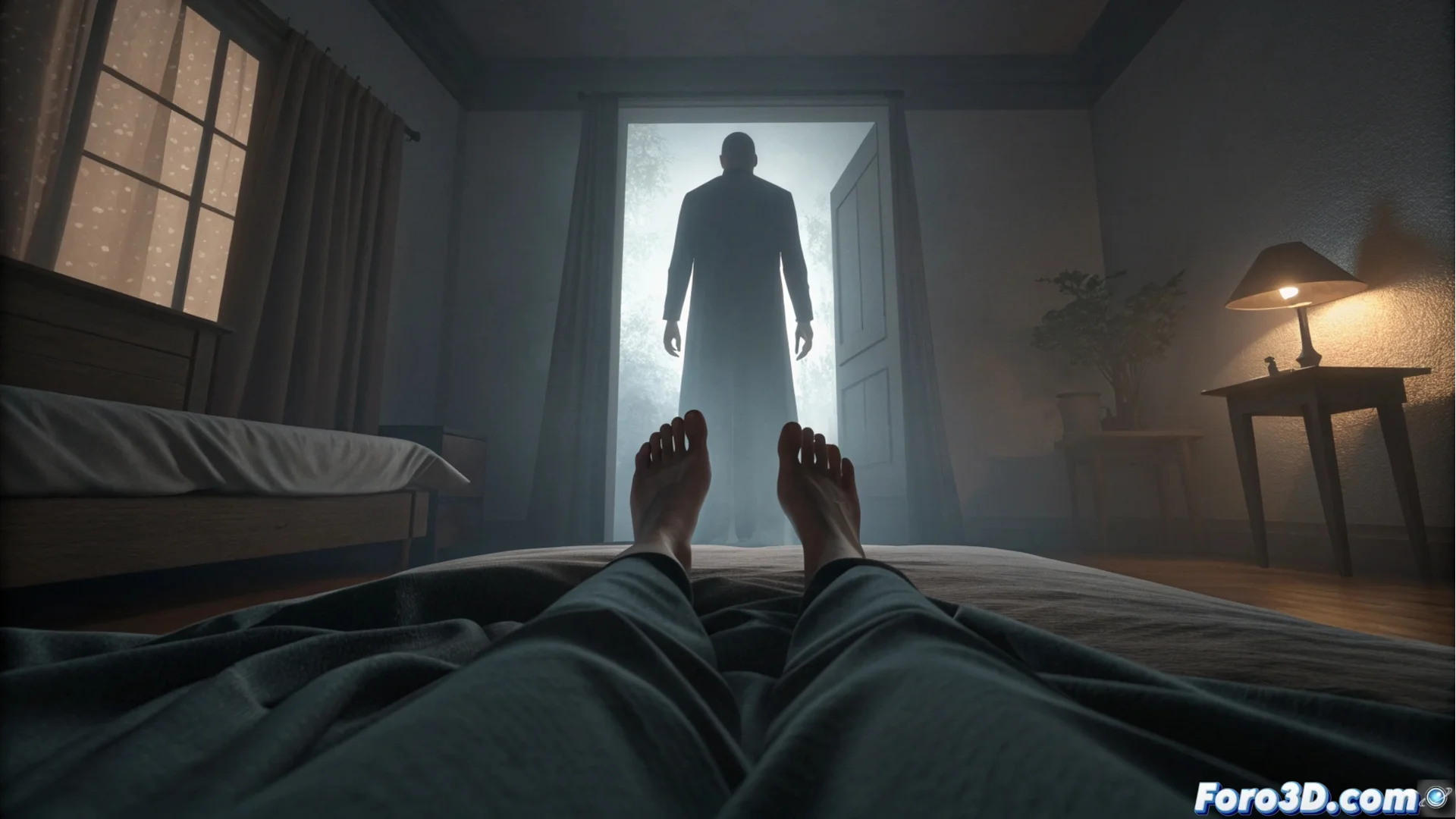
Representing Sleep Paralysis with Pencil 2D in Blender
Sleep paralysis is an experience where a person wakes up but cannot move or speak, often perceiving a threatening presence. This tutorial guides you to visually recreate that feeling of unease using the distinctive cartoon drawing style of Pencil 2D directly in Blender. 🎨
Setting up the Environment and Scene Perspective
Start a new project in Blender and delete the initial cube. Add a plane to serve as the bed. Place a camera at a low angle to simulate the subjective view of someone lying down, orienting it to capture the feet of a simple character at the end of the bed. Use basic cubes to define the room's walls. In an upper corner, model an abstract and elongated figure using a highly scaled cylinder or several combined prisms; this element should remain in shadow.
Key steps for the composition:- Remove default elements: Delete the initial cube and prepare an empty scene.
- Position the camera: Place it at low height with an angle that mimics the perspective of a person lying down.
- Create the threatening figure: Use primitives like vertically scaled cylinders to form a blurry silhouette in a dark corner.
Suggestive terror often lies more in what is intuited in the darkness than in what is shown in detail.
Applying the Visual Style and Processing the Atmosphere
Go to the render properties and select the Eevee engine. Activate the Freestyle effect in the corresponding tab. Within its options, choose the Pencil 2D line preset to obtain the characteristic cartoon outlines and adjust its thickness. For ambient lighting, in the world properties, set a dark background color. The crucial step is post-processing to intensify the atmosphere.
Post-processing effects to generate unease:- Motion Blur: Activate it in the render effects panel and set a strong blur on the edges to create a sense of tunnel vision or disorientation.
- Vignette: Add this effect and increase its intensity to darken the corners of the frame, directing attention to the center where the presence is suggested.
- Adjust intensities: Modify the strength of both effects until achieving a balance that conveys panic and claustrophobia.
Conclusion on the Power of Visual Suggestion
This method demonstrates that hyperrealistic modeling is not needed to evoke fear. Combining a stylized graphic style like Pencil 2D with strategic post-processing effects allows building a powerful visual narrative. The final scene, with its elusive figure and oppressive atmosphere, invites the viewer to complete the story with their own imagination, enhancing the emotional impact. 🌀