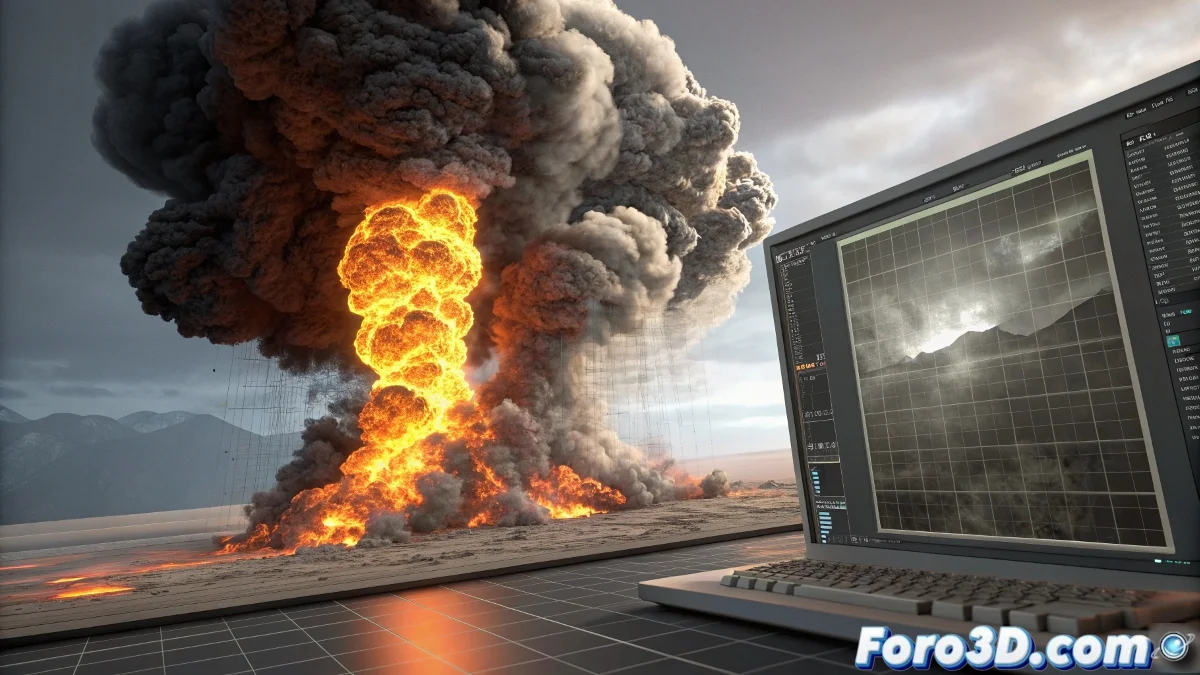
When the simulation needs that final magical touch
RenderWarps in FumeFX represent one of the most powerful and underutilized features of the software: a non-destructive deformation system that is applied during the rendering phase without altering the original simulation data. These modifiers allow artists to distort, twist, and transform complete fluid simulations after they have been calculated, opening up a universe of creative possibilities that previously required costly resimulation in terms of computation time.
The beauty of RenderWarps lies in their non-destructive nature: you can experiment with different deformations, adjust parameters, and see immediate results without needing to re-bake simulation caches. This fundamentally transforms the workflow, enabling rapid creative iteration in stages where any change previously required going back in the process. RenderWarps act as an intelligent post-processing layer specifically designed for simulation volumes.
RenderWarps are like creative lenses through which you view your already completed simulation
Types of RenderWarps and their applications
FumeFX offers several specialized types of RenderWarps, each designed for specific deformation tasks. The Noise Warp adds procedural turbulence to break repetitive patterns or add micro-detail. The Vector Warp allows directing the fluid flow following custom vector fields. The Transform Warp applies simple but effective scalings, rotations, and translations.
These deformers can be stacked in a chain, creating complex effects through the combination of multiple operations. For example, you can use a Noise Warp to add turbulence, followed by a Vector Warp to direct that turbulence into specific patterns, and finish with a Transform Warp to adjust the global scale. Each RenderWarp in the chain affects the result of the previous one, allowing sophisticated effect constructions.
- Noise Warp for turbulence and procedural noise
- Vector Warp for field-controlled direction
- Transform Warp for basic transformation operations
- Multiple stacking for complex effects
Non-destructive workflow
The typical process with RenderWarps starts with a complete base simulation saved in cache. Once you have the simulation data, you add RenderWarps as additional layers that modify how the simulation is rendered without altering the original data. This means you can experiment freely with different settings, intensities, and combinations without the fear of ruining simulations that took hours to calculate.
The viewport preview shows deformations in real time, allowing quick iterative adjustments. You can enable and disable individual RenderWarps to compare the deformed result with the original simulation, an invaluable feature for making informed artistic decisions. The performance during manipulation is excellent, as only the deformations are processed, not the physics resimulation.
With RenderWarps, "what if" becomes "let's see it now"
- Base simulation first, deformations later
- Free experimentation without risk
- Real-time preview of deformations
- Immediate comparison with original
Practical use cases in production
RenderWarps prove their value in numerous real production scenarios. For simulation correction, they can smooth artifacts, remove unwanted patterns, or adjust turbulence scale without resimulation. In creative effects, they allow creating dreamlike reality distortions, exaggerated slow-motion effects, or transforming ordinary smoke into complex organic shapes.
A particularly smart use is simulation reuse: the same smoke cache can serve multiple shots by applying different RenderWarps to each one. This maximizes return on investment in simulation time and ensures visual coherence between related shots while maintaining enough variation to avoid obvious repetitions.
Key parameters and their control
Each type of RenderWarp comes with its specific set of parameters that allow precise control over the deformation. The Noise Warp offers control over frequency, octaves, amplitude, and noise animation. The Vector Warp allows mapping vector fields from textures or other particle systems. The Transform Warp provides standard transformation controls but applied in render space.
Parameter animation opens additional possibilities: you can make a deformation appear progressively, change character over time, or even react to other scene elements. Parameters can be animated using standard 3ds Max controllers, allowing complex connections with other scene systems.
- Noise controls for Noise Warp
- Vector field mapping for Vector Warp
- Standard transformations for Transform Warp
- Parameter animation for dynamic effects
Performance optimization
Although RenderWarps add computational overhead during rendering, this cost is typically minimal compared to the simulation time saved. Deformations are calculated on-the-fly during rendering and can be optimized by adjusting the warp calculation resolution according to the shot's needs. For distant shots or subtle effects, you can reduce warp quality without noticeable visual impact.
Memory management during rendering with RenderWarps is efficient, as the original simulation data remains unaltered and deformations only require modest additional buffers. In setups with multiple complex RenderWarps, performance generally remains acceptable even in heavy scenes.
The time saved on resimulations more than pays for the rendering cost of RenderWarps
Integration with the render pipeline
RenderWarps integrate transparently with all render engines supported by FumeFX. Whether you're using V-Ray, Arnold, Redshift, or the native 3ds Max renderer, deformations are applied consistently during the volumetric sampling phase. This ensures that refrractions, shadows, and lighting effects interact correctly with the deformed geometry.
For compositing artists, RenderWarps offer the additional advantage that deformations are "baked" into the final render, eliminating the need to recreate complex distortion effects in compositing software. This simplifies the pipeline and ensures coherence between different render passes.
- Full compatibility with render engines
- Correct interaction with lighting and shadows
- "Baked" effects to simplify compositing
- Visual coherence between render passes
Best practices and professional tips
Experienced artists recommend starting with subtle deformations and gradually increasing intensity. It's easy to over-deform a simulation and lose the physical qualities that made the original simulation valuable. Another key tip is to use masks and attenuators to apply RenderWarps only to specific areas of the simulation, preserving other regions in their original state.
For large-scale atmospheric effects, Noise Warps with low-frequency settings are particularly effective for breaking uniformity without destroying the overall structure of clouds or fog. In fire and explosion simulations, Vector Warps can be used to direct elegant smoke columns or create specific vortical patterns that would be difficult to achieve through pure simulation.
The power in your hands
RenderWarps in FumeFX represent that sweet spot in effects software where technical power meets artistic flexibility. By providing a robust system for post-simulation manipulation, they empower artists to refine and perfect their work without the traditional limitations of the physical simulation process.
Whether you need to correct imperfections, add visual interest, or completely transform the character of a simulation, RenderWarps offer the tools to achieve it efficiently and non-destructively. In an industry where time is the most valuable resource, this ability to iterate quickly on already completed work can make the difference between a good effect and an exceptional one.
Mastering RenderWarps is like discovering that your completed simulation was just the draft of what it could really be 🎨