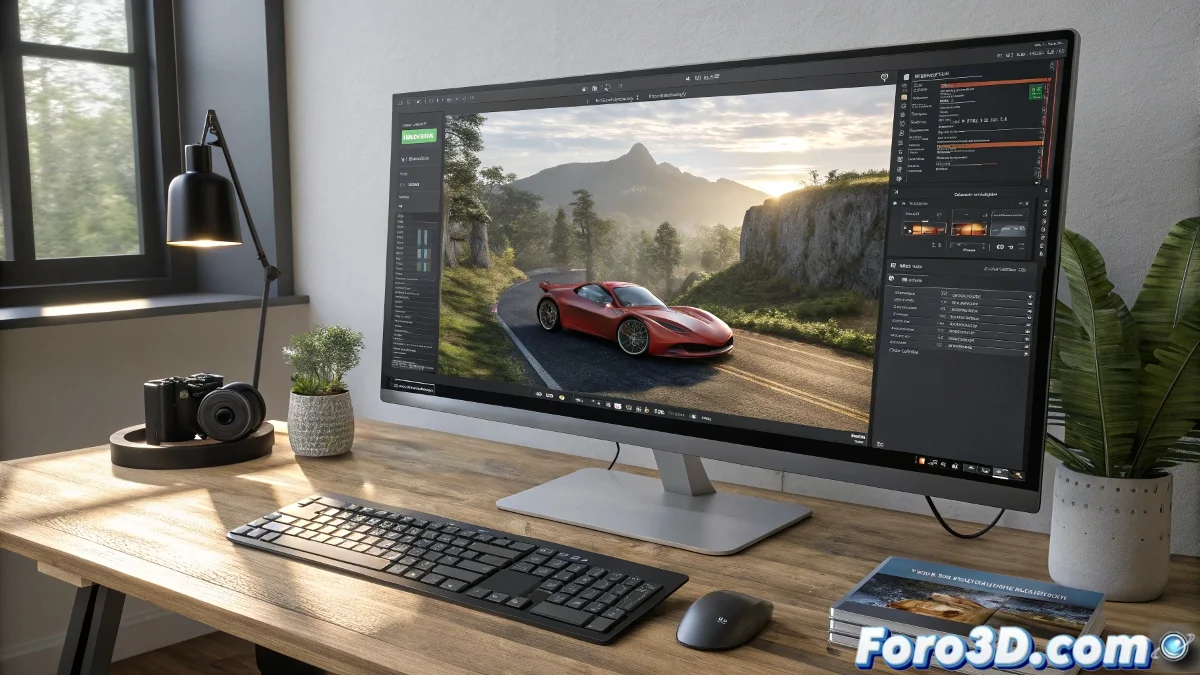
Rendering 3D Objects over Video in Blender after Tracking
After all the tracking work in Blender, comes the most exciting (and sometimes frustrating) part: getting your 3D object to look integrated over the original video at render time. The good news is that Blender has a node-based compositing system that allows you to do this quite flexibly, although you need to know a couple of tricks to avoid ending up with a gray or black background. And no, you don't need to be a Blender expert to do it! 🎥
Steps to Combine the 3D Object with the Video in Blender
Once you have your tracking set up and your 3D camera synchronized thanks to the motion tracking resolution, follow these steps for the final composition:
- Go to the Compositing workspace and check the Use Nodes box if you haven't already.
- Add a Movie Clip node and load your original video (the one you used for tracking).
- Create a Render Layers node so Blender can take the information from your rendered 3D object.
- Add an Alpha Over node or a Z Combine (depending on how you want to manage depth and the alpha channel).
- Connect the video to the background of the Alpha Over, and the Render Layer to the first input (the foreground).
- If using Z Combine, don't forget to enable the Use Alpha Channel option so it respects the render's transparency.
- Finally, connect the final result to the Composite node so Blender generates the composite image.
Extra Tips for Clean Rendering
Make sure the render engine (Cycles or Eevee) is configured correctly and that the lighting in your 3D scene matches the video's for a more realistic integration.
If the video has grain or noise, add a bit of Grain or use Denoise in the render so they blend better.
Export your final result in a video-supporting format like FFmpeg, and adjust the codec according to your needs.
And remember… if none of this works, you can always say your 3D object is a ghost… that way no one will notice it doesn't appear in the render. So get to work and render! 👻
With these tips, you'll be able to render 3D objects over video in Blender effectively. And remember, if the render doesn't come out as expected, you can always check your nodes! 🔄