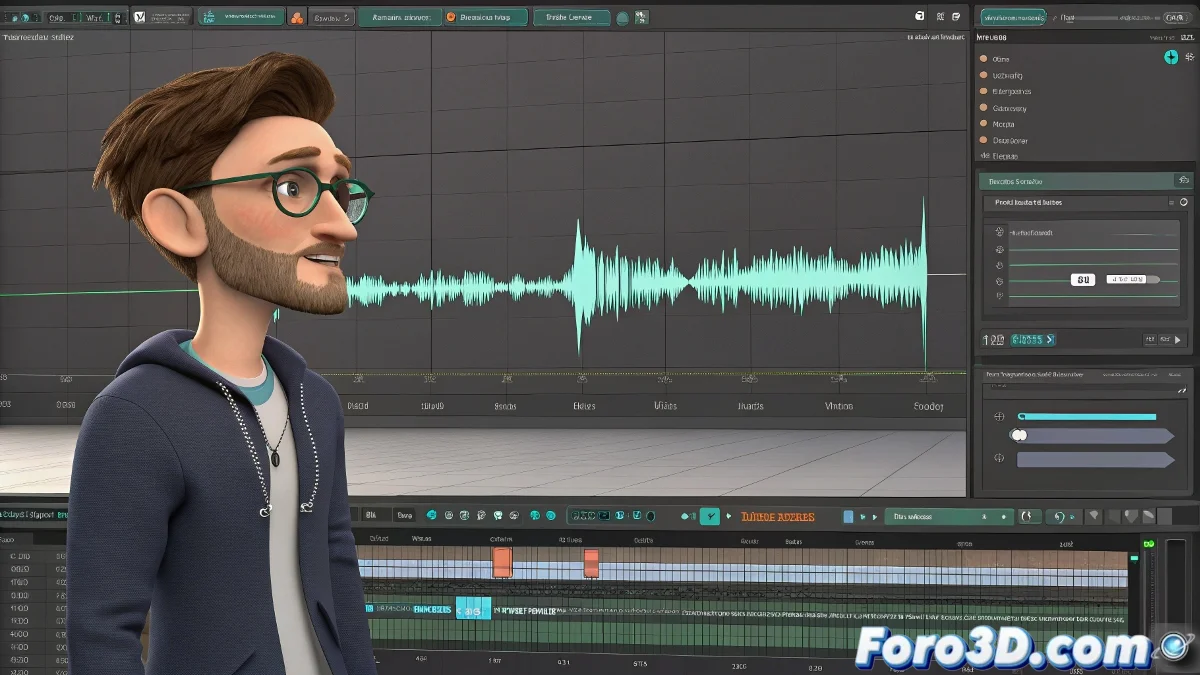
Eliminate the Annoying Whistle When Using WAV Audio in 3ds Max
Have you ever prepared a perfectly synchronized animation, only for 3ds Max to accompany it with a whistle worthy of a dolphin trainer? 🐬 You're not alone. This classic problem occurs when the WAV file is not in the exact format that Max expects. But don't worry, the solution is simpler than it seems. 💡
The Big Secret: Not All WAVs Are the Same
3ds Max is particularly picky with audio files. It requires WAV in:
- 16-bit PCM (uncompressed)
- Standard frequency (44.1kHz or 48kHz)
- Preferably mono for lip-sync animation
If you used an online converter, it probably gave you a "fake" compressed WAV or one with weird metadata. That's why it sounds fine in your player, but in Max it sounds like a detuned theremin. 🎶
How to Export the Perfect WAV
Use Audacity or Adobe Audition to convert your audio:
- Import the original file (even if it's MP3)
- Export as WAV (Microsoft) Signed 16-bit PCM
- Verify that the frequency is 44100 Hz or 48000 Hz
In 3D animation, an unexpected whistle can turn dramatic dialogue into unintentional comedy.
Optimal Configuration in 3ds Max
To avoid headaches:
- Load the audio from Time Configuration > Sound (not ProSound)
- Try the RAM Player as a playback alternative
- Update your sound card drivers
With these settings, your animation will sound as clean as a professional studio... or at least, without whistles that make you think your character is calling their dog. 🐕
Ironic Bonus: The funny thing is that sometimes we spend hours adjusting lip-sync, only for the final effect to sound like the character inhaled helium. Priorities, fellow animators! 😂