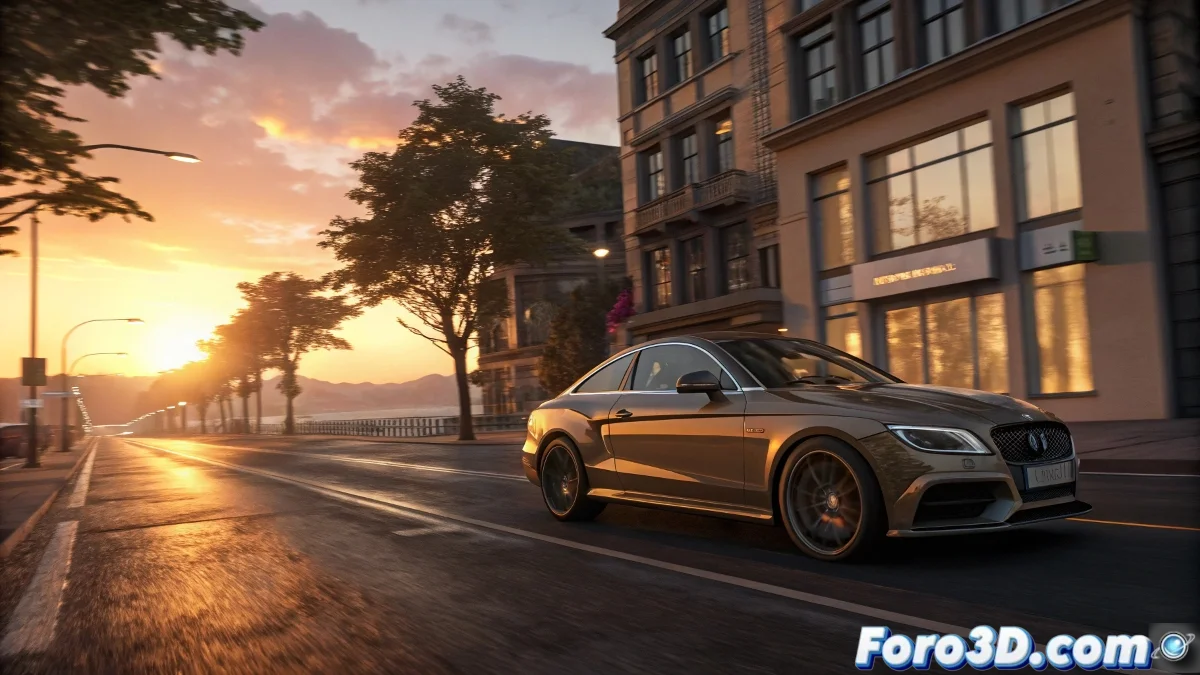
The Nightmare of Flickering in Rendered Animations
Rendering an animation in 3ds Max with V-Ray and discovering that moving objects flicker like a faulty Christmas tree is an experience that can ruin days of work 🎄. This phenomenon, known as flickering, occurs when the global illumination maps—specifically the Irradiance Map and the Light Cache—are not calculated consistently from one frame to the next. The lighting jumps slightly between frames, creating a visually disruptive effect that screams "low budget" even in high-quality productions.
The Heart of the Problem: Static Maps vs. Movement
The root cause of flickering is a conflict between an optimization technique (the use of precalculated lighting maps) and the dynamic nature of animation. The Irradiance Map samples the lighting at specific points in the scene. In one frame, a sampled point may be in a lit area; in the next frame, that same point may have been recalculated in a shadowed area due to movement, creating a brusque change in brightness. The problem worsens with low subdivisions and interpolation of samples that is too high, which smooths the lighting too much and amplifies inconsistencies.
Flickering is the hiccup of rendering; it appears without warning and ruins the rhythm of the entire sequence.
The Solution: Configuration for Animation
V-Ray offers specific modes designed to combat this problem. In the Irradiance Map rollout, do not use the Single Frame mode. Instead, select the predefined Animation mode or configure manually:
- Mode: choose Incremental add to current map or From file if you precalculated a map.
- Detail enhancement: consider it for scenes with a lot of small moving details.
- Interpolation frames: adjust this value (to 2 or 3) to smooth the transition between samples.
For the Light Cache, set the Mode to Animation and increase the Subdivs to a higher value (1500-2000 for quality animations). A higher sample rate ensures that the movement is sampled with sufficient density.
Additional Settings for Perfect Stability
The GI configuration alone is not enough. Check these other critical factors:
- Materials: materials with reflection/refraction must have their Subdivs increased to reduce noise that can be perceived as flickering.
- Lights: increase the subdivisions of V-Ray lights, especially area lights, to smooth moving shadows.
- Image Sampler: use Adaptive DMC with a lower Color threshold (0.003-0.005) to force more samples in high-contrast areas.
- Animated Objects: for objects that move very fast, consider doing a lighting pre-pass or using Brute Force for those specific elements.
Recommended Workflow for Clean Animations
Follow this pipeline for flicker-free animated renders:
- Precalculation: for camera animations, precalculate an Irradiance Map and Light Cache in Animation (prepass) mode and then render from file.
- Test Render: always render a 10-20 frame test segment at low resolution to detect flickering before the final render.
- Iterative Adjustment: if flickering appears, increase the Light Cache subdivisions first, then adjust the Irradiance Map.
- Final Render: render to image sequence, never directly to video, so you can re-render problematic frames individually.
- Post-production: a light degrain or temporal smoothing in compositing software like After Effects can help hide minimal residual flickering.
Mastering this configuration will transform your animations from flickering to professionally smooth. And if a frame resists, you can always say it's a stylistic stroboscopic light effect… though they probably won't believe you 😉.