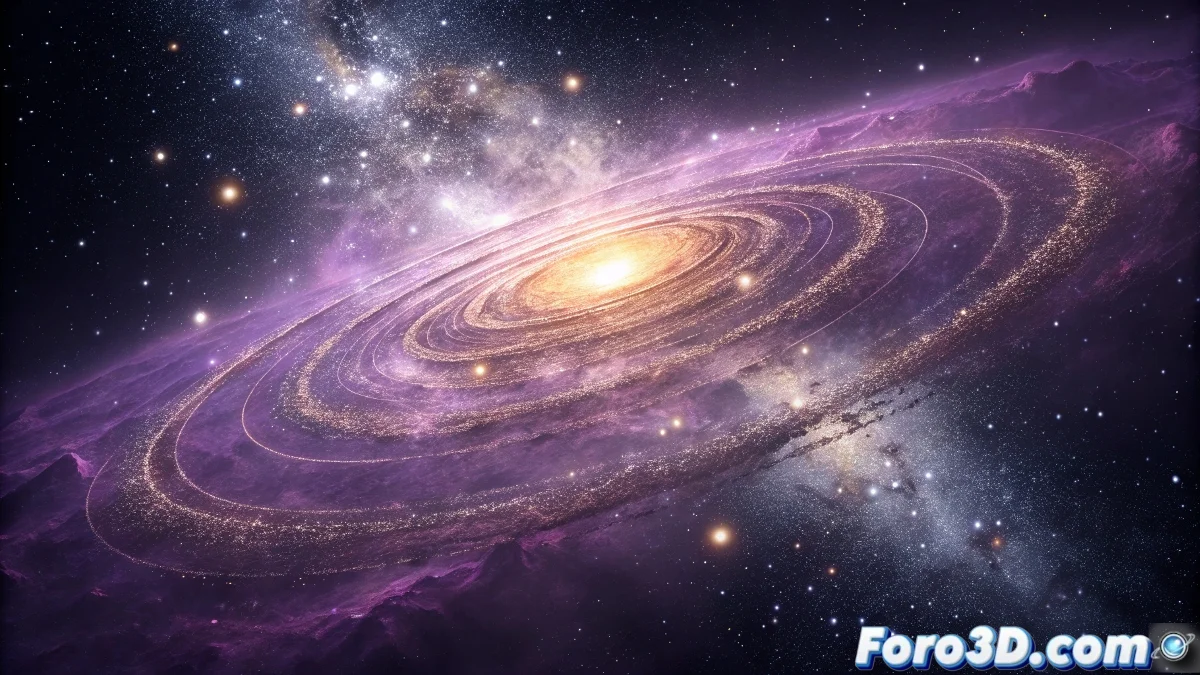
Recreating the Mystery of Galactic Gamma Rays with Krita and Wacom Intuos Pro
The fascinating astrophysical debate about the gamma ray excess in the galactic center represents an extraordinary opportunity to exercise our digital scientific illustration skills. Using Krita along with the Wacom Intuos Pro tablet, we can visually recreate how the dark matter distribution spatially coincides with this mysterious phenomenon, and compare it with the alternative hypothesis of unobserved millisecond pulsars. This step-by-step guide will take you through the complete creation process, from reference research to the final composition that shows both theories on equal footing. 🌠
Phase 1: Research and Understanding the Phenomenon
Before opening Krita, it is crucial to understand the scientific basis. Research the characteristics of the gamma ray excess: its spheroidal distribution, energy spectrum between 1-3 GeV, and extent of approximately 5 kiloparsecs. Study dark matter models such as the NFW and Einasto density profiles, and investigate the properties of millisecond pulsars and their expected distribution in the galactic bulge. Gather visual references from: dark matter halo simulations, Fermi-LAT telescope maps, pulsar magnetosphere diagrams, and representations of the galactic center. This preparation will ensure that your illustration is scientifically accurate as well as visually impactful.
Key elements to research:- Fermi-LAT gamma emission maps
- Dark matter density profiles from simulations
- Spatial distribution of ancient stellar populations
- Spectral characteristics of millisecond pulsars
- Structure of the galactic bulge and bar
- Position of known gamma sources in the region
Phase 2: Setting up Krita and Wacom Intuos Pro
Set up Krita to optimize the astronomical workflow. Create a 4000x4000 pixel document at 300 DPI with sRGB color space. Configure the Wacom Intuos Pro by assigning the ExpressKeys to frequent tools: brush (B), eraser (E), hand (H), and zoom. Program the Touch Ring to control brush size and zoom. Create a specific color palette for high-energy astronomy: deep blues for gamma rays, dark reds for dark matter, golds for pulsars, and intense blacks for deep space.
The precision of the Wacom Intuos Pro is essential for representing the subtle differences between astrophysical distributions.
Phase 3: Compositional Sketch and Layer Structure
Start with a sketch layer using a soft brush with low opacity. Design a composition that clearly shows the comparison between both hypotheses. An effective approach is to divide the illustration into three panels: one showing the dark matter hypothesis, another the pulsar hypothesis, and a third showing the overlay and direct comparison. Establish an organized layer structure from the beginning: space background, stellar distribution, dark matter, gamma rays, pulsars, and annotation elements.
Phase 4: Creating the Galactic Background
Using the Wacom Intuos Pro with a large airbrush, paint the galactic center background. Start with deep blacks and gradually add bluish and purplish tones to represent the stellar field and dust clouds. Use "stars" texture brushes to create the characteristic galactic bulge, with higher density toward the center. The tablet's variable pressure will allow you to create stars of different brightnesses naturally. Add the galactic dust lane using cloud-textured brushes at low opacity.
Phase 5: Representing Dark Matter
To visualize the dark matter distribution, create a new layer in "Overlay" or "Soft Light" mode. Use a soft round brush with semi-transparent dark red color. With the Wacom Intuos Pro, apply more pressure in the center to represent the high central density and gradually reduce pressure toward the edges, creating the characteristic NFW density profile. Add multiple layers with different opacities to create a convincing volumetric effect. Use layer masks to precisely define the extended spheroidal shape.
Techniques for dark matter in Krita:- Multiple layers in blending modes for depth
- Gaussian blur brushes for smooth transitions
- Gradient tools for density profiles
- Vector masks for mathematically precise shapes
- Noise filters for density fluctuation texture
- Adjustment layers for fine-tuning color and contrast
Phase 6: Visualizing the Gamma Ray Excess
Create a separate layer for the gamma rays using blue and cyan tones in "Screen" or "Addition" mode. With the Wacom Intuos Pro, use a particle brush to represent the photonic nature of gamma emission. Variable pressure will allow you to create intensity variations that reflect the real Fermi-LAT data. Overlay this layer with the dark matter one to show the spatial coincidence. Use transformation tools to adjust scale and alignment until achieving optimal visual correlation.
Phase 7: Representing Millisecond Pulsars
For the alternative hypothesis, create a layer with small golden dots representing the unobserved pulsars. Use a star-shaped brush and vary size and brightness with tablet pressure to simulate a diverse population of pulsars. Distribute them following the density profile of ancient stars in the galactic bulge. Add subtle radiation cones around some pulsars using fan-shaped brushes at very low opacity, representing their radiation beams.
Phase 8: Integration and Special Effects
Combine all layers using appropriate blending modes to create a coherent composition. Add glow effects in areas of highest gamma intensity using layers in "Addition" mode. Create faint grid lines for spatial reference and distance scales in kiloparsecs. Use Krita's text tool with the Wacom tablet to add scientific annotations explaining the key elements of the illustration.
Phase 9: Final Composition and Export
Review the complete composition and make final color and contrast adjustments. Ensure the comparison between hypotheses is clear and objective. Create a detailed legend explaining each element and its scientific meaning. Export in high resolution for educational uses and consider creating animated versions showing how different parameters would affect each hypothesis's predictions.
By completing this illustration in Krita with the Wacom Intuos Pro, you will have created not only a work of art, but a powerful scientific communication tool. This visual recreation of the galactic gamma rays debate demonstrates how digital art can make complex astrophysical concepts accessible, allowing scientists and the general public to understand and participate in one of the most fascinating mysteries of modern cosmology. Each precise stroke with the Wacom tablet contributes to visualizing the elegant competition between alternative scientific explanations, celebrating the collaborative and competitive nature of frontier research.