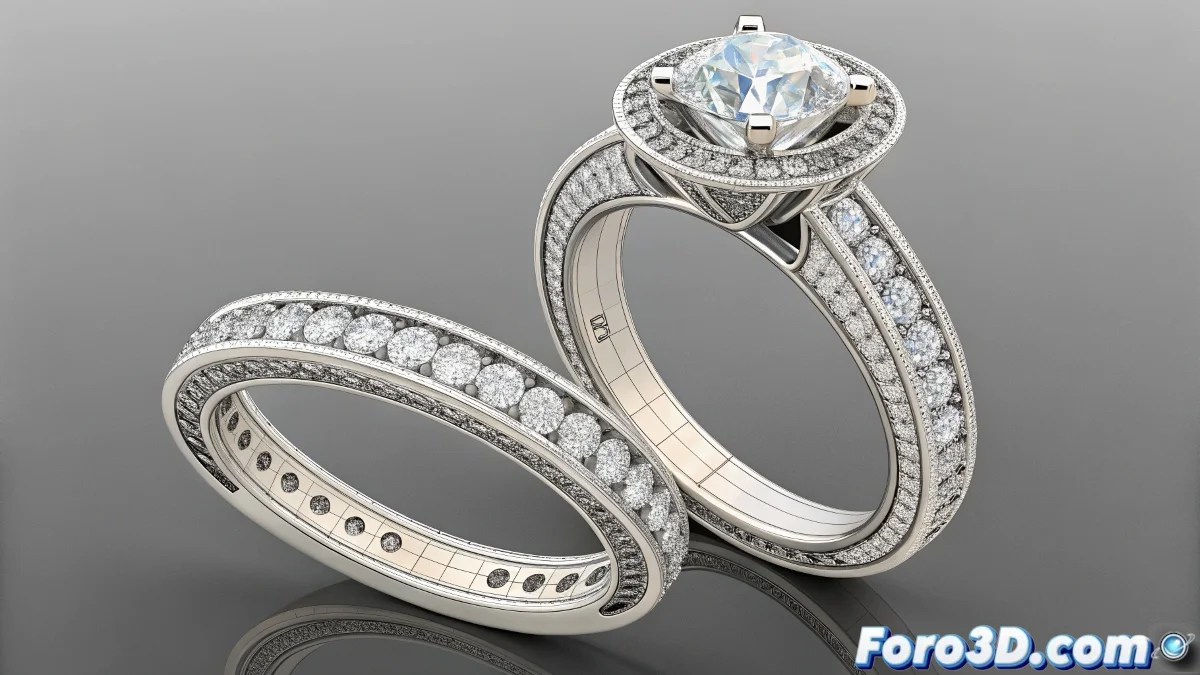
When Your Objects Need to Build Themselves
Animating objects that magically assemble in 3ds Max is like being the director of a digital construction show... without complaining workers. 🏗️ For complex shapes like interlocked rings, these are the professional methods that keep the geometry impeccable.
The Animator's Construction Arsenal
Technique 1: The Power of Slice
- Apply the Slice modifier to your geometry
- Animate the cutting plane with keyframes
- Use Cap Holes for a clean closure
Technique 2: Material Masks
- Create a material with an animated opacity mask
- Use Gradient Ramp maps controlled by expressions
- Combine with UVW Xform for greater control
A well-built logo is like a good presentation: it reveals the information just when it should, neither before nor after.
Technique 3: Spline Magic
- Draw splines following the logo shape
- Apply Path Deform to the geometry
- Animate the deformation percentage
Comparative Table of Methods
| Technique | Advantages | Best for |
|---|---|---|
| Slice | Millimetric precision | Rigid shapes |
| Masks | Smooth transitions | Complex materials |
| Splines | Organic movements | Curved paths |
Pro tip: For interlocked logos, animate one ring completely first and then sync the second with a 5-10 frame offset. Create the perfect illusion of sequential construction. ⏱️
Now that you master these techniques, your logos won't just appear... they'll have a full construction ceremony. And when that client says "can you make it assemble in another way?", you can respond "which of these three methods do you prefer?" with a smug technical smile. 😎
Bonus tip: For more spectacular effects, combine these techniques with particles that "paint" the surface as it builds. Lights, camera, action for your logo!