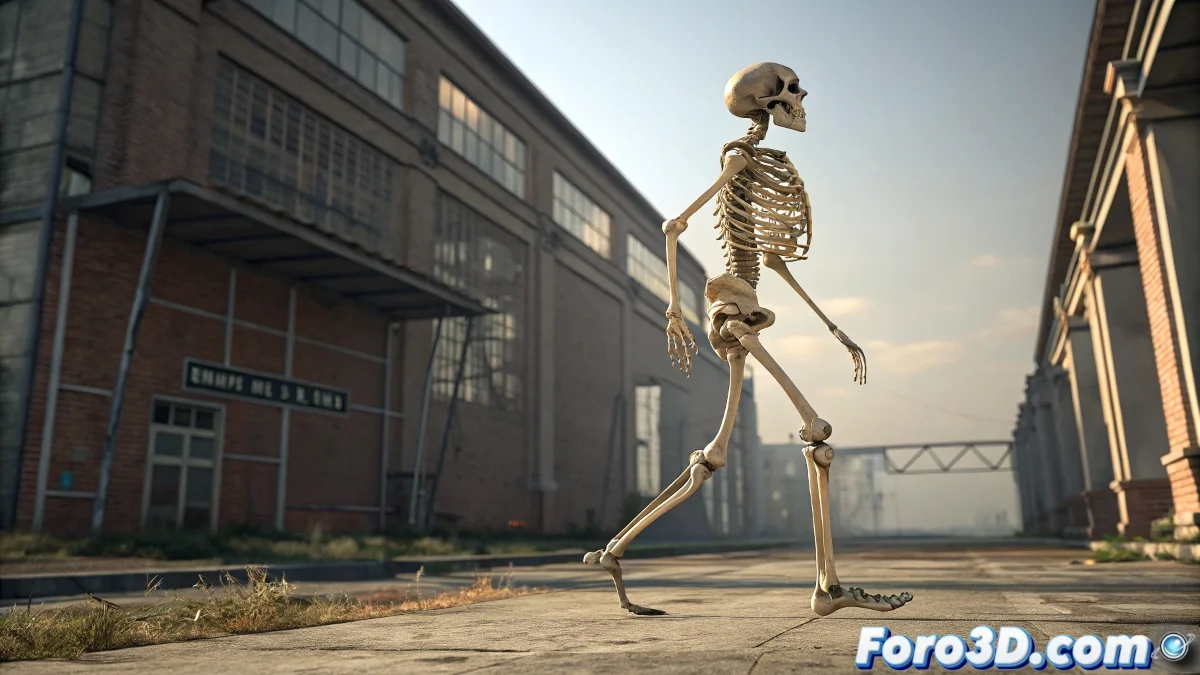
When Your FBX Model and Biped in 3ds Max Refuse to Dance Together 💃🕺
You imported your model, set up the Biped carefully, but when animating... nothing. The character stays stiff while the skeleton dances alone. Don't despair, these are the secrets to achieving perfect harmony between geometry and rig.
1. The Sacred Ritual of Correct Skinning
Foolproof Step-by-Step:
- Select only the geometry (not the Biped)
- Apply the Skin modifier
- Click Add Bone and select:
- All Biped bones (including Pelvis)
- Additional helpers if you use them
- Verify they all appear in the list
2. Solutions to Specific Problems
| Problem | Solution |
|---|---|
| Model doesn't move | Use Weight All Vertices |
| Strange deformations | Check envelopes with Edit Envelopes |
| Invisible bones | Check layers and display properties |
3. Cleaning Imported FBX
- Reset XForm + Collapse Stack before skinning
- Remove strange modifiers (Morpher, previous Skin)
- Freeze transformations (Rotation/Position to 0)
- Check scale (use correct System Units)
4. Modern Alternatives to Biped
More Updated Options:
- CAT Rigs: More flexible for creatures
- Mixamo + Manual Adjustment: For quick humans
- Advanced Skeleton: For professional pipelines
- Unreal/Unity Humanoid: If for game engines
"A good rig is like a custom suit: it must fit your model perfectly, not the other way around"
Professional Workflow
- Import FBX with Embed Media and Animation enabled
- Clean geometry (Reset XForm, Collapse)
- Set up Biped/CAT according to proportions
- Apply Skin meticulously
- Paint weights strategically (joints first, then details)
- Test with extreme poses before animating
Crucial Tip: For asymmetric characters, always work in Side view (Left/Right) to avoid cross assignments.
And remember: that moment when your character looks like a rag doll while the Biped does pirouettes... it's just a temporary phase. Follow these steps and soon they'll be dancing to the same rhythm. 🎵