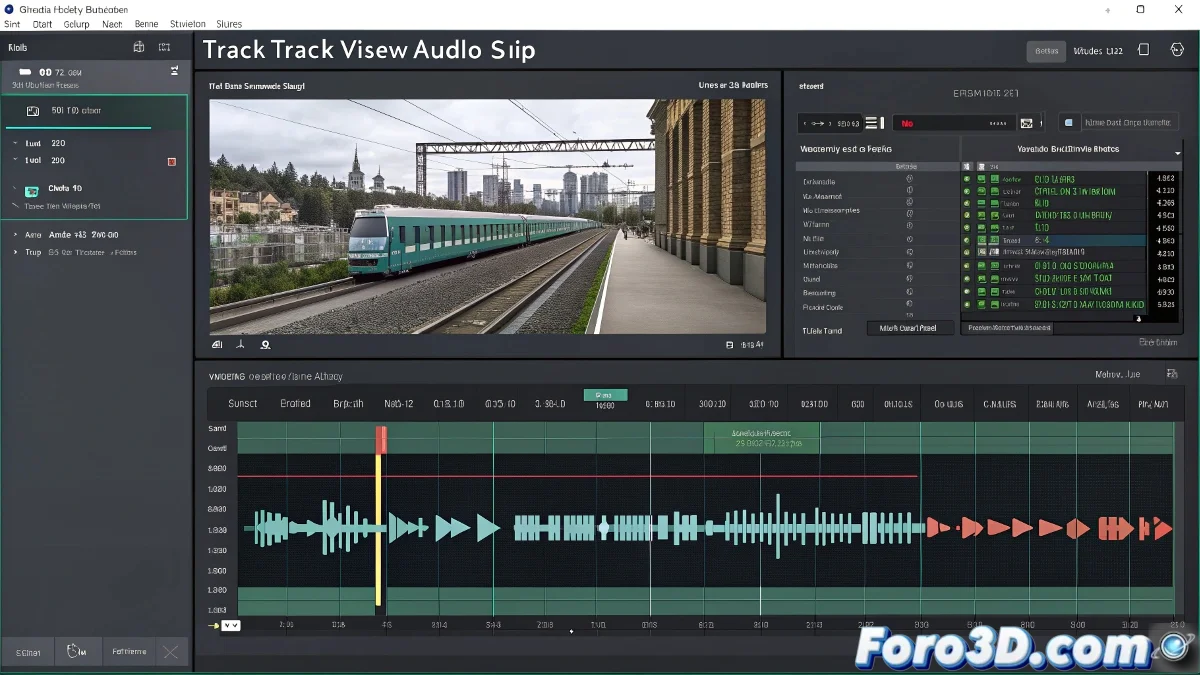
How to Play Audio in a Frame Range
When you insert an audio file into Track View → Sound, it plays across the entire timeline by default. If you want it to be heard only in a specific range (for example, from frame 50 to 80), you can't trim it directly in 3ds Max, but there are several ways to control it 🎧.
Prepare the Audio in an External Editor
The most effective way is to prepare the file outside of 3ds Max in an editor like Audacity or Adobe Audition. Cut the fragment you need (frames 50 to 80 converted to seconds according to your FPS) and export it as a new WAV file. Then import it into Track View → Sound.
Use the Start Time Option
Another practical option is to use the Start Time setting when adding the file in Track View. This allows you to shift the sound's start to match frame 50, thus adjusting the synchronization ⏱️.
Split into Audio Clips
If you need even more control, split your file into several fragments and load only those that correspond to the range you need. This way, you can better organize your reference tracks.
A Detail to Keep in Mind
Remember that 3ds Max is not designed as an audio editor, but as an animation tool. Sound is only used as a reference to synchronize movements. The ideal is to prepare the track in an external editor and bring only what's necessary 🎬.