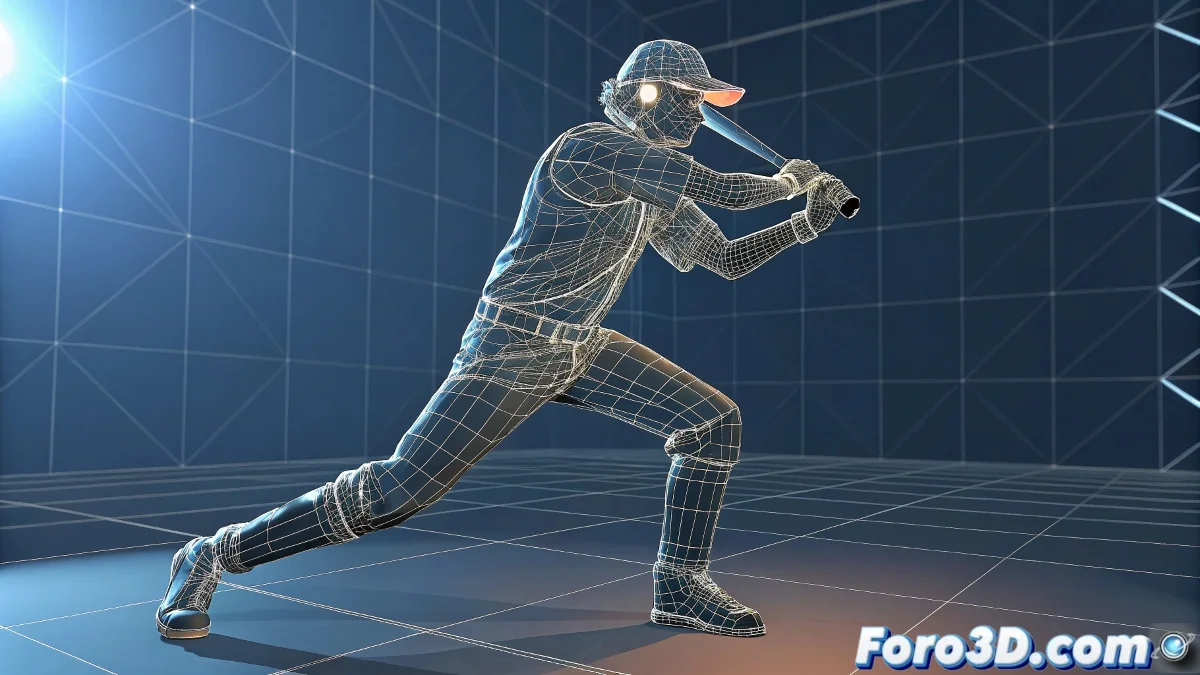
The smart strategy for lighting in animations
When planning an animation in 3ds Max with V-Ray, the question of when to apply lighting is fundamental to optimizing your workflow. The most efficient answer is to develop lighting progressively: start with a basic setup during the animation phase for sufficient visibility of movement and compositions, and then refine the full lighting once the animation is locked and approved. This approach avoids the frustrating scenario of meticulously adjusting lights only to discover that animation changes require redoing all the lighting. The long render times you mention are a clear sign that you need to implement specific V-Ray optimization strategies.
Recommended workflow
To maximize your efficiency, follow a phased approach that clearly separates animation and lighting tasks.
- Phase 1: Basic lighting during animation with simple lights
- Phase 2: Final refinement once the animation is frozen
- Phase 3: Specific optimization for final rendering
- Phase 4: Non-destructive adjustments using Light Mix
Options to disable and optimize lights
V-Ray offers multiple methods to manage lights without completely removing them from the scene.
Managing lights in animation is like directing traffic: you need to control which vehicles are moving and when to avoid congestion
- Disable individual lights from the properties panel
- Use lighting layers to enable/disable groups
- Set intensity to 0 on non-essential lights
- Use exclude/include lists to control which objects each light illuminates
Advanced optimization techniques
To drastically reduce render times without sacrificing quality, implement specific V-Ray strategies.
Mastering efficient lighting management in animations transforms you from an artist waiting for renders to a professional who controls their pipeline 🎯. Every optimization technique you implement not only speeds up your current project but also builds invaluable knowledge for handling tight deadlines in professional productions where time is literally money.